> For the complete documentation index, see [llms.txt](https://docs.easycalling.easyplatform.app/llms.txt). Markdown versions of documentation pages are available by appending `.md` to page URLs; this page is available as [Markdown](https://docs.easycalling.easyplatform.app/user-guides/voice-app-manager.md).
# Day in the Life: Voice App Manager
See how Easy Calling helps supervisors and team leads manage their contact center
**Meet Mike** – He's a team lead managing 8 support agents at a software company. His team handles technical support calls, and he's responsible for making sure calls don't slip through the cracks, agents aren't overwhelmed, and service levels stay high. Here's how Easy Calling helps him keep everything running smoothly.
***
## 8:30 AM – Morning Dashboard Check
Mike arrives 30 minutes before his team starts taking calls. He uses this time to prepare for the day.
### What He Does:
1. Opens **Easy Calling** in Microsoft Teams
2. Switches to the **"Voice App Manager"** view
3. Reviews yesterday's call statistics
4. Checks which agents are scheduled for today
### What He Sees:
**Yesterday's Stats:**
* **147 calls answered** (target: 140)
* **8 calls missed** (target: <5)
* **Average wait time: 42 seconds** (target: <60 seconds)
* **6 voicemails left**
**Agent Availability for Today:**
* **8 agents scheduled**
* **2 agents on training** from 2:00-3:00 PM
* **1 agent on vacation**
**Mike's Takeaway:** Yesterday was good overall, but 8 missed calls is higher than usual. He makes a mental note to check call volume patterns today.
***
## 9:00 AM – Calls Start Coming In
The phone lines officially "open" at 9 AM. Mike watches the dashboard to ensure everything runs smoothly.
### What He Monitors:
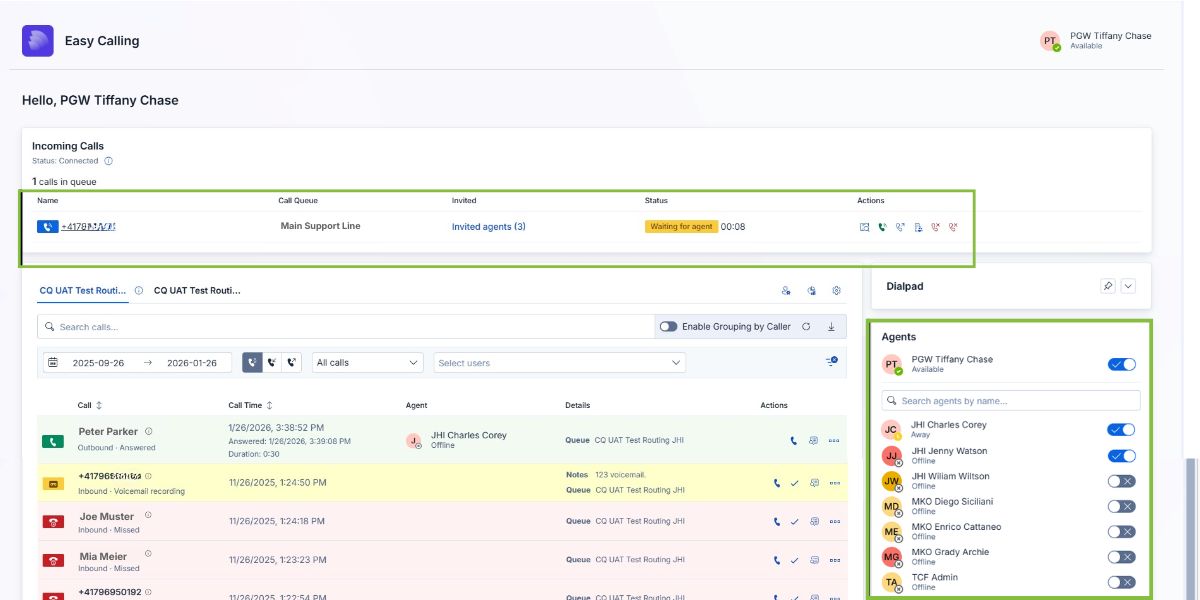
**Real-Time Agent Status:**
Mike sees which agents are available, on calls, or on break
Mike sees:
* **Tiffany** – Available (green)
* **Charles** – Away (yellow)
* **Jenny** – Offline (gray)
**Incoming Call Queue:** Mike sees **1 call waiting** in the queue: Waiting 8 seconds (from Main Support Line)
**What Mike Notices:** Charles is on break (away) and Jenny is offline, but with just 1 call in the queue and 1 available agent (Tiffany), the situation is under control. Mike doesn't need to intervene.
***
## 9:45 AM – A Call Volume Spike
Suddenly, **5 calls** hit the queue at once. Mike sees wait times climbing.
### What He Sees:
* **5 calls in queue**
* **Average wait time: 78 seconds** (exceeding the 60-second target)
* **4 agents available**, **3 agents on calls**
### What Mike Does:
**Option 1: Notify the Team**
Mike opens the Teams chat for his support team: *"Hey team, we've got a call spike – 5 in queue. If anyone can wrap up quickly or hop back from break, that'd be great! "*
**Option 2: Check Agent Status**
Mike clicks on Kevin's profile. He sees Kevin's been on break for 18 minutes (scheduled for 15 minutes). Mike sends Kevin a quick Teams message: *"Hey Kevin, we're swamped – can you jump back in when you're ready?"*
Kevin responds immediately and toggles back to "Available" in Easy Calling.
**Result:**
Within 2 minutes, all 5 calls are answered. Wait times drop back to normal.
**Time saved with Easy Calling:** Mike spotted the spike immediately and intervened in **60 seconds**. Without real-time visibility, calls would have sat in queue much longer.
***
## 10:30 AM – Investigating Missed Calls
Mike remembers that yesterday had 8 missed calls - more than usual. He wants to understand why.
### What He Does:
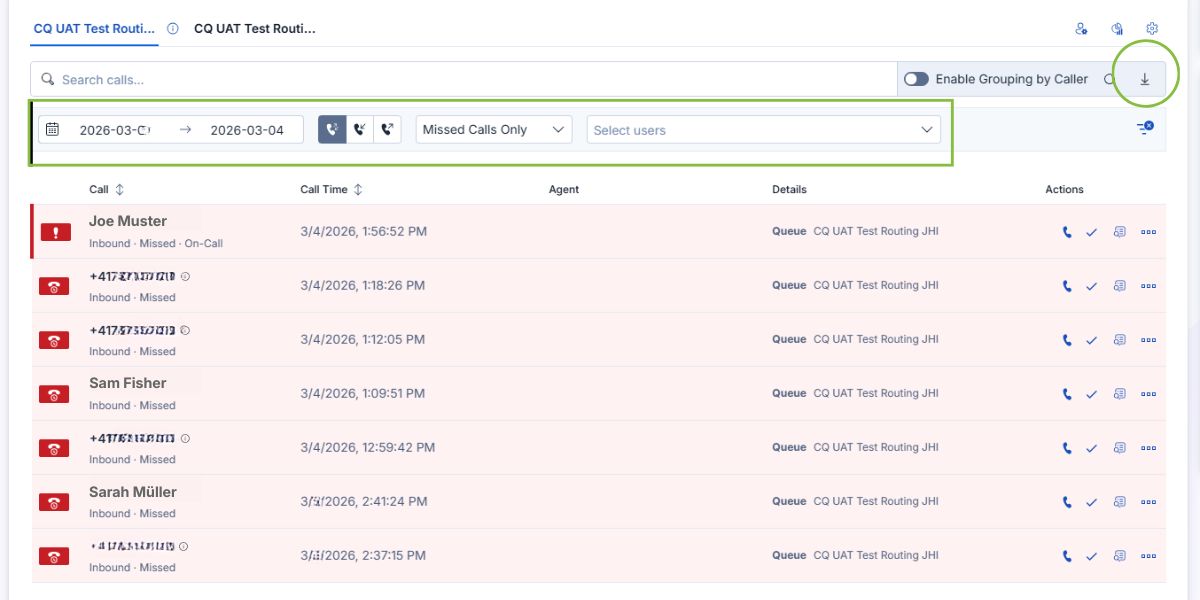
1. Open **Call Queue** to see designated **Call History**
2. Filters by **"Date (Yesterday)"**
3. Filters by **"Missed Calls"**
### What He Finds:
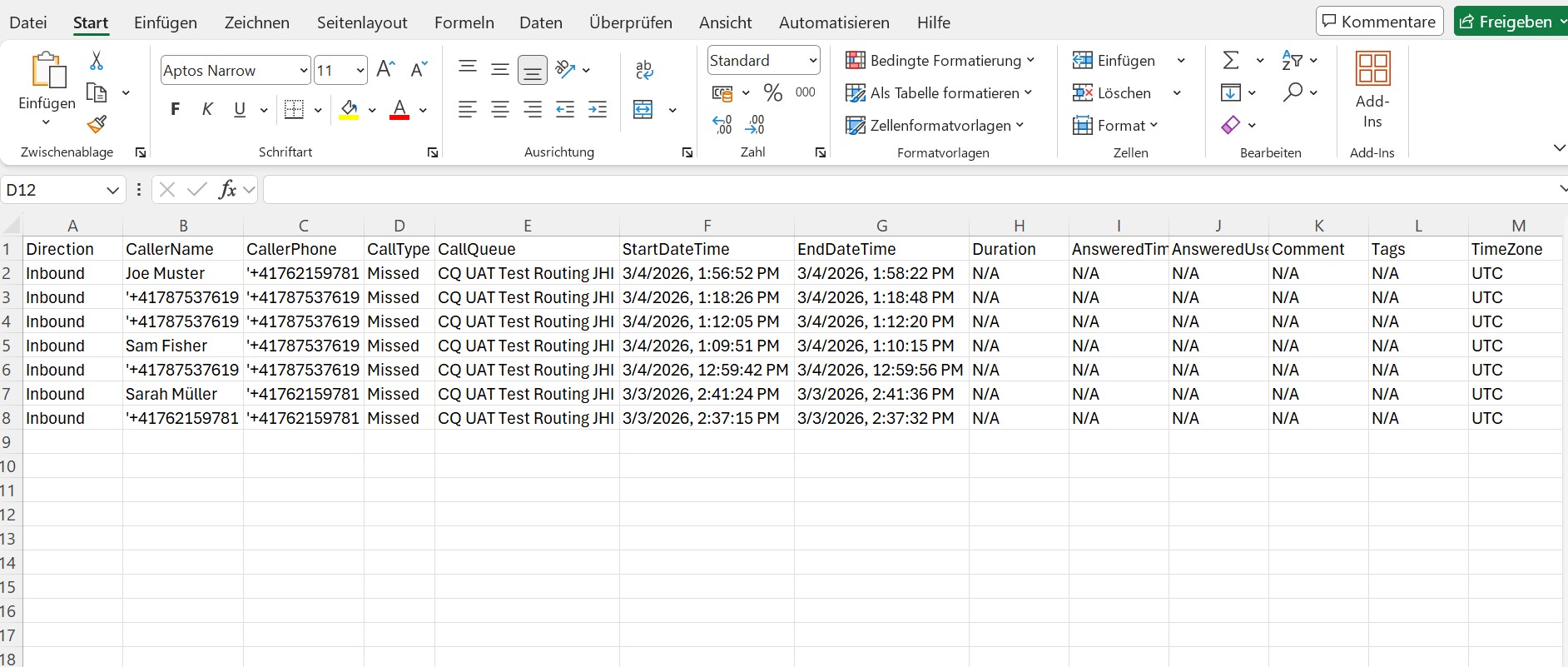
Mike filters call history to investigate missed calls - and exports CSV file
**The 8 Missed Calls:**
The CSV file ready for analysis
**Mike's Analysis:**
* **5 missed calls** happened during lunch break (12:00-2:00 PM)
* **2 missed calls** happened during training (2:00-3:00 PM)
**Mike's Action Plan:**
1. **Lunch breaks:** Stagger lunch breaks so at least 2 agents are always available
2. **Training:** Notify customers via voicemail greeting that training is happening
Mike clicks on each missed call and creates tasks:
* **Task 1:** "Update agent lunch schedule"
* **Task 2:** "Record temporary voicemail greeting for training days"
**Time saved with Easy Calling:** Mike identified the root cause in **5 minutes** instead of asking each agent individually and piecing together the story.
***
## 11:00 AM – Updating the Voicemail Greeting
Mike needs to record a new voicemail greeting for training days.
### What He Does:
1. Opens **Easy Calling** → **Voice App Configuration** → **Calling Configuration**
2. Clicks **"Audio Configuration"**
3. Selects **"Greeting Message"**
4. Records a new message:
*"Thank you for calling \[Company] support. Our team is currently in training and may have longer wait times than usual. Please leave a message, and we'll return your call within 2 hours. Thank you for your patience."*
5. Clicks **"Save"**
**Result:**
The next time the team has training, customers will hear this greeting and understand why wait times are longer.
**Time saved with Easy Calling:** Mike updated the greeting in **3 minutes** without needing IT support or special tools.
***
## 12:00 PM – Reviewing Queue Performance
Mike wants to understand how the support queues performed this week.
### What He Does:
1. Selects the **Last 7 Days** on the time table
2. Clicks on the **Analytics Icon**
3. Reviews queue statistics
### What He Sees:
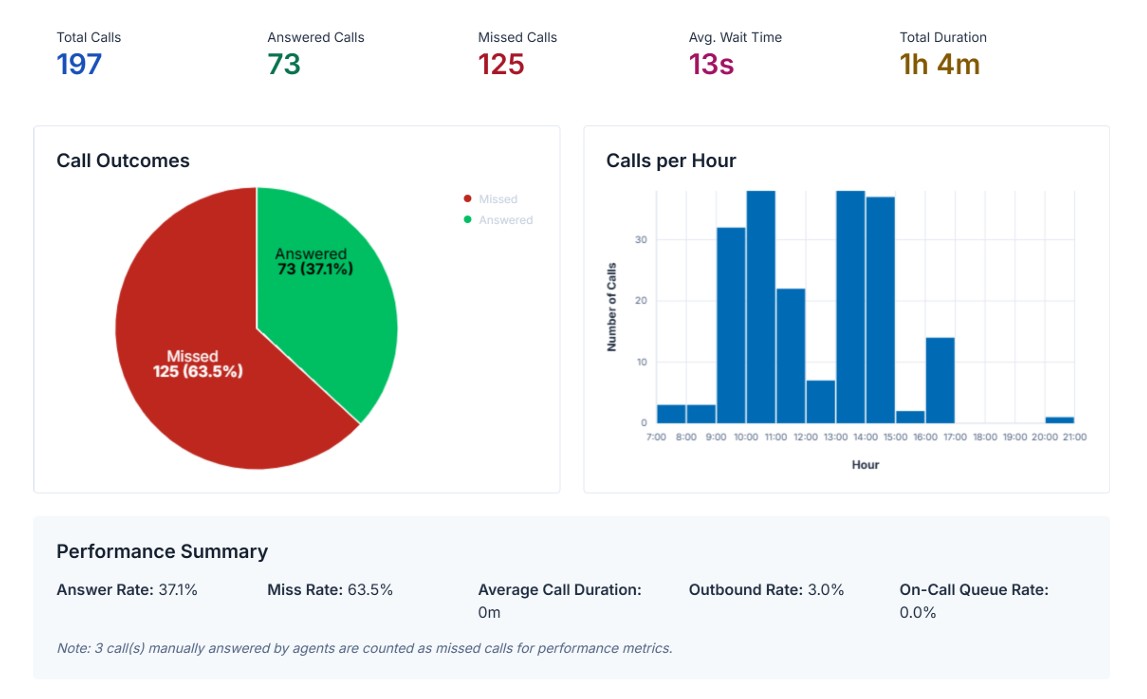
**Queue Statistics (Last 7 Days):**
* Total Calls: 197
* Answered Calls: 73
* Missed Calls: 125
* Wait Time: 13s
**Mike's Observations:**
* The **Call Queue** has a 63.5% missed call rate – high above target
* Most Calls come in between 9:00 - 11:00 AM and 1:00-3:00 PM
**Mike's Action:**
Mike exports the statistics report as PDF and adjusts the schedule to stagger breaks and maintain a better queue coverage.
**Time saved with Easy Calling:** Mike has queue-level insights in **5 minutes** instead of manually collecting data.
***
## 1:30 PM – Adjusting Agent Availability
Mike's staggered lunch schedule is working well, but he notices Amy is still marked as "On Break" even though her break ended 10 minutes ago.
### What He Does:
1. Takes a look at **Agent** status panel
2. Sees Amy's status: **"Away"**
3. Sends Amy a Teams message: *"Hey Amy, just checking – are you back from lunch? Still showing you as "away"*
Amy responds: *"Oh! I forgot to toggle back. Thanks!"*
Amy switches to "Available" and starts taking calls again.
**Why this matters:** Mike caught the issue before calls piled up. Without real-time visibility, Amy might have stayed "unavailable" for another 20 minutes.
***
## 2:30 PM – Handling an Escalation
Sarah transfers a frustrated customer to Mike. The customer wants to speak to a manager.
### What Happens:
**1. Mike Gets a Teams Call Notification**
The Easy Calling dashboard shows:
* **Caller:** David Lee (VIP Customer)
* **Transferred by:** Sarah
* **Sarah's Notes:** *"Customer's order was delayed. Very upset. Wants manager."*
**2. Mike Answers**
Because Mike can see Sarah's notes, he greets David with context:
*"Hi David, this is Mike, the team lead. I understand your order was delayed – I'm so sorry about that. Sarah filled me in. Let me see what I can do to make this right."*
David is relieved he doesn't have to re-explain everything.
**3. After the Call**
Mike:
* Reviews the order details
* Sends a follow-up email to David with a shipping update
* Creates a task: *"Check with warehouse about VIP order delays"*
* Adds a note to David's call record: *"Escalation resolved – customer satisfied"*
**Time saved with Easy Calling:** Sarah's notes gave Mike full context in **0 seconds**. The customer didn't waste time repeating themselves, and Mike resolved the issue faster.
***
## 3:00 PM – Team Training (Mike Opts Out)
From 3:00-4:00 PM, Mike is running a training session for the team on a new product feature.
### What He Does:
**Before Training Starts:**
1. Opens Easy Calling
2. Opts out the agents who are in training via the **Agents** panel
3. The voicemail greeting he recorded earlier kicks in automatically
**During Training:**
Mike keeps an eye on the Easy Calling dashboard on his second monitor. He sees:
* **3 calls** came in and went to voicemail (as expected)
* **No one is marked as available** (correct – everyone's in training)
**After Training:**
1. Mike opts all agents back in to the queue
2. Agents check voicemails and start returning calls
**Time saved with Easy Calling:** Mike controlled the entire team's availability in **30 seconds** without needing to tell everyone individually.
***
## 4:00 PM – End-of-Day Reporting
Mike's manager asks for a daily report on call performance.
### What He Does:
1. Selects the voice app and date range
2. Opens **Analytics**
3. Clicks **"Export to PDF"**
4. The report includes:
* Total calls answered and missed
* Average wait time
* Total Duration
* Call Outcomes (answered / missed)
* Calls per hour
* Performance summary: Answer Rate | Miss Rate | Average Call Duration | Outbound Rate | On-Call Queue Rate
5. Mike emails the report to his manager
**Time taken:** **2 minutes.**
**What would have happened without Easy Calling:** Mike would spend 30+ minutes manually compiling data from multiple sources, asking agents for information, and creating a report from scratch.
***
## 4:30 PM – Preparing for Tomorrow
Mike's day is winding down, but he uses the last 30 minutes to prepare for tomorrow.
### What He Does:
**1. Reviews Tomorrow's Schedule**
* **7 agents scheduled** (1 is still on vacation)
* **No training sessions**
* **Expected call volume: \~140 calls**
**2. Checks Open Tasks**
Mike opens Microsoft Planner and reviews tasks assigned to the team:
* **5 customer callbacks pending**
* **2 follow-up emails**
* **1 escalation from yesterday**
He sends a quick Teams message to the team: *"Hey team – 5 callbacks for tomorrow. Let's knock those out first thing in the morning. Have a great evening! "*
**3. Adjusts Agent Assignments**
Since one agent is still on vacation, Mike reassigns some tasks to other agents to balance the workload.
***
## What Mike Says About Easy Calling
> *"Before Easy Calling, I felt like I was constantly putting out fires. I'd find out about problems after they'd already caused issues. Now, I can see everything in real-time – who's on calls, who's available, where the bottlenecks are. I can fix problems before they become big issues. And the reporting? Game-changer. I used to spend an hour every day pulling data together. Now it's 5 minutes. Easy Calling doesn't just help my agents – it makes me a better manager."*
***
## Key Takeaways for Voice App Managers
If you're a supervisor or team lead like Mike, here's what Easy Calling does for you:
### 1. **Real-Time Visibility**
See exactly what's happening right now – which agents are available, busy, or offline. Spot issues before they become problems.
### 2. **Data-Driven Decisions**
Make decisions based on actual call queue data. Understand call volume patterns, missed call trends, and identify scheduling improvements.
### 3. **Instant Adjustments**
Update voicemail greetings, change agent availability, and adjust call routing in seconds – no IT tickets required.
### 4. **Effortless Reporting**
Generate daily, weekly, or monthly reports with one click. Export to CSV or PDF and share with your manager.
### 5. **Proactive Management**
Catch missed calls, long wait times, and agent availability issues immediately. Fix them before customers notice.
### 6. **Less Time on Admin, More Time on People**
Spend less time gathering data and more time coaching your team, improving processes, and delivering great customer experiences.
***
## Want to Learn More?
* [**Voice App Manager Guide**](/feature-categories/administration-and-configuration.md) – Complete feature guide for supervisors
* [**How to Configure Call Queues**](/getting-started/easy-calling-configuration.md) – Set up and manage call queues
* [**Analytics & Reporting**](/feature-categories/analytics-and-reporting.md) – Master the analytics dashboard
* [**Agent Management**](/feature-categories/administration-and-configuration.md) – Control agent availability and assignments
***
**Ready to manage like Mike?** Open Easy Calling and take control of your contact center.