# Easy Calling

Transform Microsoft Teams into your intuitive contact center solution with live call management

## Why Easy Calling?

**Tired of missed calls, juggling between apps, and losing track of customer conversations?**

Easy Calling transforms Microsoft Teams into a powerful contact center. Easy to handle, ready for immediate use and budget-friendly. If you're handling customer calls, support requests, or sales inquiries, Easy Calling helps you:

✅ **Never miss a call again** – See all incoming calls in real-time, know who's available, and route calls intelligently\
✅ **Save time on every call** – Access caller history, voicemails, and notes in one place\
✅ **Stay organized effortlessly** – Automatic call logs, follow-up tasks, and email integration as well as flexible agent management\
✅ **Keep your team informed** – Live dashboards show who is calling, who is busy, who is available, and which calls need attention\
✅ **Work from anywhere** – Full functionality in Teams or as a standalone web app

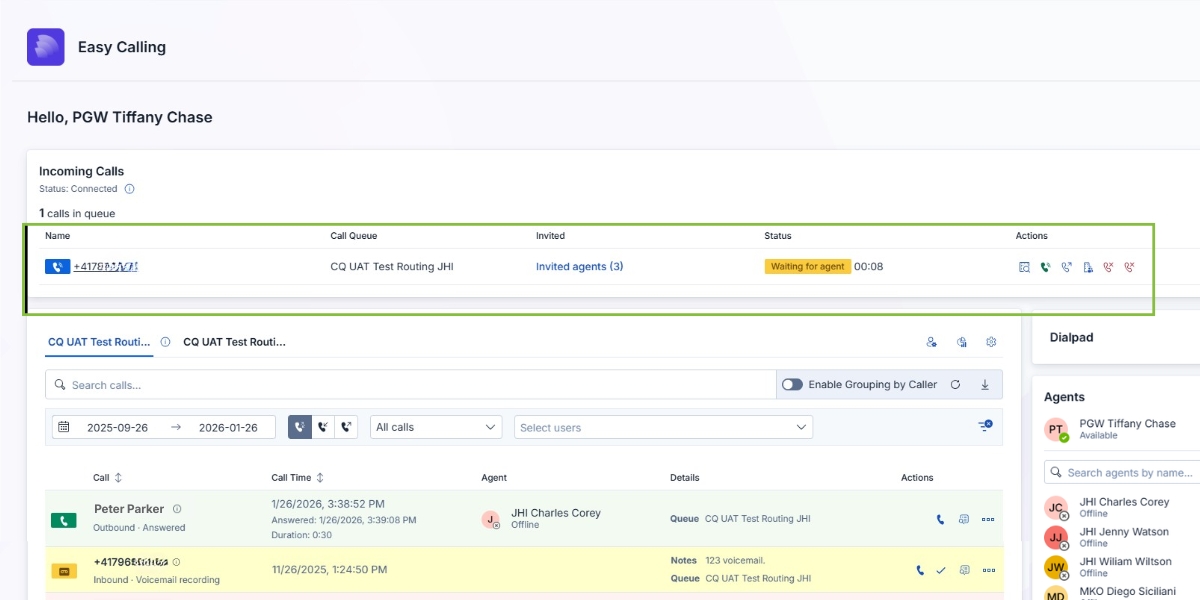
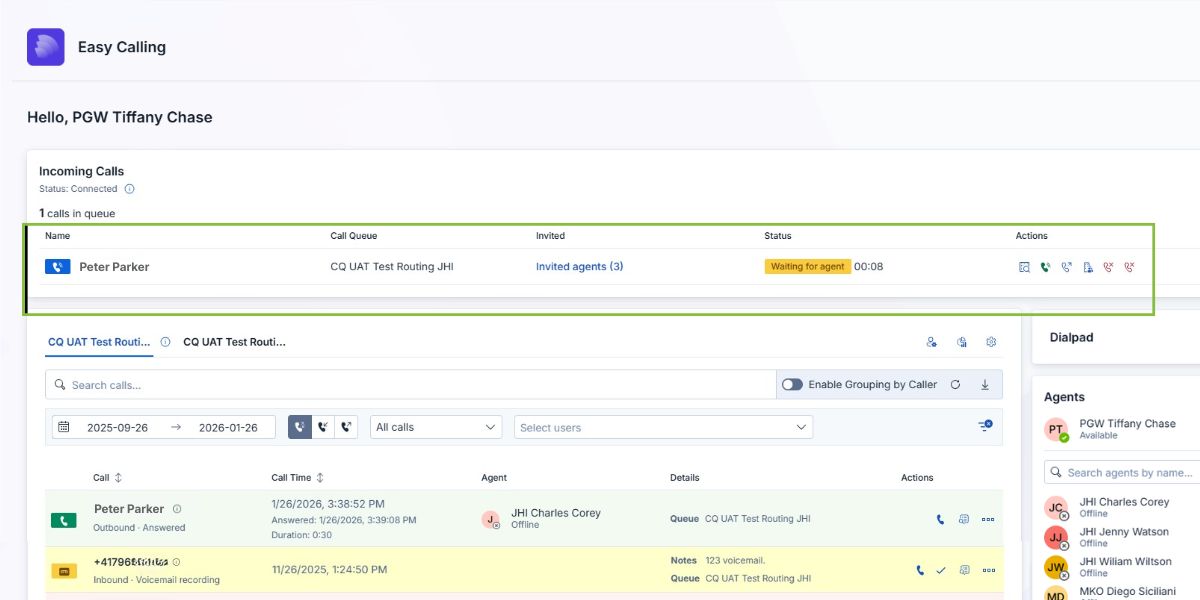
<figure><img src="https://8483818-files.gitbook.io/~/files/v0/b/gitbook-x-prod.appspot.com/o/spaces%2FdKIXVVI8Ve4TBJ4ft1WC%2Fuploads%2Fgit-blob-cda83efa24c980095fdd4ee691442f1039e3fd1c%2FEasy%20Calling%20Dashboard.png?alt=media" alt="Easy Calling dashboard showing real-time call monitoring"><figcaption><p>Real-time view of all your calls – no more guessing who's handling what</p></figcaption></figure>

## What Makes Easy Calling Different?

**We know you're busy.** The last thing you need is another complicated system to learn. Easy Calling was built from the ground up with one goal: make your calling experience simpler, not harder.

### For Contact Center Agents

* **See who's calling instantly** – Caller ID pulls information from your directory, CRM, or external databases
* **Handle calls with one click** – Answer, transfer, or send to voicemail without leaving Microsoft Teams
* **Follow up in seconds** – Create tasks, send emails, or add notes right from the call screen
* **No more switching apps** – Everything you need is in one interface

### For Team Leads & Supervisors

* **Monitor your team at a glance** – See who's on a call, who's available, and how long callers are waiting
* **Adjust on the fly** – Change agent availability, update greetings, or reroute calls in real-time
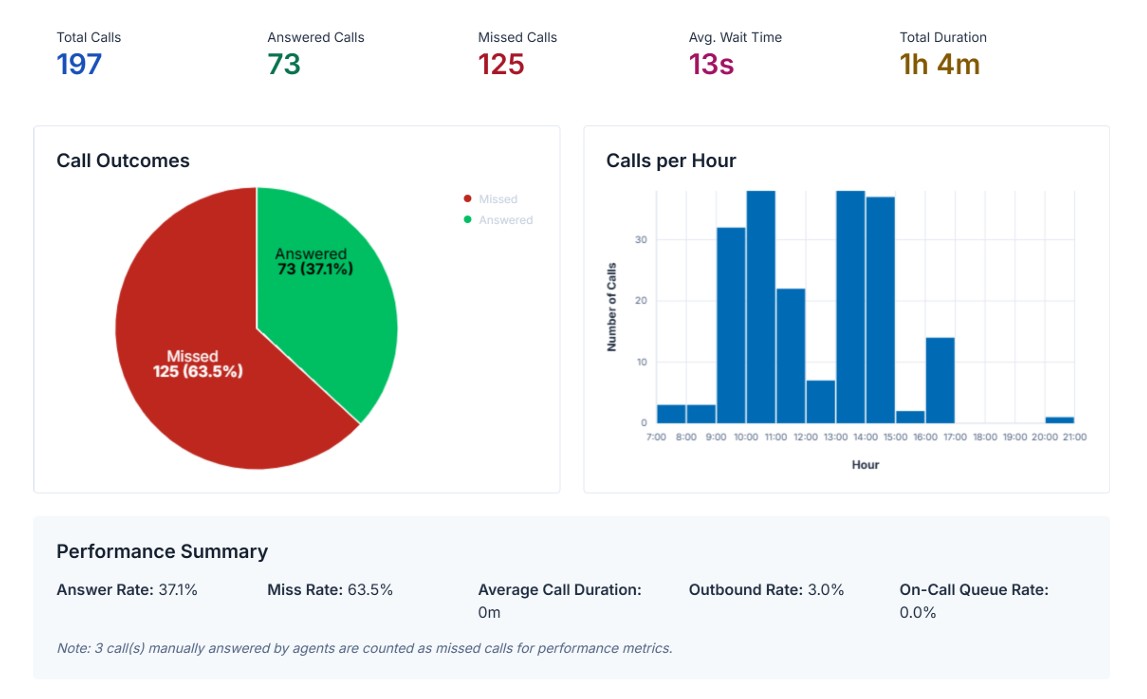
* **Get insights that matter** – Visual reports show call patterns, peak times, and team performance

### For Administrators

* **Set up in minutes, not days** – Simple wizard walks you through configuration
* **Flexible call routing** – Create custom flows that match how your team works

## Real Scenarios, Real Solutions

### Scenario 1: The Overwhelmed Support Team

**Before Easy Calling:** Your team of 5 support agents shares a phone number. Calls come in randomly, agents don't know who answered what, and follow-ups get lost in email threads.

**With Easy Calling:** Calls automatically distribute to available agents. Everyone sees the call history, voicemails are transcribed and stored, and follow-up tasks sync to Microsoft Planner. Your team handles 30% more calls with less stress.

### Scenario 2: The Part-Time Reception Desk

**Before Easy Calling:** Your receptionist handles calls from 9-5. After hours, calls go to voicemail, and no one checks them until the next morning. Urgent requests get delayed.

**With Easy Calling:** Set up automatic routing – calls go to your team during business hours, and to voicemail, other queues, or on-call services outside of business hours. Team members can listen and respond immediately, even from home.

### Scenario 3: The Growing Sales Team

**Before Easy Calling:** Your sales team is expanding. New hires don't know who's handling which prospect, and calls get duplicated or dropped.

**With Easy Calling:** New agents see all call history, can opt in/out of queues based on expertise, and managers monitor call distribution to ensure fair workload. Onboarding time cuts in half.

## Quick Feature Overview

| Feature                        | What It Does For You                                                                                                       |
| ------------------------------ | -------------------------------------------------------------------------------------------------------------------------- |
| **Real-Time Call Monitoring**  | See all active calls, waiting callers, and agent status in one dashboard                                                   |
| **Smart Call Routing**         | Automatically send calls to the right person or team based on availability                                                 |
| **Comprehensive Call History** | Access up to 6 months of calls–filter by missed, answered, or voicemail                                                    |
| **Integrated Voicemail**       | Listen to voicemails directly in Teams, get instant notifications                                                          |
| **Quick Actions**              | Send emails, create tasks, save contacts–all without leaving the call screen                                               |
| **Caller Identification**      | Automatic lookup in your directory, CRM, or external databases                                                             |
| **Agent Opt-In/Out-Out**       | Agents control when they're available for calls (great for flexible teams)                                                 |
| **On-Call Duty**               | Forward calls to responsible on-call personnel during scheduled periods (escalation to multiple external numbers possible) |
| **Visual Analytics**           | Understand call patterns, peak times, and team performance at a glance                                                     |
| **Multi-Language Interface**   | Interface available in multiple languages for international teams                                                          |
| **Progressive Web App**        | Work from Teams or use the standalone app – same experience everywhere                                                     |

## Getting Started is Easy

**New to Easy Calling?** Start here:

1. [**5-Minute Quick Start**](/getting-started/quick-start-guide) – Get up and running fast
2. [**Installation Guide**](/getting-started/installation-guide) – Step-by-step setup for administrators
3. [**Best Practices – Call Life Cycle**](/getting-started/best-practices-call-life-cycle) – Learn the basics of handling calls
4. [**User Guides**](/user-guides/contact-center-agent) – See how different roles use Easy Calling

**Already using Easy Calling?** Explore more:

* [**Feature Categories**](/feature-categories/administration-and-configuration) – Comprehensive feature documentation organized by category
* [**Tips & Tricks**](/user-guides/tips-and-tricks) – Work smarter, not harder
* [**User Guides**](/user-guides/contact-center-agent) – See how different roles use Easy Calling

## Need Help?

* [**Frequently Asked Questions**](/troubleshooting-and-support/faqs) – Quick answers to common questions
* [**Transitioning to Easy Calling**](/troubleshooting-and-support/whats-changed) – Transitioning from standard Teams calling
* [**Known Issues**](/troubleshooting-and-support/known-issues) – Current limitations and workarounds
* [**Contact Support**](/troubleshooting-and-support/support) – We're here to help

## Try It Free

Easy Calling offers a **30-day free trial**. No credit card required, no complicated setup.

[Get Started Today →](https://twincapfirst.ch/en/contact/)

***

*Easy Calling is developed by TwinCap First, a Microsoft Solutions Partner specializing in communication and collaboration tools.*


# What's New

Easy Calling changelog

<details>

<summary>v1.4.3 (Release Date: 09/07/2026)</summary>

**New Features**

* **Escalation Agent Panel:** A new panel lets you manage which agents are available to take escalated calls, with clear opt-in/opt-out status.
* **Auto Attendant Fallback for Transfers:** When a call transfer target isn't reachable, the call can now automatically fall back to the Auto Attendant instead of failing.

**Bug Fixes & Improvements**

* **Clearer Caller Identification:** Internal Teams users are now labeled accordingly when sending an email from a call, making it easier to see who you're dealing with.
* **DTMF Menu Fixes:** Resolved issues with keypad (DTMF) input during Auto Attendant menus so dialed digits are recognized more reliably.
* **Escalation Timeout Handling:** Escalated calls now correctly time out and are released when no agent is available.

</details>

<details>

<summary>v1.4.1 – v1.4.2 (Release Date: 03/07/2026)</summary>

**Bug Fixes & Improvements**

* **Cumulative Call Statistics Fixes:** Fixed incorrect totals in the cumulative call statistics view and ensured call times are shown in the correct time zone.
* Minor internal stability improvements.

</details>

<details>

<summary>v1.4.0 (Release Date: 01/07/2026)</summary>

**New Features**

* **Send Teams Chat Messages:** You can now send a Teams chat message directly to a caller or agent from within a call.
* **Redesigned Call Queues Sidebar:** The call queues sidebar has been redesigned with drag-and-drop reordering and clearer agent opt-in indicators.
* **Priority-Based Schedule Overrides:** Auto Attendant schedules can now override one another based on priority, giving you finer control over which schedule applies.
* **Offline & Network Error Handling:** The app now shows clear messaging when it's offline or a network error occurs, instead of appearing stuck.

**Bug Fixes & Improvements**

* **Auto Attendant + Call Queues:** Fixed an issue where Auto Attendant settings weren't respected correctly when combined with call queues.
* **DTMF Display Fix:** Keypad (DTMF) tones entered during a call are now displayed correctly.
* **External Number Redirect Fix:** Fixed an issue where forwarding to an external phone number didn't redirect correctly.
* **New German Translations:** Added missing German translations throughout the app.
* **Sidebar Tooltip Fix:** Tooltips in the sidebar no longer get stuck open after being clicked.
* **Improved Identity Handling:** Reduced misclassification of call participants when Microsoft Teams reports the same person under multiple identities.
* **Web Access Requests Fix:** Fixed a permissions issue affecting admin web access requests.
* Agents can no longer accidentally start a Teams chat with themselves.

</details>

<details>

<summary>v1.3.21 (Release Date: 25/06/2026)</summary>

**Bug Fixes & Improvements**

* **Presence-Aware Routing:** Agents marked as "Busy," "Do not disturb," or offline in Microsoft Teams are now automatically treated as unavailable for call routing, so calls reach agents who can actually answer.

</details>

<details>

<summary>v1.3.20 (Release Date: 15/06/2026)</summary>

**Bug Fixes & Improvements**

* **Faster Live Call Status:** Optimized how live call status updates, making the display more responsive.
* **Accurate Channel Notifications:** Only agents who have opted in are now added to call notification channels, so notifications no longer reach people who shouldn't receive them.

</details>

<details>

<summary>v1.3.18 – v1.3.19 (Release Date: 11/06/2026 – 12/06/2026)</summary>

Internal infrastructure improvements with no visible changes for end users.

</details>

<details>

<summary>v1.3.16 – v1.3.17 (Release Date: 28/05/2026 – 01/06/2026)</summary>

Internal performance and reliability improvements.

</details>

<details>

<summary>v1.3.15 (Release Date: 27/05/2026)</summary>

**Bug Fixes & Improvements**

* **Clearer Outbound Call Info:** Outbound calls now show the resolved contact name separately from the phone number, making it easier to see who you're calling.
* **Standalone Team Access:** Voice apps installed as a standalone tab can now grant access based on Microsoft Teams team membership.
* **User Limit Configuration:** Admins can now configure a maximum number of users for a voice app.
* **Faster Agent List Loading:** Improved performance when loading and refreshing the agent list.

</details>

<details>

<summary>v1.3.14 (Release Date: 11/05/2026)</summary>

**Bug Fixes & Improvements**

* **Fixed Duplicate Participant Issue:** Resolved a bug where the same person could appear as two different participants during a call due to how Teams reports dual identities.
* **Outbound Call Hangup Fix:** Outbound calls no longer show an unnecessary disconnect message when ending before being answered.
* **Licensing Flexibility:** Improved license validation to correctly recognize EasyCalling Basic plans.

</details>

<details>

<summary>v1.3.12 – v1.3.13 (Release Date: 14/04/2026 – 15/04/2026)</summary>

**Bug Fixes & Improvements**

* **EasyCalling Branding:** Error screens now use EasyCalling's own icons instead of generic ones.
* **Better Caller Name Display:** Improved logic to show the most meaningful caller name available instead of a generic label.
* **Faster Call Handling:** Optimized waiting music and call notification handling for a snappier experience.
* **Active Subscription Check:** The app now requires at least one active EasyCalling subscription to be used.

</details>

<details>

<summary>v1.3.11 (Release Date: 10/04/2026)</summary>

**Bug Fixes & Improvements**

* **Smarter Hold Music:** Fixed an issue where hold music could restart unnecessarily if a caller was already on hold.
* **Faster Caller Lookup:** Caller information is now looked up in parallel and added to the call once available, making answering feel faster.

</details>

<details>

<summary>v1.3.6 – v1.3.10 (Release Date: 01/04/2026 – 07/04/2026)</summary>

**Bug Fixes & Improvements**

* **More Reliable Call Termination:** Improved detection of when a call has truly ended, reducing cases where a call appeared to hang up prematurely or lingered after both parties left.

</details>

<details>

<summary>v1.3.5 (Release Date: 30/03/2026)</summary>

**Bug Fixes & Improvements**

* **On-Call Schedule Fallback:** Improved handling of active on-call schedules, with better fallback behavior when a schedule can't be determined.

</details>

<details>

<summary>v1.3.3 (Release Date: 20/03/2026)</summary>

**Bug Fixes & Improvements**

* **Improved Call Termination Accuracy:** Reduced cases where a call was incorrectly marked as ended due to temporary Microsoft Teams notification delays.
* **Outbound Call Fixes:** Outbound calls are no longer accidentally canceled during normal call handling.

</details>

<details>

<summary>v1.3.1 (Release Date: 10/03/2026)</summary>

**Bug Fixes & Improvements**

* **More Accurate Caller Names:** Improved how caller phone numbers are resolved to contact names.

</details>

<details>

<summary>v1.2.8 – v1.2.9 (Release Date: 14/01/2026 – 29/01/2026)</summary>

**Bug Fixes & Improvements**

* **Sign-In Reliability:** Streamlined sign-in and permissions handling for improved reliability.
* **Call Termination Fixes:** Fixed edge cases where a call could fail to end cleanly when a participant's information hadn't fully loaded yet.

</details>

<details>

<summary>v1.2.7 (Release Date: 13/01/2026)</summary>

**Bug Fixes & Improvements**

* **Live Call Status Improvements:** Improved accuracy of live call status information.
* **Accept Call Fixes:** Fixed bugs affecting manually accepting incoming calls.
* **Agent Hangup Fixes:** Fixed issues where agent hangups weren't handled correctly.
* **Call Drop Fixes:** Reduced cases of calls dropping unexpectedly.
* **Translation Fix:** Corrected the "Tags" translation for clarity.

</details>

<details>

<summary>v1.2.2 – v1.2.6 (Release Date: 12/12/2025 – 18/12/2025)</summary>

**Bug Fixes & Improvements**

* **Call Termination Fixes:** Improved handling of call termination for bot and unknown participants, and removed a delay that could conflict with Microsoft Teams' own call termination.
* **New Translation:** Added the "Call Teams User" label in multiple languages.
* **Deployment Reliability:** Improved the release rollout process with staging health checks for smoother updates.

</details>

<details>

<summary>v1.2.0 (Release Date: 11/12/2025)</summary>

**New Features**

* **Outbound Calling:** You can now place outbound calls directly from Easy Calling, not just receive incoming ones.
* **New Outbound Waiting Music:** Added a dedicated waiting music track for outbound calls.

**Bug Fixes & Improvements**

* Various stability fixes to the calls list and call details view.

</details>

<details>

<summary>v1.1.5 (Release Date: 05/12/2025)</summary>

**Bug Fixes & Improvements**

* **Improved Resilience:** Enhanced disaster-recovery setup so the service can keep running from a secondary Azure region if needed.

</details>

<details>

<summary>v1.1.4 (Release Date: 28/11/2025)</summary>

**New Features**

* **Consultative Transfer:** You can now consult privately with a colleague before completing a call transfer, so you can check availability or share context first.

**Bug Fixes & Improvements**

* **External Forwarding Fix:** Fixed an issue affecting calls forwarded to an external phone number.
* **Manual Accept Improvements:** Improved reliability when manually accepting a call.
* **Call Queue Forwarding Fix:** Fixed an issue where forwarding calls from a call queue didn't work correctly.
* **Voicemail Help Text:** Added clearer guidance text after completing a voicemail recording.

</details>

<details>

<summary>v1.1.3 (Release Date: 20/11/2025)</summary>

**Bug Fixes & Improvements**

* **Automatic Reconnection:** The Teams app now automatically reconnects if your connection drops while the window regains focus.
* **Voicemail Recording Fixes:** Improved reliability of voicemail recording and logging.
* **App Icon Fix:** Fixed transparency issues with the app icon and other minor UI polish for Teams App Store compliance.

</details>

<details>

<summary>v1.1.2 (Release Date: 05/11/2025)</summary>

\*\* Bug Fixes & Improvements\*\*

**Participant Handling Enhancements**

* **Improved Participant Recognition:** Enhanced the system's ability to identify and classify call participants, even when their identity information hasn't fully loaded yet from Microsoft Teams.
* **Better Call Participant Analysis:** Added fallback logic to correctly identify the source participant and invited agents during call setup, reducing potential misclassification issues.

**Cache & State Management**

* **Enhanced Cache Retrieval:** Improved cache lookup logic with better fallback mechanisms when checking call states across both Redis and in-memory caching layers.
* **More Reliable Hangup Detection:** Strengthened the system's ability to track whether a call hangup has been initiated, preventing duplicate hangup attempts.

These improvements help ensure smoother call handling, especially in scenarios where Teams identity information loads gradually during call establishment.

</details>

<details>

<summary>v1.1.1 (Release Date: 29/10/2025)</summary>

\*\* Stability and Performance Improvements\*\*

* **Minor Updates:** This release includes minor stability improvements and optimizations to enhance overall system performance.

</details>

<details>

<summary>v1.1.0 (Release Date: 28/10/2025)</summary>

\*\* New Features\*\*

* **Advanced Call Routing:** Introduced sophisticated routing strategies including round-robin and longest-idle agent selection, giving you more flexibility in how calls are distributed to your team.
* **VIP Caller Support:** Enhanced VIP routing capabilities allow priority handling for important callers with duplicate phone number checks and improved configuration options.
* **Live Call Status API:** New endpoint to retrieve real-time call status including invited participants and queue state, providing better visibility into ongoing calls.

\*\* Enhanced Call Handling & Reliability\*\*

* **Improved Call Participant Management:** Calls are no longer prematurely terminated before an agent has answered, ensuring better call connection reliability.
* **Smarter Transfer Handling:** Waiting music now plays consistently during call transfers, providing a better experience for callers.
* **Enhanced Notification Grouping:** Notifications are now grouped more reliably using consistent chain IDs, making it easier to track related call activities.
* **Better Queue Timing:** Improved accuracy in queue timing calculations ensures more precise timeout handling, especially in attendant queue scenarios.

\*\* Technical Improvements\*\*

* **Webhook Notification Fix:** Corrected webhook configuration to ensure end-of-call notifications are sent to the proper endpoint.
* **Configuration Enhancements:** UI now conditionally displays Agent Response Timeout and VIP Routing settings based on your selected routing method, reducing confusion.
* **Improved Error Handling:** Better graceful fallback when Graph API doesn't support participant expansion, with enhanced logging for troubleshooting.
* **Cache Management:** Extended call leg finalization cache from 5 minutes to 1 hour to better support longer call scenarios.

</details>

<details>

<summary>v1.0.6 (Release Date: 09/10/2025)</summary>

**Enhanced Call Transfer Experience**

* **Asynchronous Call Transfers:** Transferring a call is now an asynchronous operation. This means you can initiate a transfer and the system will handle it in the background, allowing you to continue with other tasks without waiting.
* **Track Transfer Status:** You can now track the status of a call transfer with a unique operation ID, giving you full visibility into the transfer process.

**UI and Usability Updates**

* **Agent Opt-In/Opt-Out:** Agents don't need to refresh Easy Calling after changing the opt-in status. The refresh is happening automatically now.
* **Analytics Filter Fix:** We've corrected the call type filter in the analytics modal to ensure manually answered calls are categorized correctly.

\*\* Improved Reliability and Stability\*\*

* **Robust Error Handling:** We've implemented more comprehensive validation and error handling across the board. This ensures that call operations are more reliable and that the system can gracefully recover from unexpected issues.
* **Optimistic Concurrency:** We've improved how we handle simultaneous operations, reducing the chance of conflicts and ensuring data integrity, especially during high-traffic periods.
* **Voicemail and Agent Handling Fixes:** We've resolved several race conditions related to voicemail and agent participation. This includes adding a grace period to check for late-joining agents before sending a call to voicemail, and preventing users from joining a call while a voicemail is being recorded.

</details>

<details>

<summary>v1.0.4 (Release Date: 25/09/2025)</summary>

\*\*\*\* **Enhanced Call Handling & Reliability**

* **Improved Agent Connection Logic:** Added intelligent grace period checks to prevent voicemail from playing when agents join calls at the last moment, ensuring better call routing
* **Smarter Voicemail Management:** Enhanced voicemail handling with active recording state tracking and better cache management to prevent race conditions
* **Optimized Call Performance:** Reduced startup delays for keep-alive services and stuck call cleanup processes, providing faster response times
* Better Agent Monitoring: Implemented immediate execution of forward behavior when no agents are available, improving call flow efficiency

\*\*\*\* **User Experience Improvements**

* **Enhanced Recent Calls Display:** Refactored the recent calls interface with an improved carousel structure, better styling, and detailed call information including call type icons
* **Streamlined Call Logic:** Removed external waiting logic checks to simplify and streamline call handling processes
* **Reduced Grace Periods:** Optimized late-joining agent grace periods from 3 seconds to 1 second for faster call connections

\*\* Technical Improvements\*\*

* Parallel task execution for participant retrieval and notification sending
* Reduced polling intervals for faster system response
* Enhanced error handling throughout the application
* Improved logging and monitoring capabilities

**Bug Fixes**

* **Participant Management:** Improved handling of pending participant invitations before voicemail execution
* **Call State Management:** Enhanced voicemail greeting management with proper active state tracking

</details>

<details>

<summary>v1.0.3 (Release Date: 18/09/2025)</summary>

**Feature**

* Missed calls that are returned are included in the statistics.
* Callers remain in the queue when no agents are available.

**Bugfixes**

* Calls can be answered if there is no greeting message or hold music.
* Hold music and voicemail announcements are not played reliably
* Call toast is displayed even though the call has been answered
* Callers remain in “incoming calls” even though the call has already ended.
* DTMF dialing for the IVR does not work reliably

**Known Issues**

* None

</details>

<details>

<summary>v1.0 (Release Date: 05/09/2025)</summary>

**Feature**

* Launch of Easy Calling

**Bugfixes**

* None

**Known Issues**

* None

</details>


# 5-Minute Quick Start

Get up and running with Easy Calling in 5 minutes

**Welcome!** This guide gets you from zero to handling your first call in just 5 minutes. Let's go!

## What You'll Learn

By the end of this guide, you'll know how to:

* Access Easy Calling in Microsoft Teams
* See incoming calls and caller information
* Answer, transfer, or send calls to voicemail
* View your call history
* Take quick actions after a call

***

## Step 1: Open Easy Calling (30 seconds)

**Where is it?** Easy Calling lives right inside Microsoft Teams.

1. Open **Microsoft Teams** (desktop or web)
2. Look for the **Apps** icon in the left sidebar (it looks like a grid of squares)
3. Search for **"Easy Calling"**
4. Click to open

**Pro Tip:** Pin Easy Calling to your sidebar for instant access. Right-click the app icon and select "Pin."

<figure><img src="https://8483818-files.gitbook.io/~/files/v0/b/gitbook-x-prod.appspot.com/o/spaces%2FdKIXVVI8Ve4TBJ4ft1WC%2Fuploads%2Fgit-blob-cda83efa24c980095fdd4ee691442f1039e3fd1c%2FEasy%20Calling%20Dashboard.png?alt=media" alt="Easy Calling app in Teams sidebar"><figcaption><p>Pin Easy Calling to your Microsoft Teams sidebar for one-click access</p></figcaption></figure>

***

## Step 2: Understand Your Dashboard (1 minute)

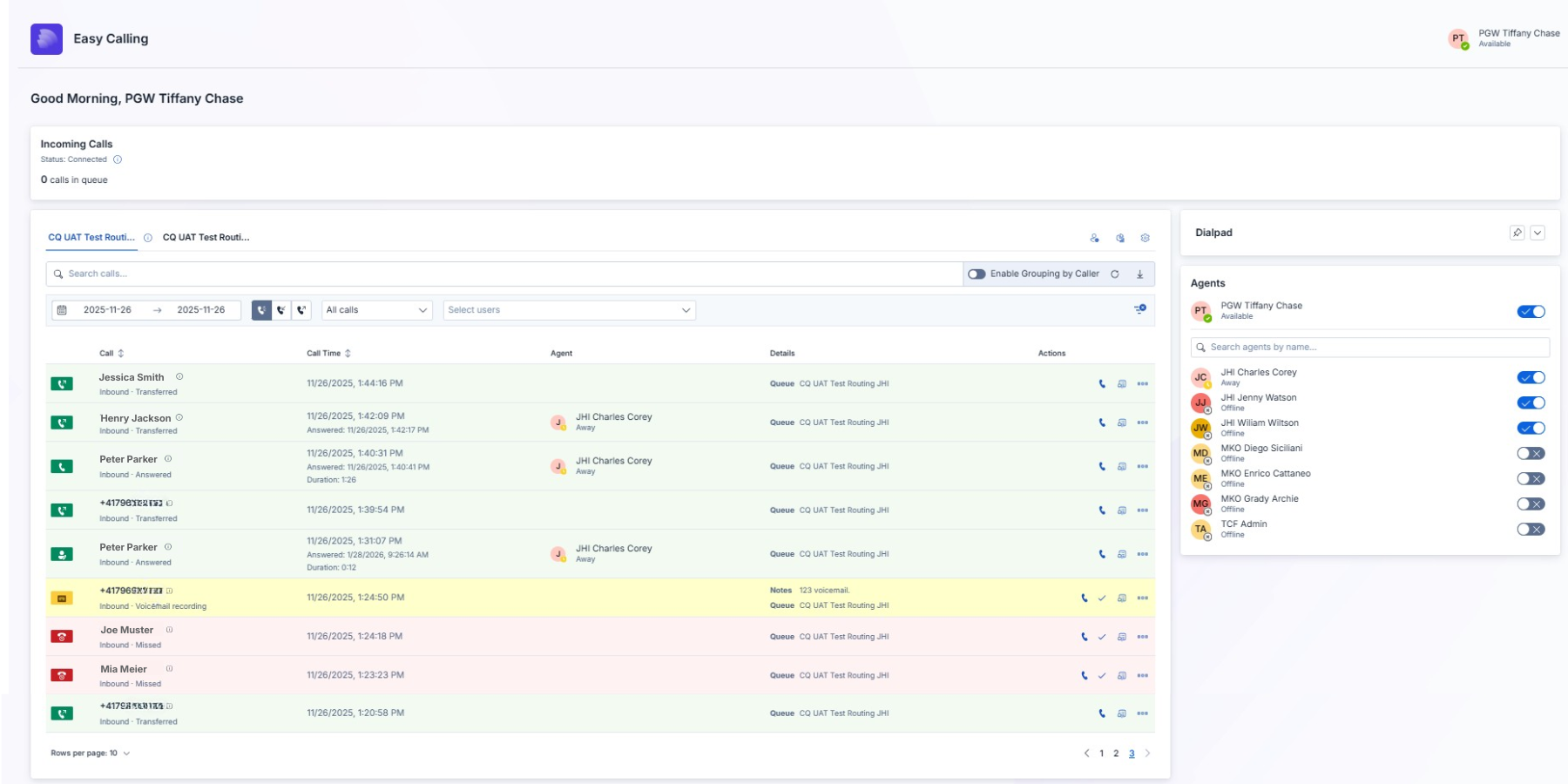
**What am I looking at?** Your Easy Calling dashboard has three main areas:

### Incoming Calls (Top Section)

Shows all calls currently ringing or waiting in queue. You'll see:

* **Caller's name/number** (if available in your directory)
* **Which queue** the call came through
* **How long** they've been waiting
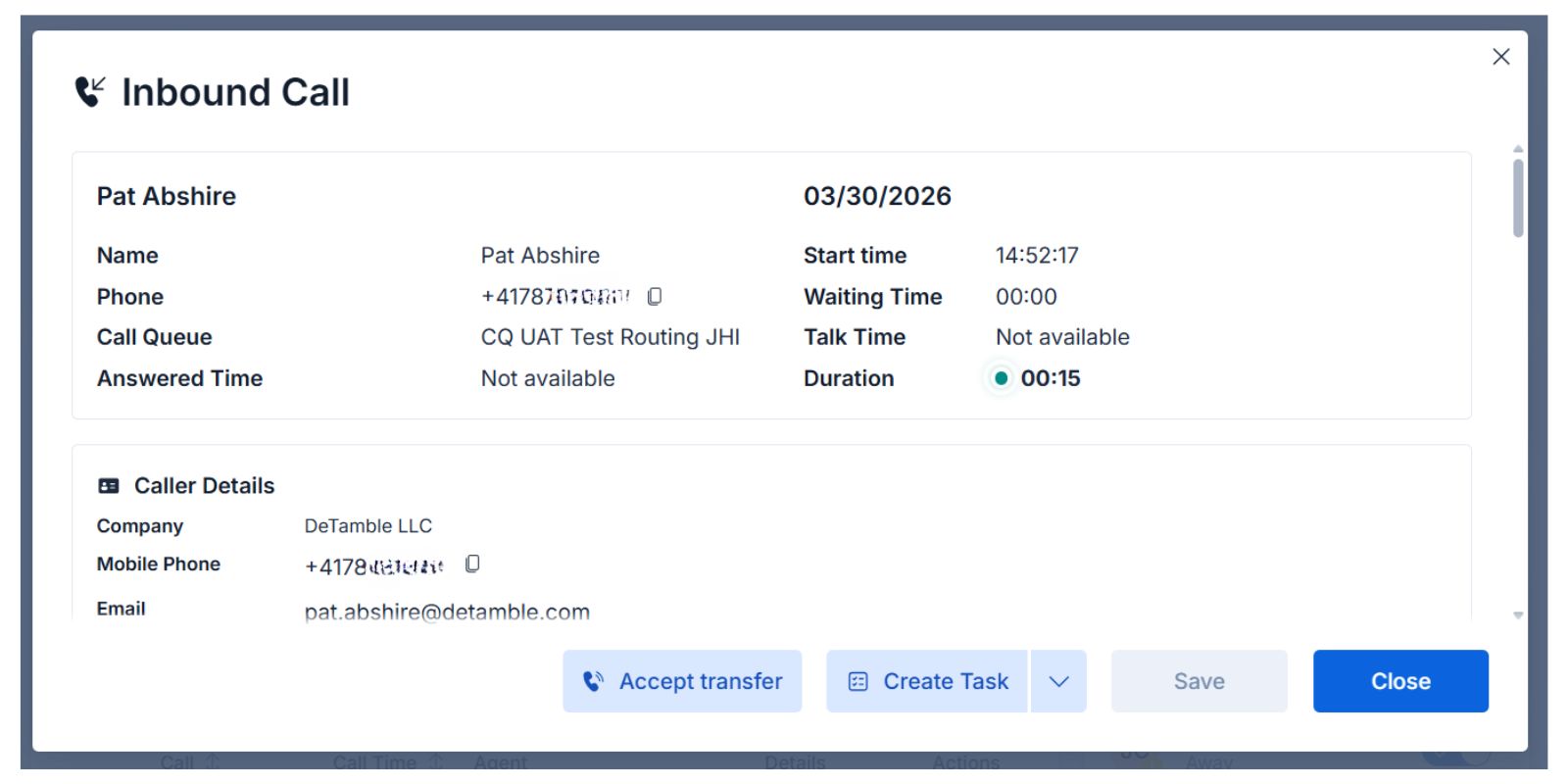
* **Quick action buttons** (View Details | Request Call | Direct Transfer | Transfer to Voice App | Reject Call | Force Cleanup)

### Call History (Middle Section)

Your complete call log with color-coded indicators:

* **Green** = Answered calls
* **Red** = Missed calls
* **Yellow** = Voicemail left

### Team Status (Agent Panel)

See which team members are:

* Available (green)
* Away (yellow)
* On a call / busy (red)
* Offline or opted out (gray)

***

## Step 3: Handle Your First Call (2 minutes)

**A call is coming in! What do I do?**

### Option 1: Answer the Call

1. When a call appears in your dashboard, you'll see a **notification** in Microsoft Teams
2. Click the **"Answer"** button (or answer directly from the Microsoft Teams notification)
3. The caller information appears on your screen
4. **That's it!** You're now on the call

**What you'll see during the call:**

* Caller's name, number, and company (if available)
* Call duration timer
* Notes section (type notes that save automatically)
* Quick action buttons

### Option 2: Transfer the Call

Not the right person for this call? No problem.

1. Click the **"Transfer"** button on the incoming call card
2. Choose either:

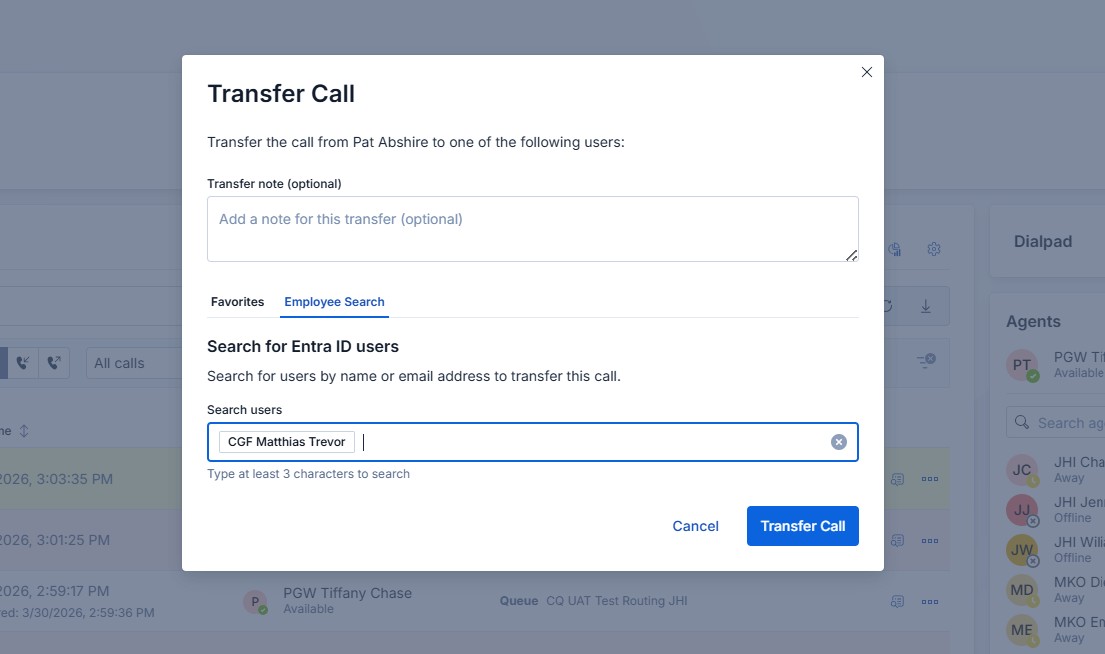
* **Direct Transfer** → Select a specific person
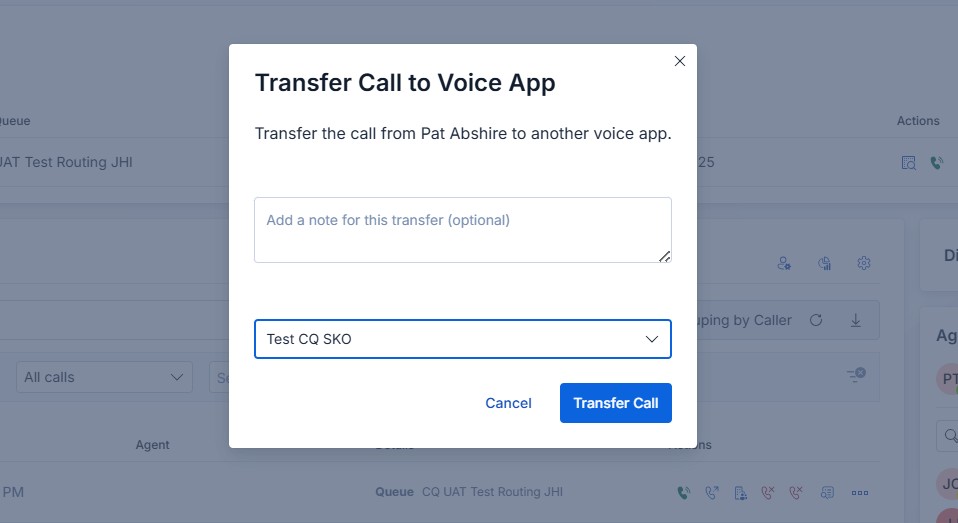
* **Transfer to Voice App** → Send to another call queue

3. Click **"Transfer"**
4. The call is routed immediately – no awkward "let me transfer you" delay

### Option 3: Send to Voicemail

Can't answer right now? Send it to voicemail.

1. Click the **"Send to Voicemail"** button on the call card
2. The caller hears your voicemail greeting
3. You get a notification when they leave a message
4. Listen to the voicemail later from your call history

***

## Step 4: After the Call (1 minute)

**The call ended. Now what?** Easy Calling makes follow-up effortless.

When a call ends, you'll see the call appear in your **Call History** with these quick actions:

### Send an Email

Click the **envelope icon** to send a follow-up email to the caller – it pre-fills their email address if available.

### Create a Task

Click the **task icon** to create a reminder in:

* **Microsoft Planner** (shared team tasks)
* **Microsoft To-Do** (your personal task list)

The task automatically includes the caller's information and call notes.

### Save as Contact

Click the **person icon** to save the caller to your personal contacts–perfect for recurring callers.

### Listen to Voicemail

If they left a voicemail, click the **play icon** to listen.

***

## Step 5: Explore Your Call History (30 seconds)

**Need to find a past call?** Your call history is powerful.

1. Navigate to the **"Call History"** section
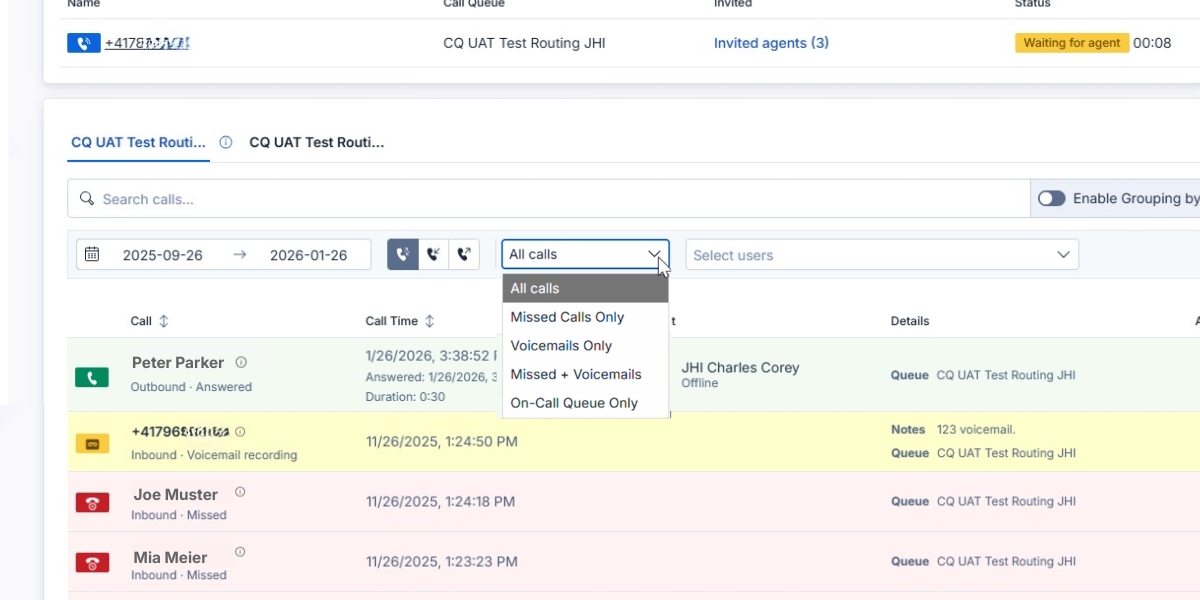
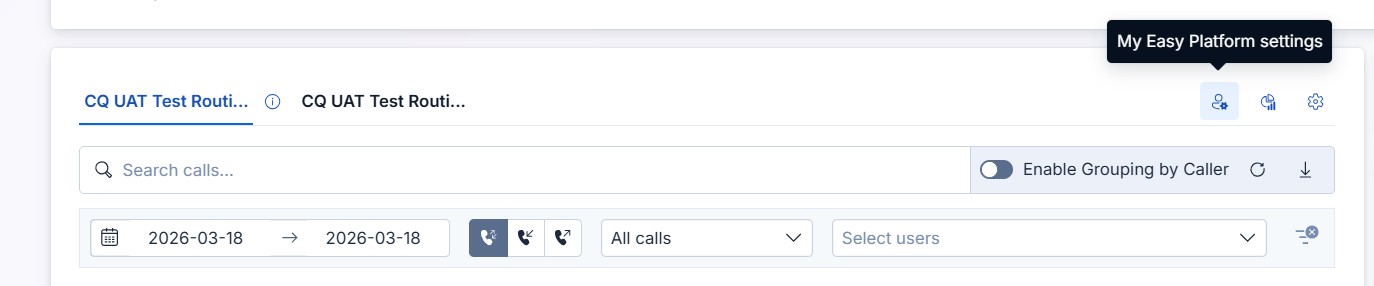
2. Use the **filters** at the top:

* Filter by date range
* Show all calls
* Show only missed calls
* Show only voicemails
* Show missed calls + voicemails
* Show On-Call queue only

3. Click any call to see full details, notes, and available actions

**Pro Tip:** Use the **search bar** to find calls by name, number, or even keywords in your notes.

<figure><img src="https://8483818-files.gitbook.io/~/files/v0/b/gitbook-x-prod.appspot.com/o/spaces%2FdKIXVVI8Ve4TBJ4ft1WC%2Fuploads%2Fgit-blob-870196b669e6cdb52004cc17642f30319742c8fc%2F5%20Minute%20Quick%20Start%20-%20Explore%20your%20Call%20History.jpg?alt=media" alt="Call history with filters"><figcaption><p>Filter your call history to find exactly what you need</p></figcaption></figure>

***

## Quick Tips for Success

### Do This Right Away

* **Pin Easy Calling** to your Microsoft Teams sidebar (right-click → Pin)
* **Turn on notifications** in Microsoft Teams settings so you never miss a call

### Level Up Your Skills

* **Add notes during calls** so follow-ups are easier
* **Check call history daily** to ensure no missed calls slip through

### Common Questions

**Q: What if I don't want to receive calls right now?** **A:** You can opt-out of the call queue – see [Call Management ](/feature-categories/call-management)(7. Agent Opt-in/Opt-out)

**Q: Can I use Easy Calling on my phone?** **A:** Yes! Easy Calling works in the Teams mobile app and as a standalone web app – see [Progressive Web App Guide](/getting-started/progressive-web-application-and-agent-overview)

**Q: What if I accidentally decline a call?** **A:** No worries! The call returns to the queue and another agent can answer, or it goes to voicemail if no one's available.

***

## What's Next?

Now that you know the basics, explore these guides to become an Easy Calling pro:

* [**Best Practices – Call Life Cycle**](/getting-started/best-practices-call-life-cycle) – Step-by-step guide for handling calls
* [**Day in the Life: Contact Center Agent**](/user-guides/contact-center-agent) – See how agents use Easy Calling all day
* [**How-To Guides**](/features-and-how-to/easy-calling-in-microsoft-teams) – Master specific features like transfers, voicemail, and more
* [**Tips & Tricks**](/user-guides/tips-and-tricks) – Work smarter, not harder

***

## Need Help?

* [**Frequently Asked Questions**](/troubleshooting-and-support/faqs) – Quick answers
* [**Contact Support**](/troubleshooting-and-support/support) – We're here to help

**You're ready to start!** Open Easy Calling and handle your first call with confidence.


# Best Practices – Call Life Cycle

Best practices and guidelines for handling calls throughout the entire call life cycle with Easy Calling

This guide walks you through every step of a call, from preparation to follow-up, so you can handle calls with confidence and consistency.

***

## Before Your First Call: Quick Prep

### 1. Make Sure You're Signed In

* Open **Easy Calling** in Microsoft Teams
* You should see the dashboard with "Incoming Calls" and "Call History" sections
* If you don't see anything, check with your team lead – you may need to be added to a call queue

### 2. Check Your Headset

* Test your audio by making a quick Microsoft Teams test call
* Make sure your microphone isn't muted
* Keep your headset nearby so you're ready

### 3. Know Your Queue

Ask your team lead or check the dashboard:

* **Which call queue** are you assigned to? (e.g., "Support Line," "Sales," "Main Reception")
* **What hours** are you expected to handle calls?
* **Who can you transfer to** if you need help?

***

## When a Call Comes In: What You'll See

### The Incoming Call Notification

When someone calls your queue, you'll see **two things happen**:

1. **A Microsoft Teams notification** pops up (like a regular Teams call)
2. **A call card appears** in your Easy Calling dashboard

**The call card shows:**

* **Caller's phone number**
* **Caller's name** (if found in your directory or CRM)
* **Caller's company** (if available)
* **Which queue** the call came through
* **How long they've been waiting**
* **Action buttons**: View Details | Request Call | Direct Transfer | Transfer to Voice App | Reject Call | Force Cleanup

<figure><img src="https://8483818-files.gitbook.io/~/files/v0/b/gitbook-x-prod.appspot.com/o/spaces%2FdKIXVVI8Ve4TBJ4ft1WC%2Fuploads%2Fgit-blob-abbad92bd7e2dd88c555408d2fc0c833d6d1bbf9%2FBest%20Practice%20-%20Whan%20a%20call%20comes%20in%20-%20Incoming%20Call%20Notification.jpg?alt=media" alt="Incoming call card"><figcaption><p>This is what you'll see when a call comes in</p></figcaption></figure>

***

## Answering Your First Call

### Step 1: Click "Answer"

You have two ways to answer:

* Click **"Answer"** in the Easy Calling dashboard, OR
* Click **"Accept"** in the Microsoft Teams call notification

**Pro Tip:** Most agents find it easier to answer directly from the notification – it's faster and feels more natural.

### Step 2: Greet the Caller

Once connected, greet them professionally:

**Good example:** "Thank you for calling \[Your Company], this is \[Your Name]. How can I help you today?"

**Why this matters:** A warm greeting sets a positive tone and immediately makes the caller feel heard.

### Step 3: Check the Caller Information Panel

While you're speaking, look at the **caller information panel** in Easy Calling. It shows:

* **Contact Details**: Name, company, email, phone
* **Call Notes Area**: A text box for typing notes
* **Quick Actions**: Buttons for creating tasks, sending emails, etc.
* **Call Timer**: Shows how long you've been on the call

**What to do with this information:**

* If you recognize the company, reference past interactions
* Start typing notes about the call right away
* Keep an eye on the timer (helpful for managing call length)

***

## During the Call: Taking Notes

**Why take notes?** Because you (or your teammates) might need to reference this call later. Good notes help with follow-ups and ensure nothing falls through the cracks.

### How to Take Good Call Notes

**Type in the notes section while you're speaking.** Here's a simple format:

```
Caller: [Name or description]
Reason for call: [Brief summary]
Action taken: [What you did]
Follow-up needed: [Yes/No - what needs to happen next]
```

**Example:**

```
Caller: Sarah from Acme Corp
Reason for call: Question about invoice #12345
Action taken: Explained payment terms, sent email with invoice copy
Follow-up needed: No - issue resolved
```

**Pro Tip:** Don't worry about perfect grammar or spelling – just capture the key points. You can clean it up after the call ends.

***

## Ending the Call

### Step 1: Summarize Next Steps

Before you hang up, quickly recap what will happen next:

**Good example:** "Okay Sarah, just to confirm – I've sent you a copy of invoice #12345 to your email. You should receive it in the next few minutes. Is there anything else I can help with today?"

**Why this matters:** It ensures both you and the caller are on the same page, reducing follow-up confusion.

### Step 2: Thank Them

End on a positive note:

**Good example:** "Thank you for calling \[Your Company]. Have a great day!"

### Step 3: Hang Up

Click **"End Call"** in Teams, just like any normal call.

***

## After the Call: Quick Follow-Up

**The call ended – now what?** This is where Easy Calling shines.

### Option 1: Send a Follow-Up Email

If you promised to send information:

1. Click the **envelope icon** on the call card in your call history
2. An email draft opens with the caller's email address pre-filled
3. Type your message and click **"Send"**

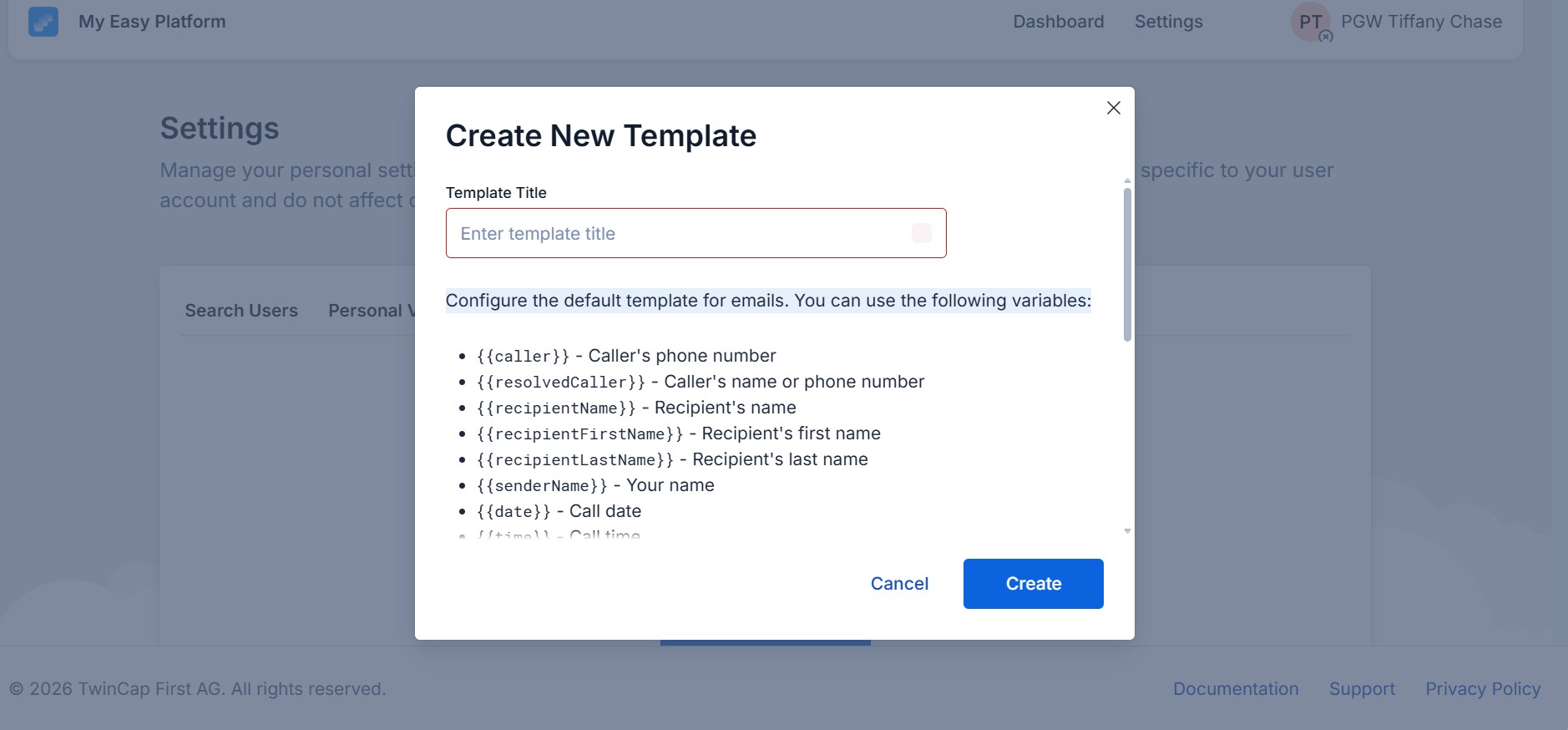
**Pro Tip:** You can [create email templates](https://docs.easycalling.easyplatform.app/getting-started/pages/9yEoVs1RzwsoOjsaXuWg#id-4.-create-email-templates-for-common-responses) for common scenarios.

### Option 2: Create a Task

If you need to do something later:

1. Click the **task icon** on the call card
2. Choose **Microsoft Planner** (shared team tasks) or **To-Do** (personal tasks)
3. The task is created with:

* Caller's name and number
* Your call notes
* A link back to the call record

**Why this is helpful:** Nothing gets forgotten. If you need to call someone back tomorrow or check on an order, the task keeps it on your radar.

### Option 3: Save as Contact

If this is someone you'll talk to regularly:

1. Click the **person icon** on the call card
2. The contact is saved to your personal address book
3. Next time they call, you'll instantly see their name

***

## What If... (Common Scenarios)

### Scenario 1: The Caller Asks for Someone Specific

**What they say:** "I need to speak with John in Sales."

**What you do:**

1. Click **"Transfer"** on the call card
2. Select **"Direct Transfer"**
3. Search for "John" and click his name
4. Click **"Transfer"**

**What happens:** John gets a call notification, and once he answers, the caller is connected to him. You're done!

**Pro Tip:** Before transferring, you can say: "Let me transfer you to John now. Please hold for just a moment."

***

### Scenario 2: The Caller Has a Question You Can't Answer

**What they say:** "I need help with \[something outside your expertise]."

**What you do:**

1. Say: "Let me connect you with someone who can help with that."
2. Click **"Transfer"** → **"Transfer to Voice App"**
3. Select the appropriate queue (e.g., "Technical Support" or "Billing")
4. Click **"Transfer"**

**What happens:** The call is routed to the correct team, and someone with the right expertise will answer.

**Pro Tip:** Add a note before transferring: "Caller needs help with \[topic]." This helps the next agent understand the context immediately.

***

### Scenario 3: The Caller Wants a Callback

**What they say:** "Can someone call me back later?"

**What you do:**

1. Say: "Absolutely. What's the best number to reach you, and when would you like us to call?"
2. Type their callback request in the notes
3. Click **"Create Task"** after the call
4. Assign the task to yourself or the appropriate team member
5. Set a due date/time for the callback

**Why this works:** The callback request is documented and tracked. No more sticky notes or hoping you remember.

***

### Scenario 4: You Accidentally Decline a Call

**Don't panic!** The call doesn't disappear.

**What happens:**

* If other agents are available, the call rings for them
* If no one's available, it goes to voicemail (if configured)
* The call still shows in your call history as "Missed"

**What you should do:**

* Check your call history to see if the call was answered by someone else
* If it went to voicemail, listen to it and call them back
* Let your team lead know if this happens frequently–there may be a technical issue

***

## Making Outbound Calls

Sometimes you'll need to call customers back or make proactive outreach calls. Easy Calling makes this easy with a built-in dialpad.

### How to Make an Outbound Call

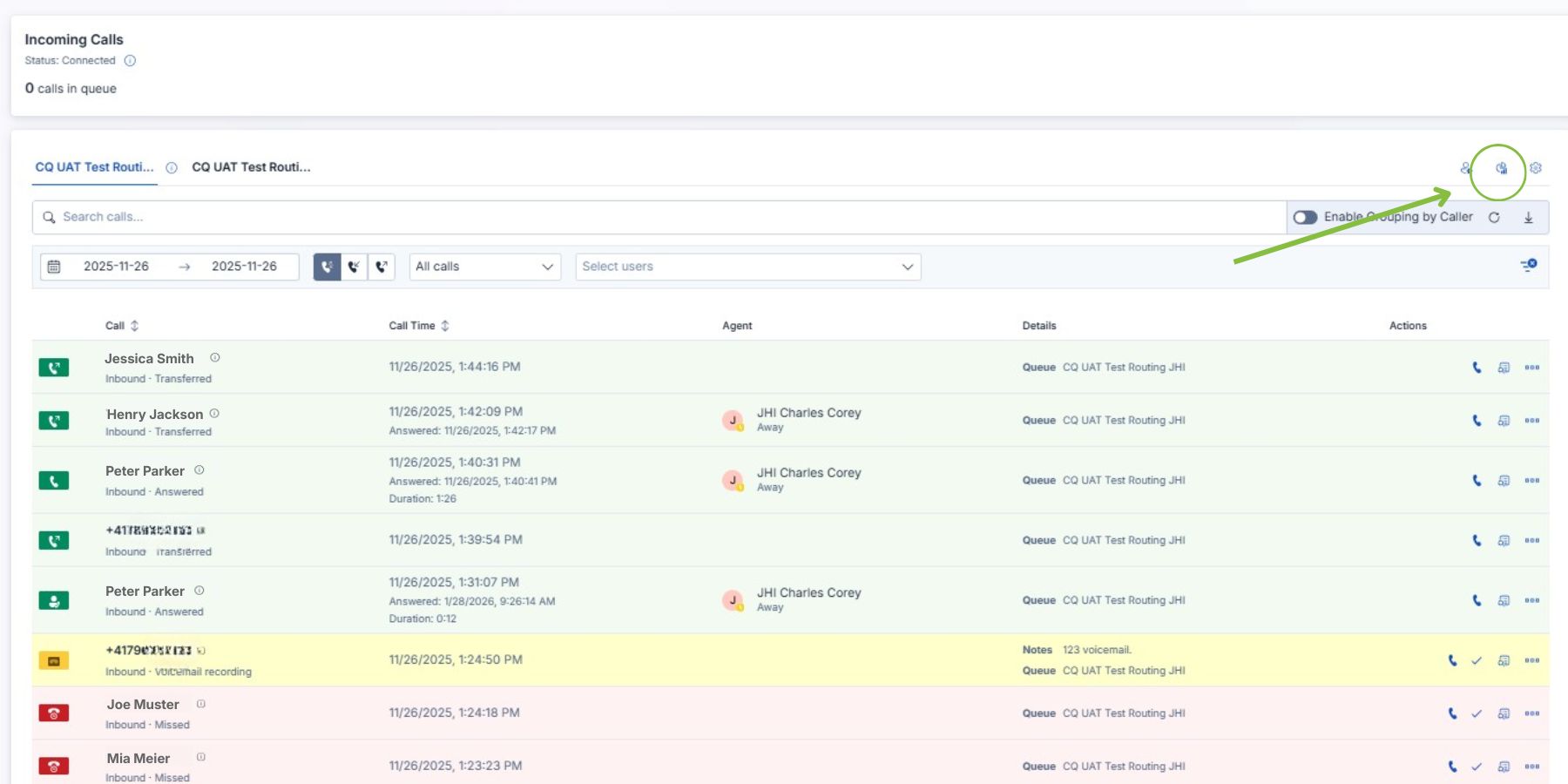
1. **Open the dialpad**: Look for the dialpad icon in Easy Calling dashboard
2. **Choose calling mode**:

* **As Call Queue:** Call is tracked and logged in history (recommended for business calls)
* **As yourself (Native Teams)**: Opens standard Teams calling window (for private calls)

3. **Enter the number**: Type the phone number or select from recent calls
4. **Add Comment** (optional): Add context like "Following up on support ticket #123"
5. **Click "Call"**: The call initiates immediately

### When to Use Outbound Calling

* **Callback requests**: Customer asked you to call them back
* **Follow-up calls**: Checking in on a previous issue
* **Proactive outreach**: Scheduled customer check-ins
* **Transfer follow-up**: Calling a customer back after a dropped transfer

**Pro Tip:** Outbound calls made through Easy Calling bot are automatically logged in call history, making it easy to track all customer interactions.

> **For more details:** See the [Call Management (Inbound and Outbound)](/feature-categories/call-management) documentation.

***

## Checklist for Easy Calling

### Before the Call

* [ ] Easy Calling dashboard is open
* [ ] Headset is on and working
* [ ] Know which queue you are assigned to

### Answering the Call

* [ ] Click "Answer" (or accept in Microsoft Teams)
* [ ] Greet the caller warmly
* [ ] Check the caller information panel

### During the Call

* [ ] Take notes in the notes section
* [ ] Listen actively and ask clarifying questions
* [ ] Keep an eye on the call timer

### Ending the Call

* [ ] Summarize next steps
* [ ] Thank the caller
* [ ] Click "End Call"

### After the Call

* [ ] Review and clean up notes if needed
* [ ] Send follow-up email if promised
* [ ] Create task if action is needed
* [ ] Save as contact if appropriate

***

## Need More Help?

* [**Quick Start Guide**](/getting-started/quick-start-guide) – The 5-minute version
* [**Feature Categories**](/feature-categories/administration-and-configuration) – Comprehensive documentation on all features
* [**FAQs**](/troubleshooting-and-support/faqs) – Answers to common questions
* [**Contact Support**](/troubleshooting-and-support/support) – We're here for you


# Installation Guide (for Admins)

**Getting Easy Calling up and running is easier than you think.** This guide walks you through the complete installation process, step by step.

## Before You Begin

### Who Should Do This Installation?

This guide is for **IT Administrators** or **Teams Administrators** who are responsible for setting up applications in your Microsoft 365 tenant.

### What You'll Need

* **Global Administrator** access to your Microsoft 365 tenant
* **Teams Administrator** rights (to configure call queues)
* **15-20 minutes** of uninterrupted time
* **The Easy Calling app package** (download through the Installation Wizard)

### What You'll Accomplish

By the end of this guide, you'll have:

* Easy Calling installed in your Teams environment
* Permissions configured correctly
* Your first call queue set up and ready to use
* Your team ready to start handling calls

{% hint style="info" %}
**Important:** You'll need to grant administrative consent for Easy Calling to access call information and integrate with Teams. This is a one-time setup.
{% endhint %}

***

## Step 1: Run the Easy Calling Onboarding Wizard

After purchasing your Easy Calling license, you'll receive an email with all instructions. The Easy Calling Onboarding Wizard automates the permission setup.

### Why Do We Need Permissions?

Easy Calling needs specific permissions to:

* **Read call information** from Microsoft Teams (to show you who's calling)
* **Control calls** (answer, transfer, send to voicemail)
* **Send notifications** to your team about incoming calls
* **Create resource accounts** for call queues

These permissions are granted once and apply to your entire organization.

### Starting the Wizard

**1. Open the Installation Link**

{% hint style="info" %}
[**https://admin.easyplatform.app/products/easycalling/onboarding**](https://admin.easyplatform.app/products/easycalling/onboarding)
{% endhint %}

**2. Sign In with Your Admin Account**

When prompted, sign in with your **Global Administrator** account.

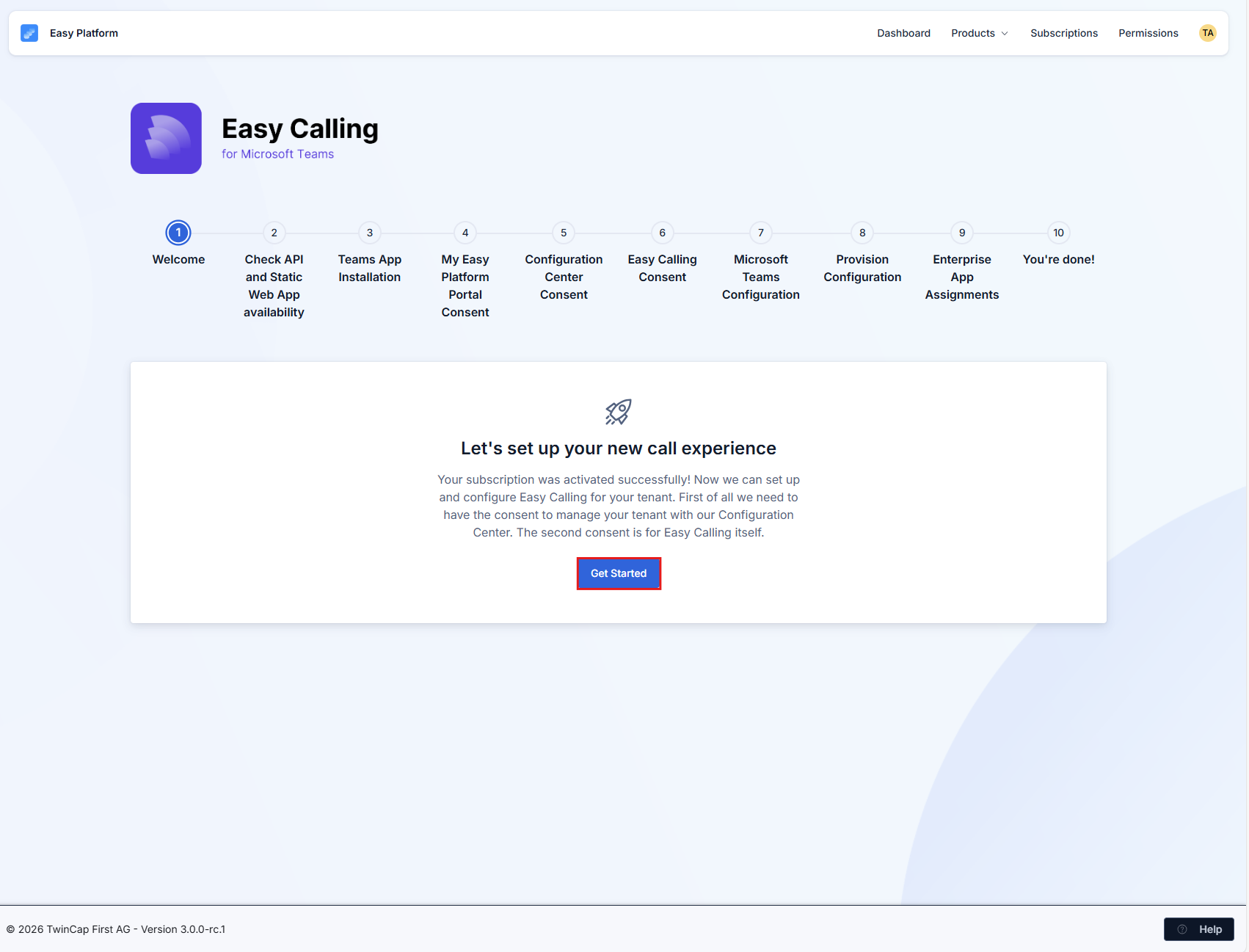
**3. Click "Get Started"**

<figure><img src="https://8483818-files.gitbook.io/~/files/v0/b/gitbook-x-prod.appspot.com/o/spaces%2FdKIXVVI8Ve4TBJ4ft1WC%2Fuploads%2Fgit-blob-23035d1613b8c754990645f1a63a9d7691d1ffd1%2Fimage.png?alt=media" alt=""><figcaption></figcaption></figure>

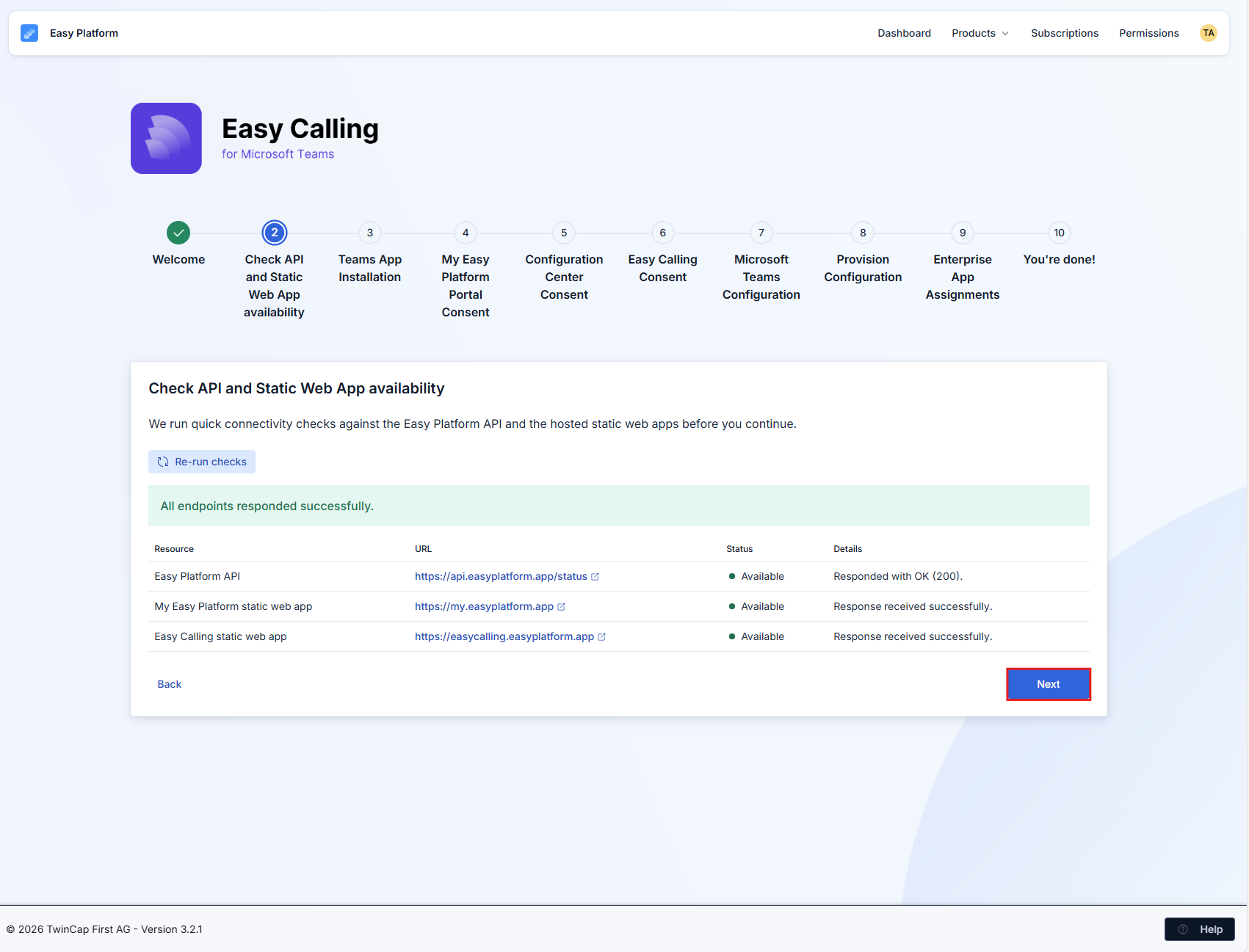
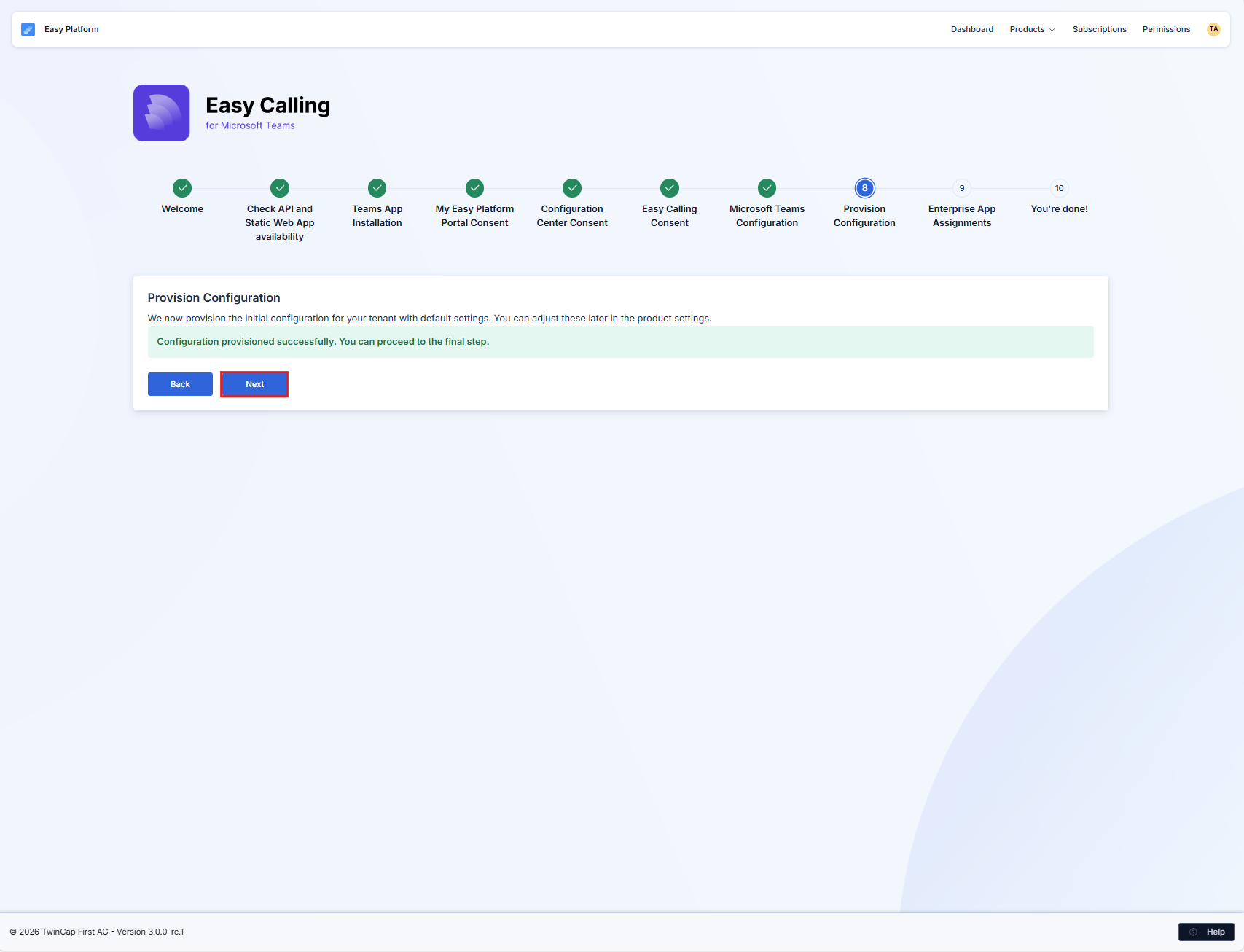
4. **The system will now check whether the required endpoints are accessible and are not blocked by a firewall, for example. If everything is accessible, you can click "Next."**

<figure><img src="https://8483818-files.gitbook.io/~/files/v0/b/gitbook-x-prod.appspot.com/o/spaces%2FdKIXVVI8Ve4TBJ4ft1WC%2Fuploads%2Fgit-blob-afaf05e2c1338b7ad63e56c9a78d1d35a2764812%2Fimage.png?alt=media" alt=""><figcaption></figcaption></figure>

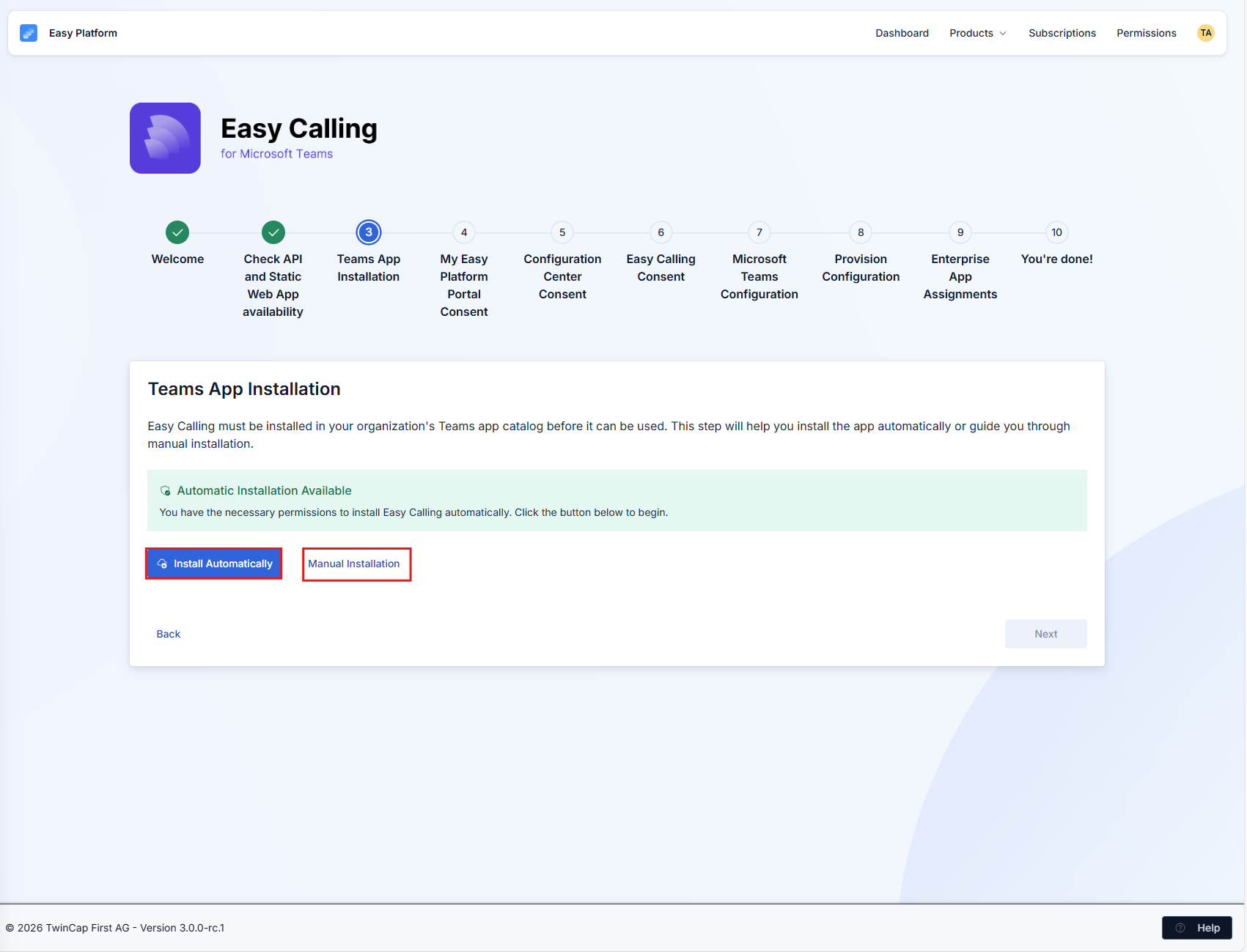
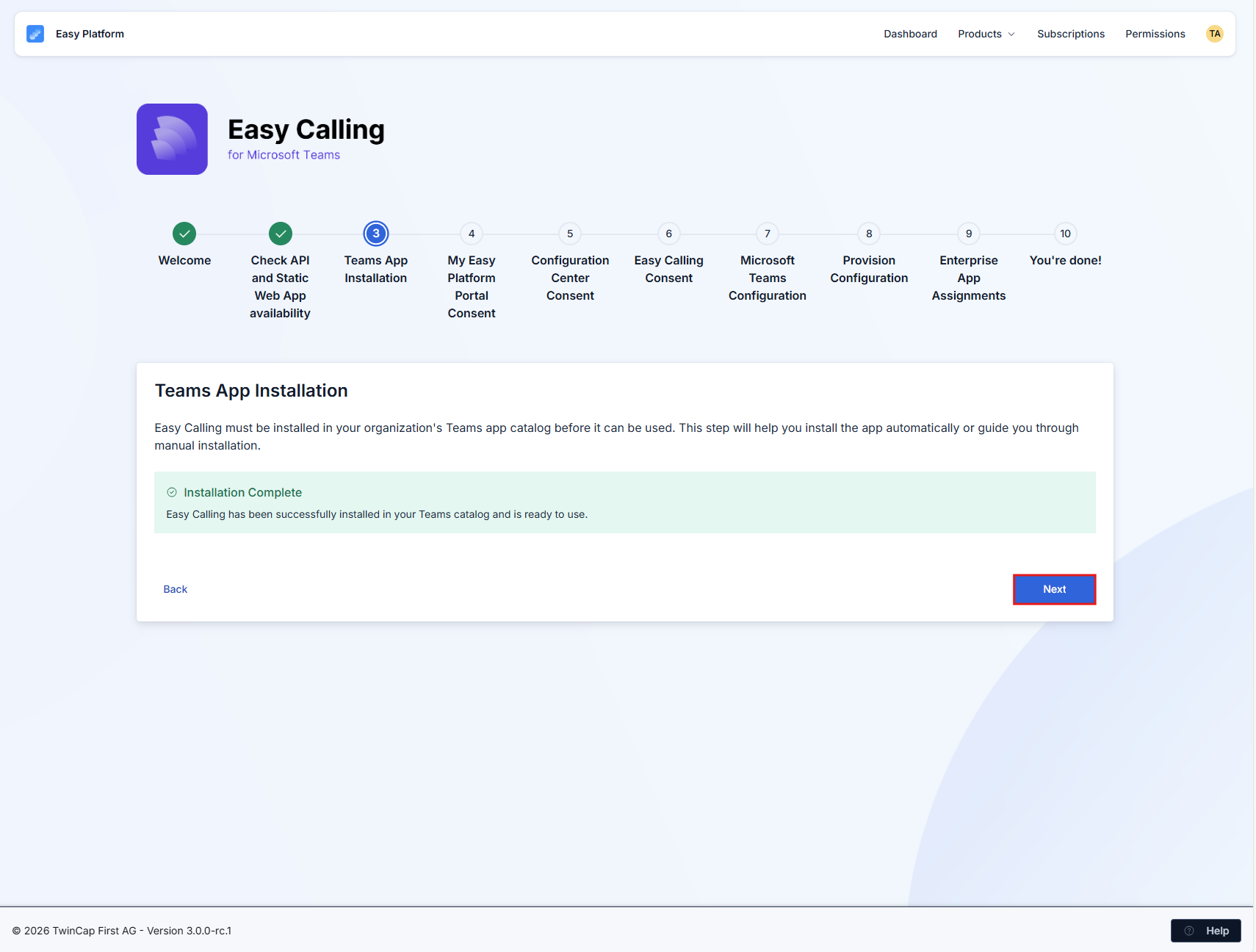
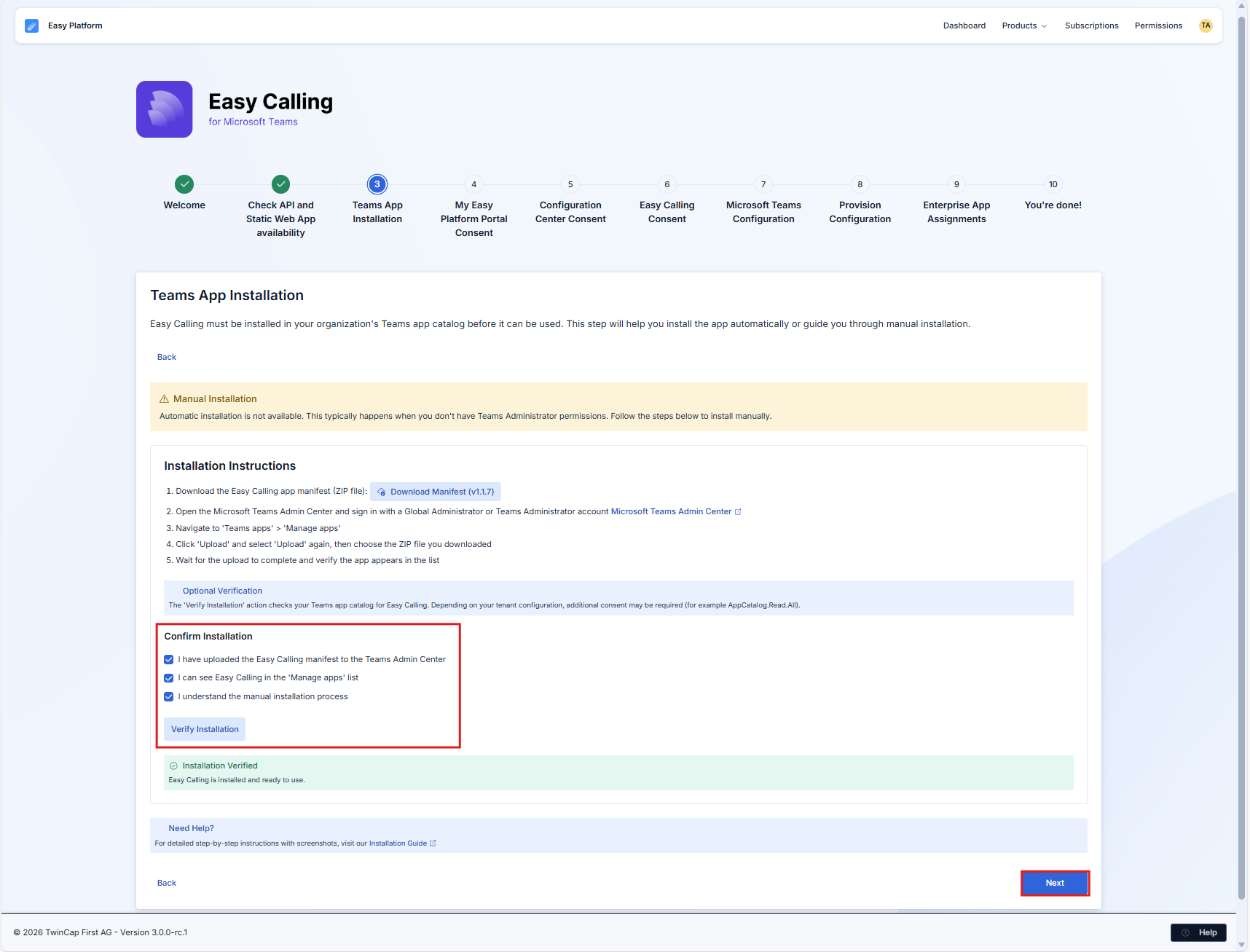
5. **If you skipped Step 2, you can choose here to have the manifest installed automatically or to install it manually. Once the installation is complete, you can click "Next"**

<figure><img src="https://8483818-files.gitbook.io/~/files/v0/b/gitbook-x-prod.appspot.com/o/spaces%2FdKIXVVI8Ve4TBJ4ft1WC%2Fuploads%2Fgit-blob-d3a3b1eaf593f5bca4c0bc10ba9811276b96fac3%2Fimage.png?alt=media" alt=""><figcaption></figcaption></figure>

**Automatically:**

<figure><img src="https://8483818-files.gitbook.io/~/files/v0/b/gitbook-x-prod.appspot.com/o/spaces%2FdKIXVVI8Ve4TBJ4ft1WC%2Fuploads%2Fgit-blob-85d626c3041b9589e7f8b776fda4595fb7e6c1b5%2Fimage.png?alt=media" alt=""><figcaption></figcaption></figure>

**Manual:**

<figure><img src="https://8483818-files.gitbook.io/~/files/v0/b/gitbook-x-prod.appspot.com/o/spaces%2FdKIXVVI8Ve4TBJ4ft1WC%2Fuploads%2Fgit-blob-92c948a640c4dbd554dfb3d626013de436da0ee5%2Fimage.png?alt=media" alt=""><figcaption></figcaption></figure>

***

## Step 2: Grant Permissions (Important!)

The wizard will guide you through granting several permissions. Don't worry–we'll explain what each one does.

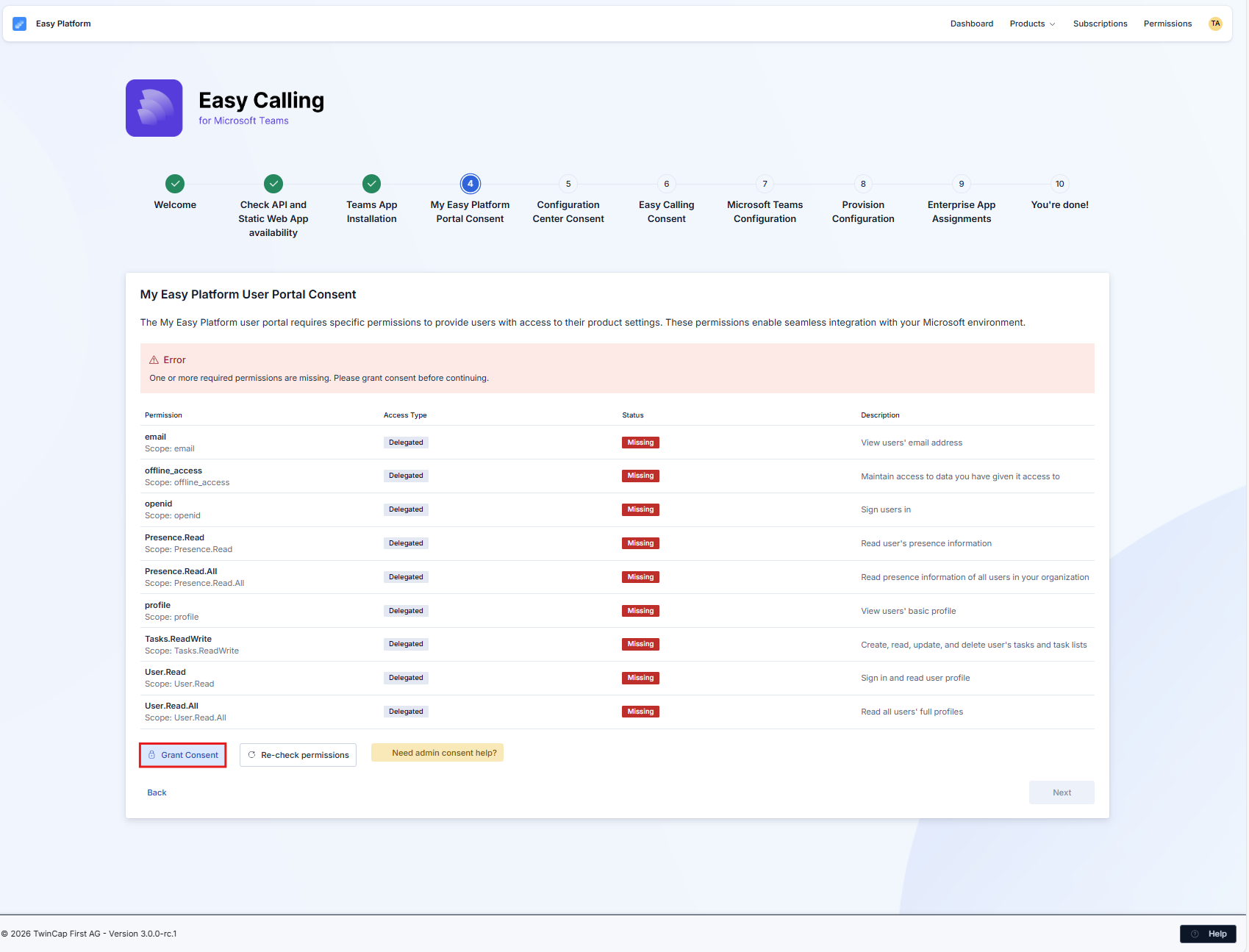
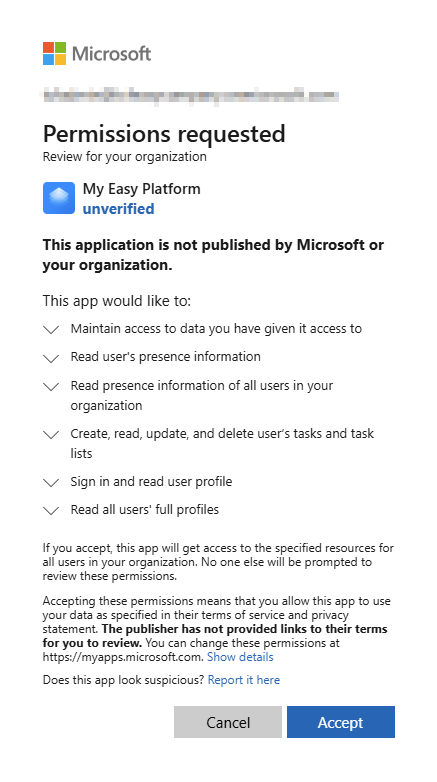
### Permission 1: User Settings (My Easy Platform)

**What it does:** Allows Easy Platform to read your users' profiles so it can show agent names and availability.

**What to do:**

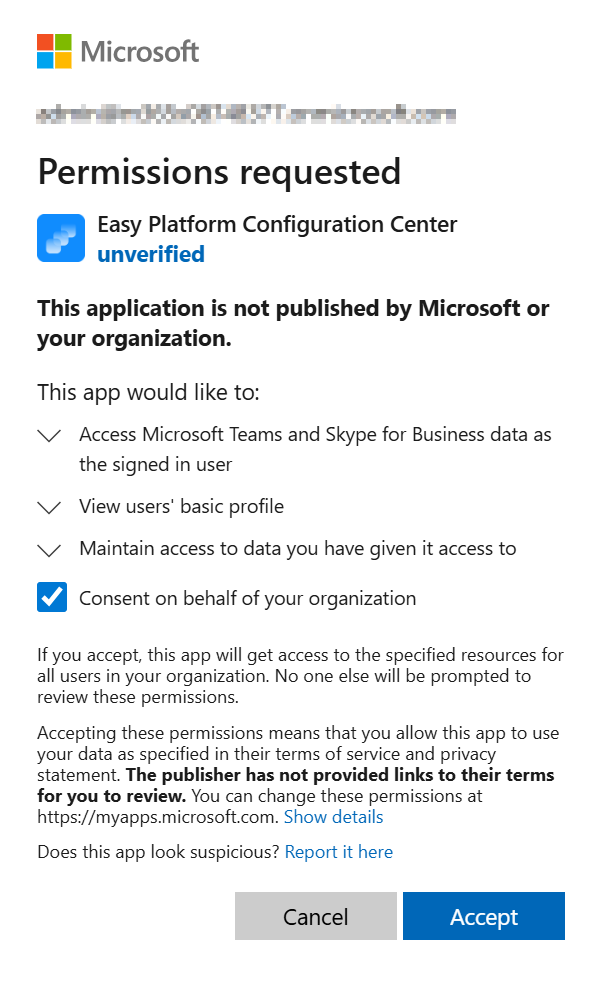
1. Click the **"Grant Consent"** button
2. A Microsoft permission dialog will appear
3. Sign in with your **Global Administrator** account
4. Review the permissions (they're all read-only)
5. Click **"Accept"**

<figure><img src="https://8483818-files.gitbook.io/~/files/v0/b/gitbook-x-prod.appspot.com/o/spaces%2FdKIXVVI8Ve4TBJ4ft1WC%2Fuploads%2Fgit-blob-e984c2e242aa60dc2b87e36fb20d0c3379f14d0d%2Fimage.png?alt=media" alt=""><figcaption></figcaption></figure>

<figure><img src="https://8483818-files.gitbook.io/~/files/v0/b/gitbook-x-prod.appspot.com/o/spaces%2FdKIXVVI8Ve4TBJ4ft1WC%2Fuploads%2Fgit-blob-7ddd749be8fa30737bd0054e02395e0af4f31916%2Fimage.png?alt=media" alt=""><figcaption></figcaption></figure>

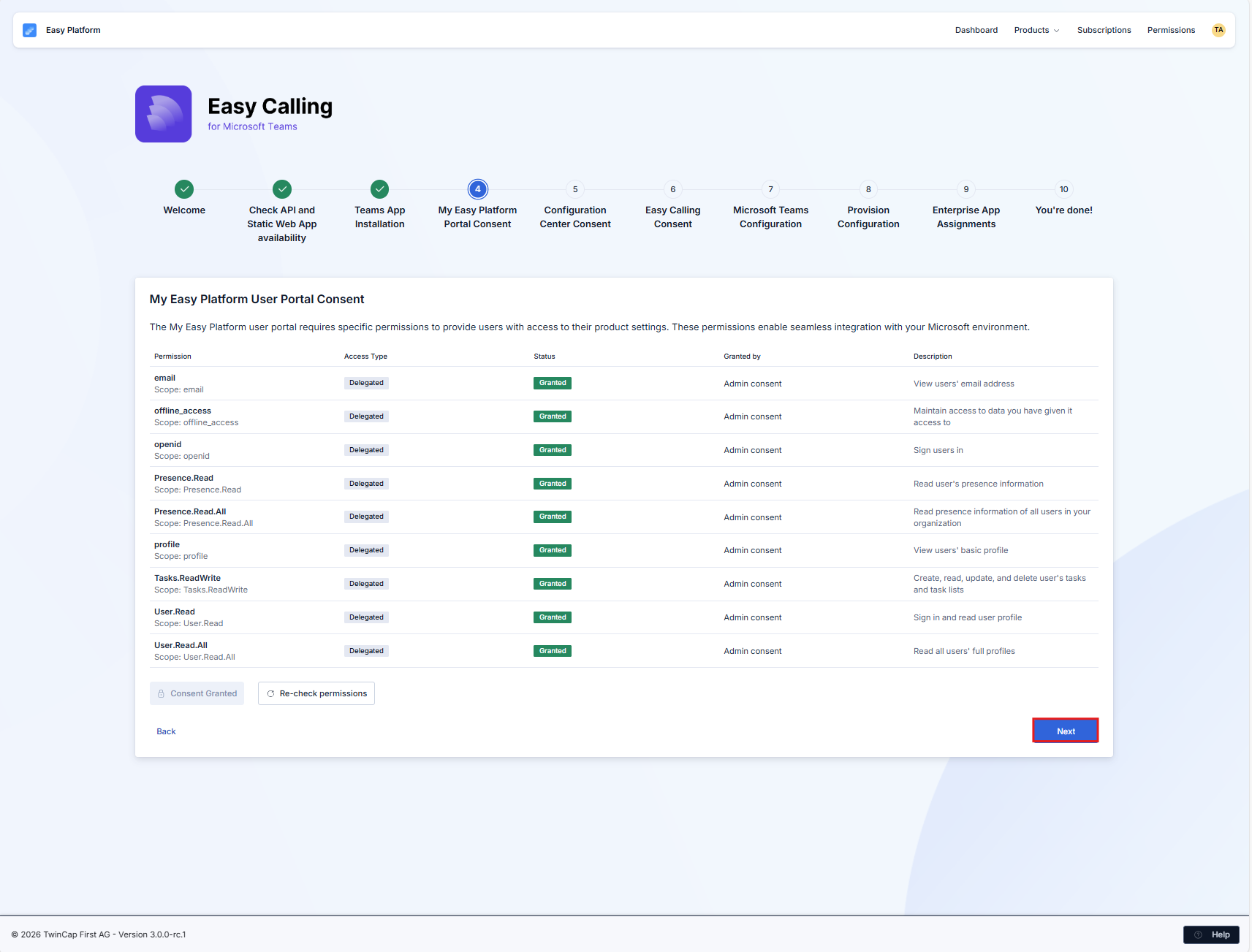
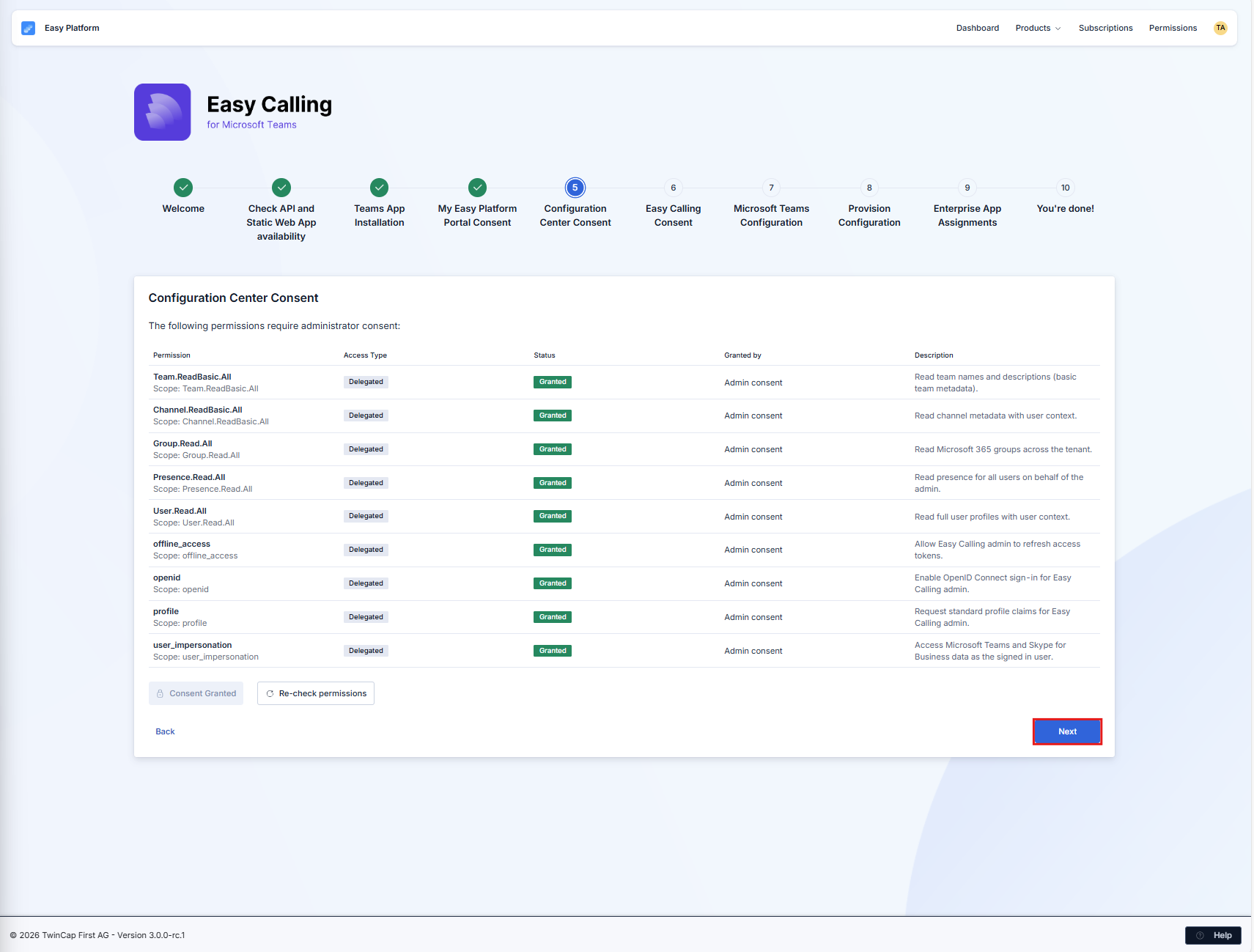
If validation succeeds, click **"Next"** If validation fails, try granting consent again

<figure><img src="https://8483818-files.gitbook.io/~/files/v0/b/gitbook-x-prod.appspot.com/o/spaces%2FdKIXVVI8Ve4TBJ4ft1WC%2Fuploads%2Fgit-blob-89c12e740a232b6e67fa41df63040534f7c1e8b7%2Fimage.png?alt=media" alt=""><figcaption></figcaption></figure>

***

### Permission 2: Easy Platform (Application Access)

**What it does:** Allows the Easy Platform backend to create and manage call queues on your behalf.

**What to do:**

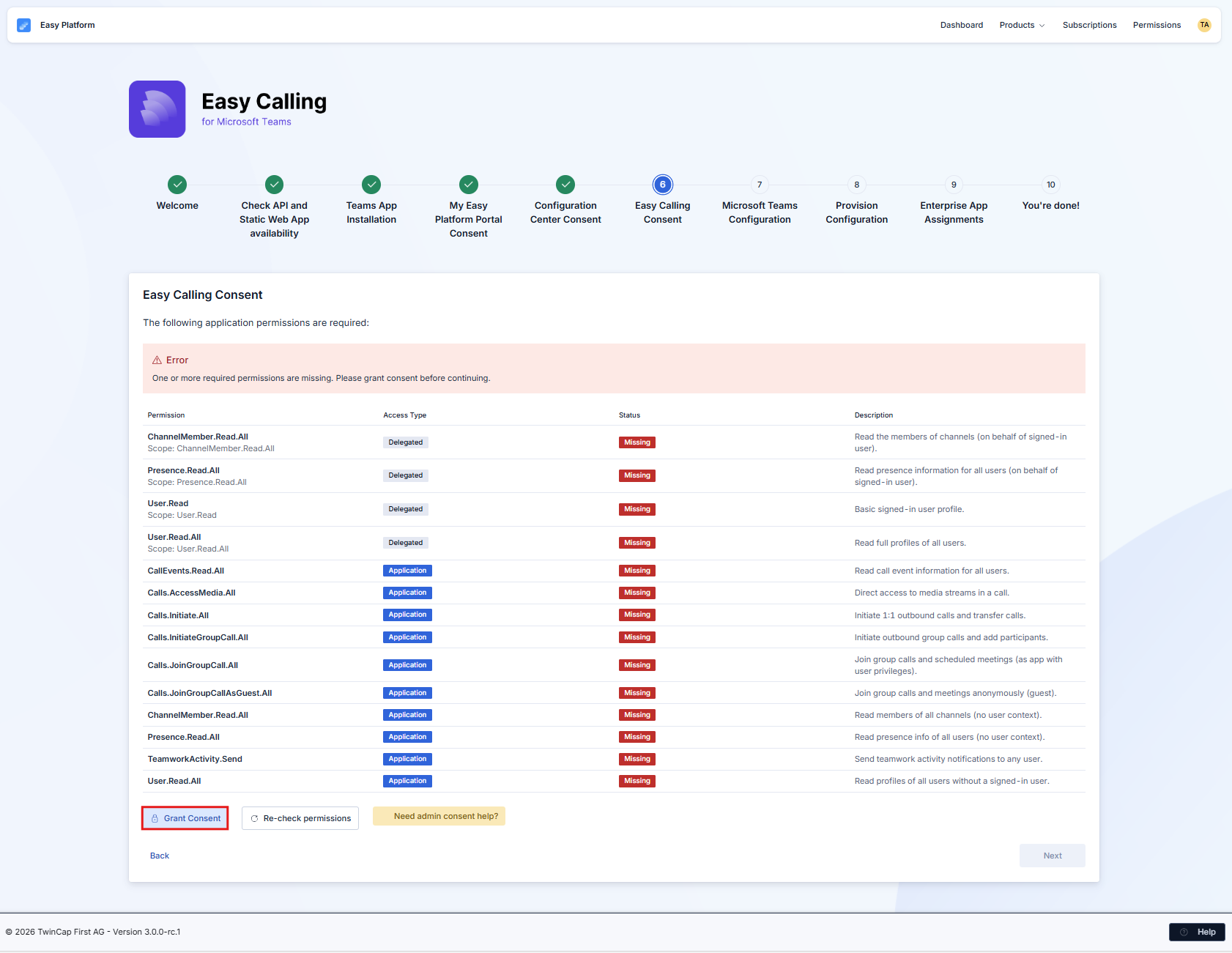
1. Click the **"Grant Consent"** button
2. Sign in with your **Global Administrator** account (if prompted)
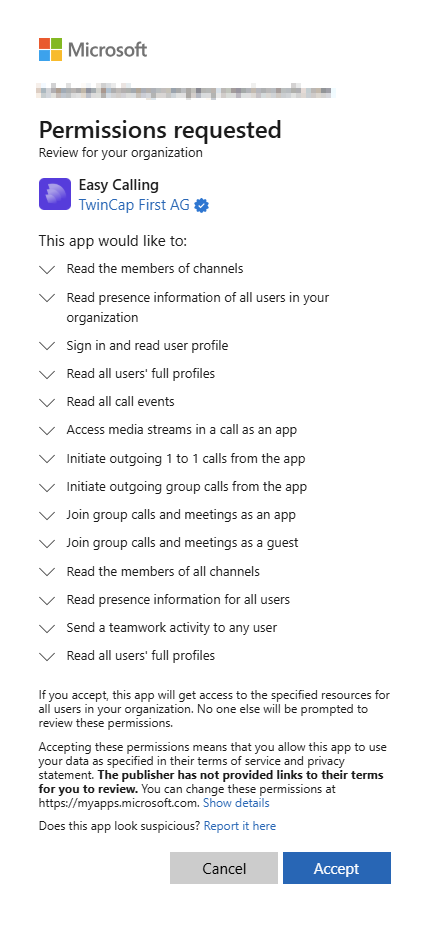
3. Review the permissions
4. Click **"Accept"**

<figure><img src="https://8483818-files.gitbook.io/~/files/v0/b/gitbook-x-prod.appspot.com/o/spaces%2FdKIXVVI8Ve4TBJ4ft1WC%2Fuploads%2Fgit-blob-ce6f76071a566884f402919db8b6d63707b663b2%2Fimage.png?alt=media" alt=""><figcaption></figcaption></figure>

<figure><img src="https://8483818-files.gitbook.io/~/files/v0/b/gitbook-x-prod.appspot.com/o/spaces%2FdKIXVVI8Ve4TBJ4ft1WC%2Fuploads%2Fgit-blob-252a150427b70f5dfe9c23b9355cf304f86879ea%2Fimage.png?alt=media" alt=""><figcaption></figcaption></figure>

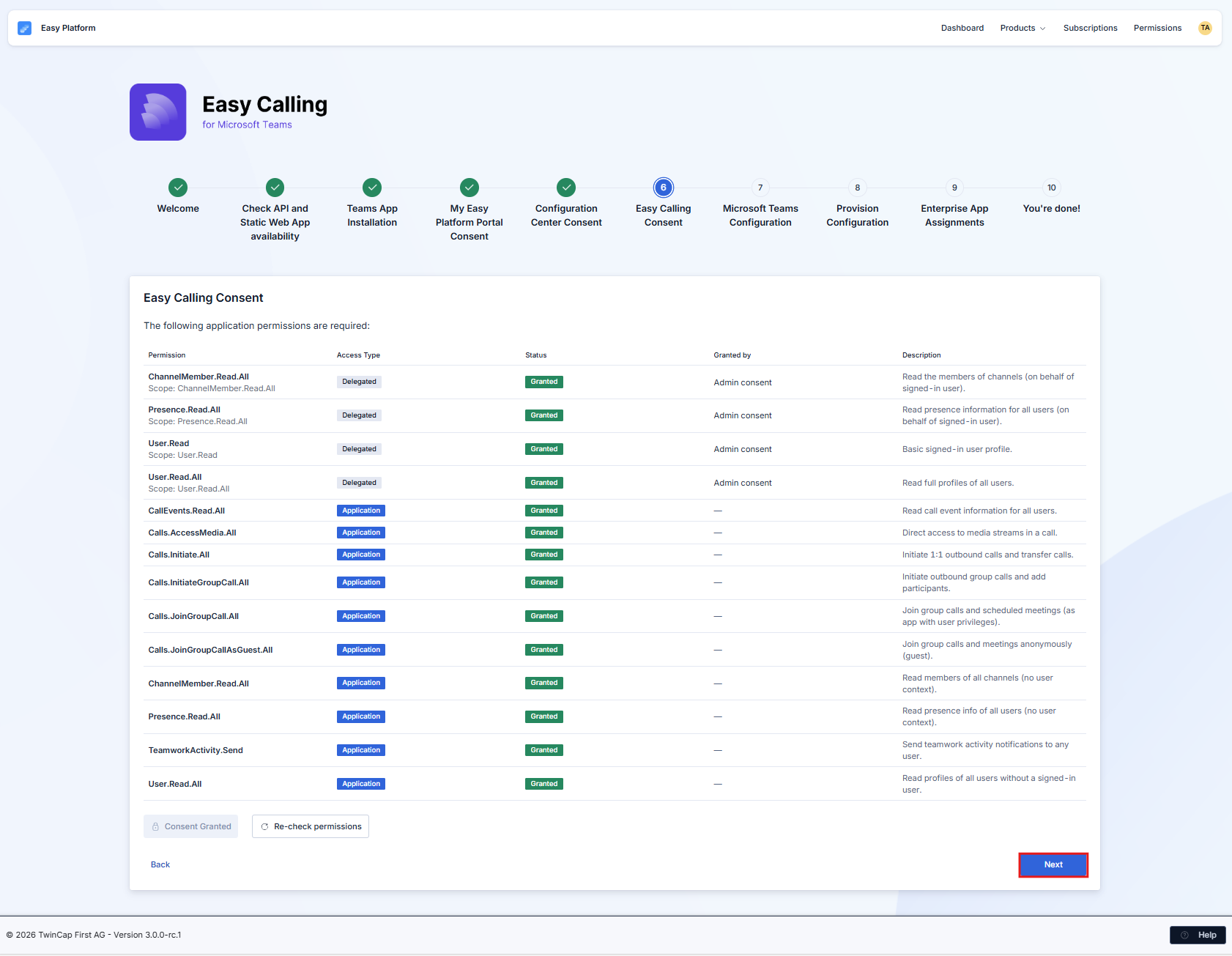
If validation succeeds, click **"Next"** If validation fails, try granting consent again

<figure><img src="https://8483818-files.gitbook.io/~/files/v0/b/gitbook-x-prod.appspot.com/o/spaces%2FdKIXVVI8Ve4TBJ4ft1WC%2Fuploads%2Fgit-blob-f8087856ab940991f24f47f74a1734d37e48d702%2Fimage.png?alt=media" alt=""><figcaption></figcaption></figure>

***

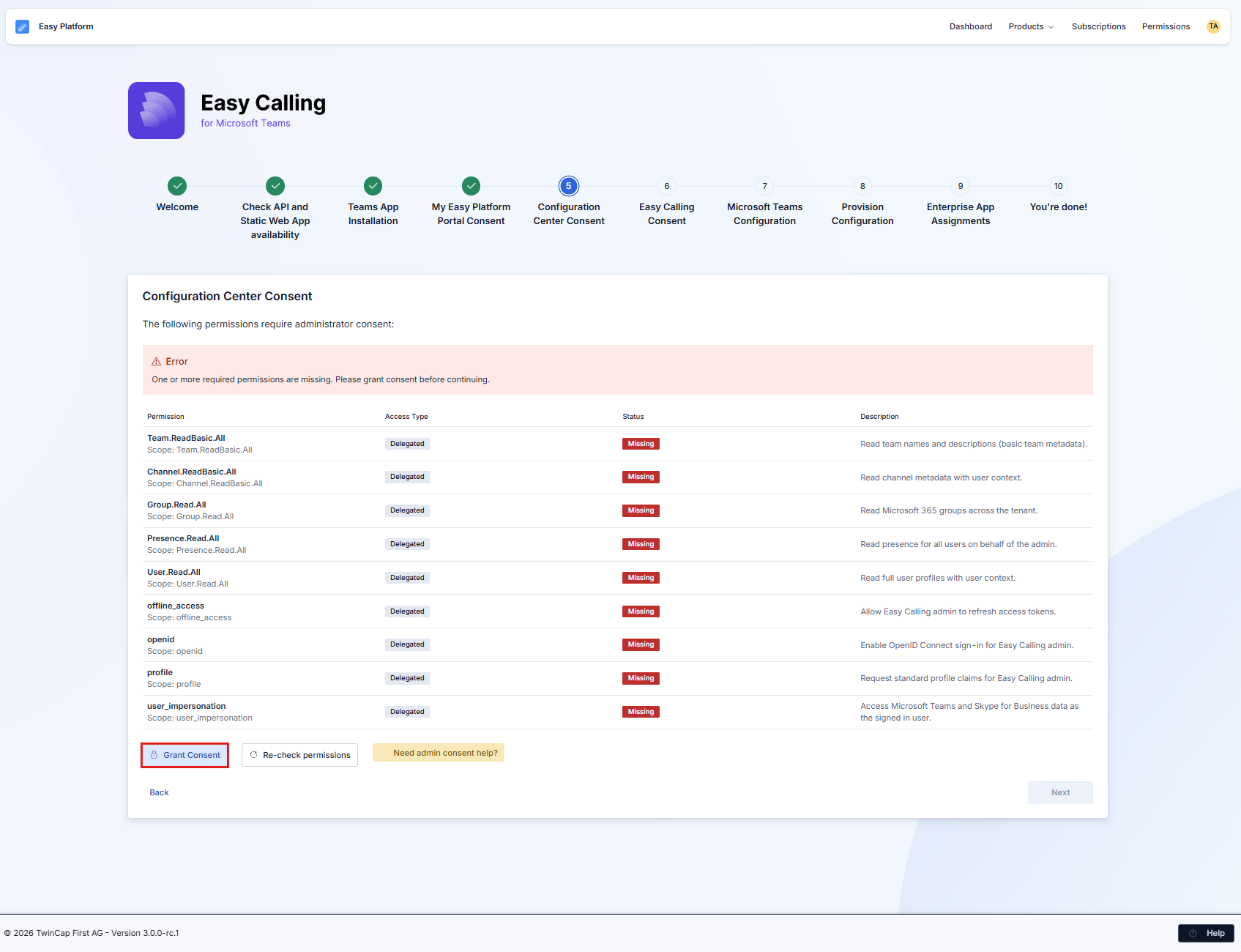
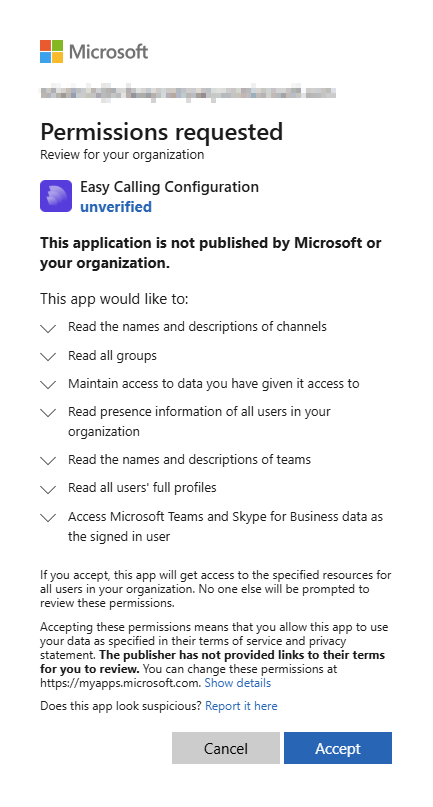
### Permission 3: Easy Calling Configuration (Call Management)

**What it does:** Allows Easy Calling to send and receive call information in real-time.

**What to do:**

1. Click the **"Grant Consent"** button
2. Sign in with your **Global Administrator** account (if prompted)
3. Review the permissions (these include call management capabilities)
4. Click **"Accept"**

<figure><img src="https://8483818-files.gitbook.io/~/files/v0/b/gitbook-x-prod.appspot.com/o/spaces%2FdKIXVVI8Ve4TBJ4ft1WC%2Fuploads%2Fgit-blob-9a39d5e35657fc866a5093b16c334044243a97cc%2Fimage.png?alt=media" alt=""><figcaption></figcaption></figure>

<figure><img src="https://8483818-files.gitbook.io/~/files/v0/b/gitbook-x-prod.appspot.com/o/spaces%2FdKIXVVI8Ve4TBJ4ft1WC%2Fuploads%2Fgit-blob-c7880d5cc3fe93bfb0bf4459bf6616b2aea3e9c0%2Fimage.png?alt=media" alt=""><figcaption></figcaption></figure>

If validation succeeds, click **"Next"** If validation fails, try granting consent again

<figure><img src="https://8483818-files.gitbook.io/~/files/v0/b/gitbook-x-prod.appspot.com/o/spaces%2FdKIXVVI8Ve4TBJ4ft1WC%2Fuploads%2Fgit-blob-6f36370f8425e7867588fc4f56e64f742c07a3b1%2Fimage.png?alt=media" alt=""><figcaption></figcaption></figure>

***

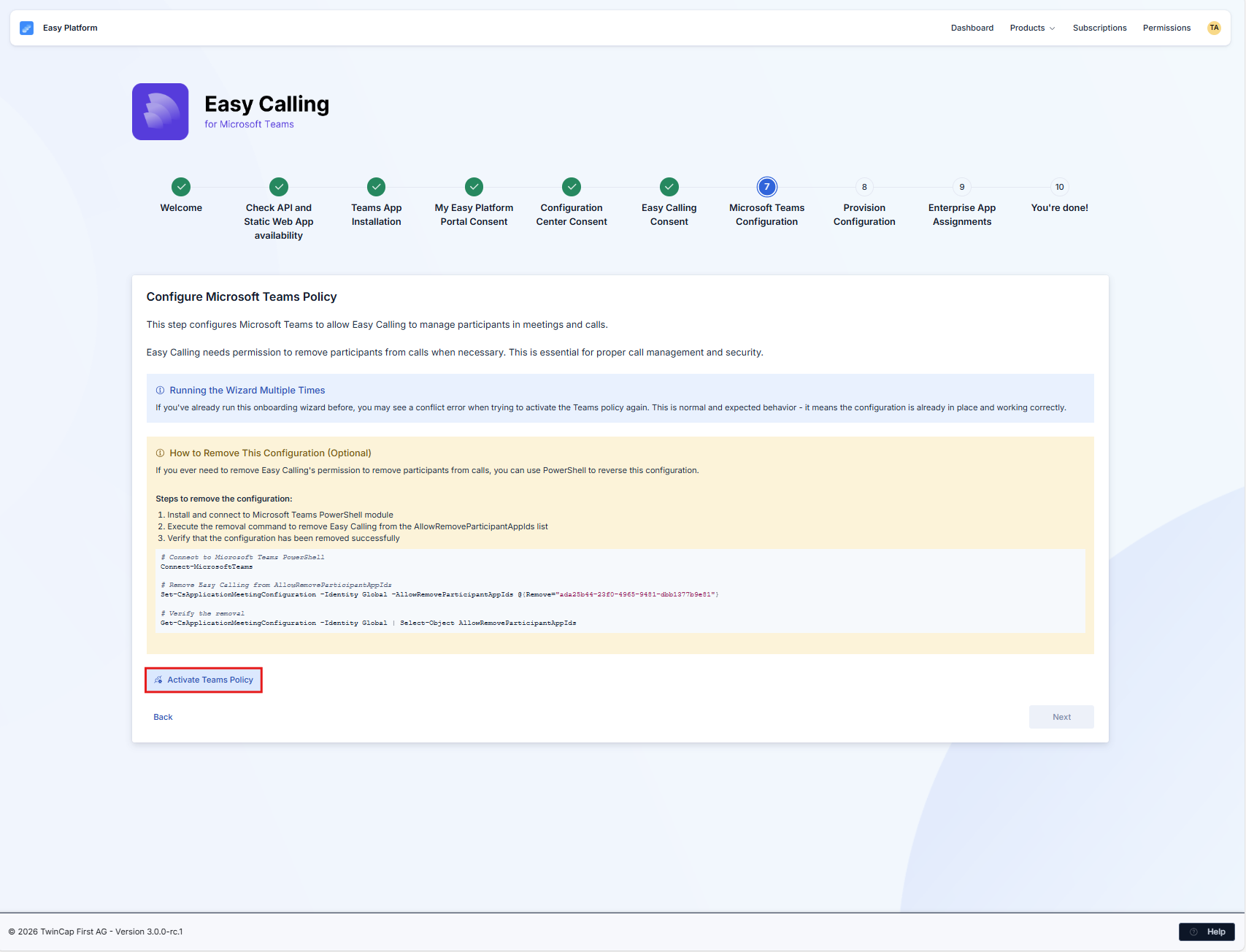
### Permission 4: Teams Policy (Call Transfers)

**What it does:** Allows Easy Calling to transfer calls and remove participants (required for transferring callers to different agents or queues).

**What to do:**

1. Click the **"Activate Teams Policy"** button
2. This will automatically configure the necessary Teams policy

<figure><img src="https://8483818-files.gitbook.io/~/files/v0/b/gitbook-x-prod.appspot.com/o/spaces%2FdKIXVVI8Ve4TBJ4ft1WC%2Fuploads%2Fgit-blob-e247c12b3b17678e2aed771ade2682ccd52e6b06%2Fimage.png?alt=media" alt=""><figcaption></figcaption></figure>

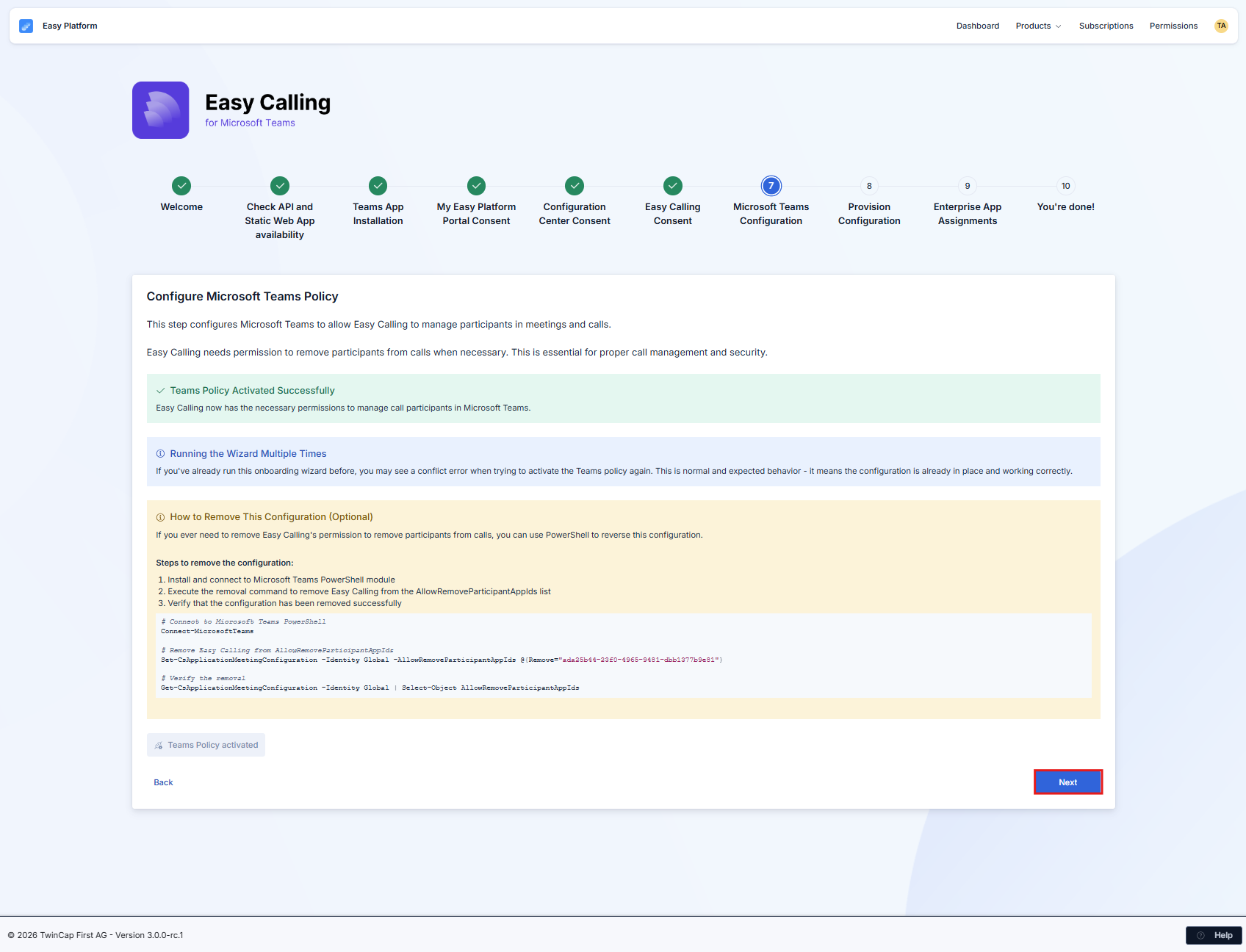
<figure><img src="https://8483818-files.gitbook.io/~/files/v0/b/gitbook-x-prod.appspot.com/o/spaces%2FdKIXVVI8Ve4TBJ4ft1WC%2Fuploads%2Fgit-blob-15b2b5f726571c489ccecf54ad038003c68fa71a%2Fimage.png?alt=media" alt="Teams policy activation"><figcaption><p>The policy is being activated</p></figcaption></figure>

If validation succeeds, click **"Next"** If validation fails, try granting consent again

<figure><img src="https://8483818-files.gitbook.io/~/files/v0/b/gitbook-x-prod.appspot.com/o/spaces%2FdKIXVVI8Ve4TBJ4ft1WC%2Fuploads%2Fgit-blob-f0fa2ff67e4722c8baa345806fbeba1ace70aed7%2Fimage.png?alt=media" alt=""><figcaption></figcaption></figure>

{% hint style="info" %}
**What's a Teams Policy?** It's a set of rules that controls what apps can do in your Teams environment. This policy specifically allows Easy Calling to transfer calls between users.
{% endhint %}

***

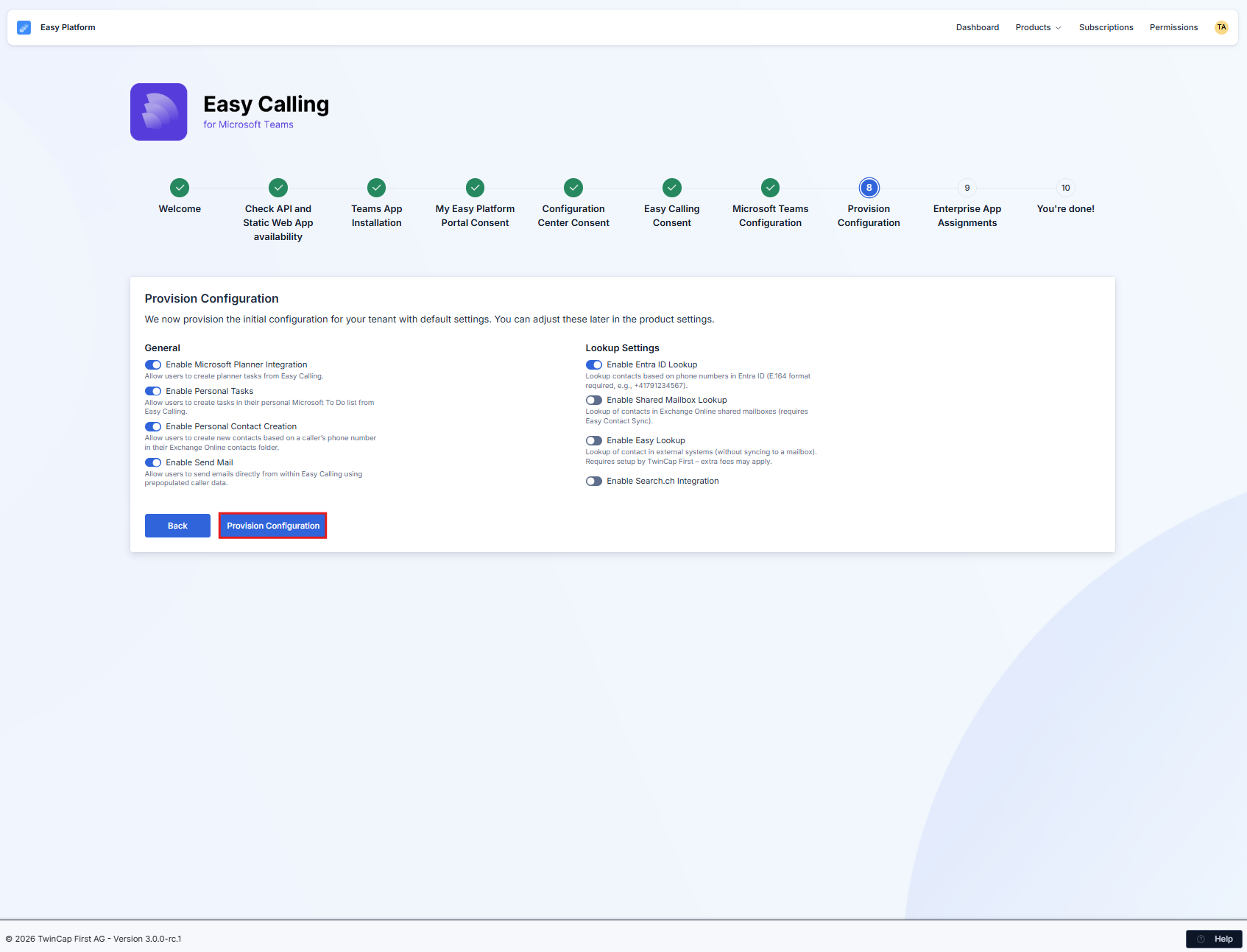
## Step 3: Configure Initial Settings (Optional)

Now you can enable some global features. **Don't worry–you can change these later.**

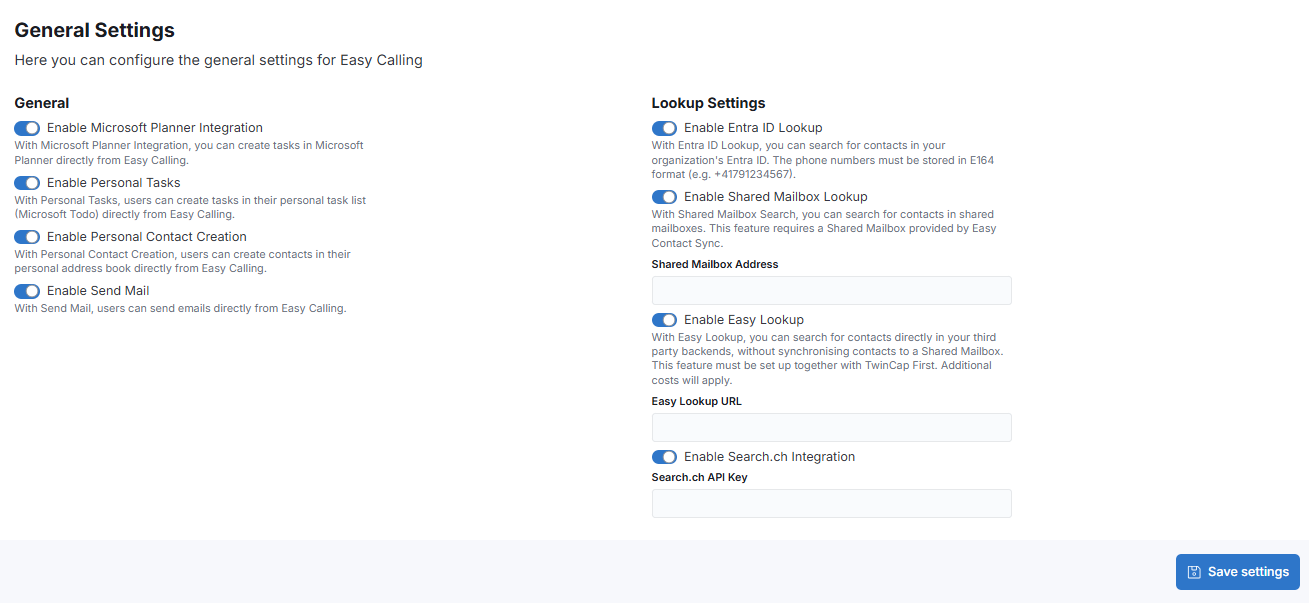
### Available Features

<figure><img src="https://8483818-files.gitbook.io/~/files/v0/b/gitbook-x-prod.appspot.com/o/spaces%2FdKIXVVI8Ve4TBJ4ft1WC%2Fuploads%2Fgit-blob-1900fa8193cf6d87f20fa93072c5e9af49252190%2Fimage.png?alt=media" alt=""><figcaption></figcaption></figure>

**Feature options:**

* **Enable Microsoft Planner** – Create tasks from calls in shared Planner boards
* **Enable Personal Tasks** – Create tasks in Microsoft To-Do
* **Enable Personal Contact Creation** – Save callers as personal contacts
* **Enable Send Mail** – Send follow-up emails directly from Easy Calling
* **Enable Entra ID Lookup** – Automatically identify callers from your directory
* **Enable Search.ch Integration** (Switzerland only) – Look up unknown Swiss phone numbers

**Our recommendation:** Enable all features initially. You can always turn off features later if your team doesn't use them.

<figure><img src="https://8483818-files.gitbook.io/~/files/v0/b/gitbook-x-prod.appspot.com/o/spaces%2FdKIXVVI8Ve4TBJ4ft1WC%2Fuploads%2Fgit-blob-4fc64bc26014fd05da82a1232bd6b8684af82dc1%2Fimage.png?alt=media" alt=""><figcaption></figcaption></figure>

**Click "Next"** to continue

***

## Step 6: Set Access Permissions

Control who can access the Easy Platform configuration portal.

<figure><img src="https://8483818-files.gitbook.io/~/files/v0/b/gitbook-x-prod.appspot.com/o/spaces%2FdKIXVVI8Ve4TBJ4ft1WC%2Fuploads%2Fgit-blob-96e0c06ebfe750b0afa4c6229896c158e8b9f92f%2Fimage.png?alt=media" alt=""><figcaption></figcaption></figure>

### Options:

**Option 1: All Users (Default)** Any user in your organization can log in to the Easy Platform portal with their Microsoft account.

**Option 2: Specific Users/Groups** Restrict access to only designated administrators or team leads.

**Our recommendation:** Start with "All Users" so anyone can explore the portal. Once you've set up your call queues, restrict access to administrators and voice app managers only.

**Click "Next"** to continue

***

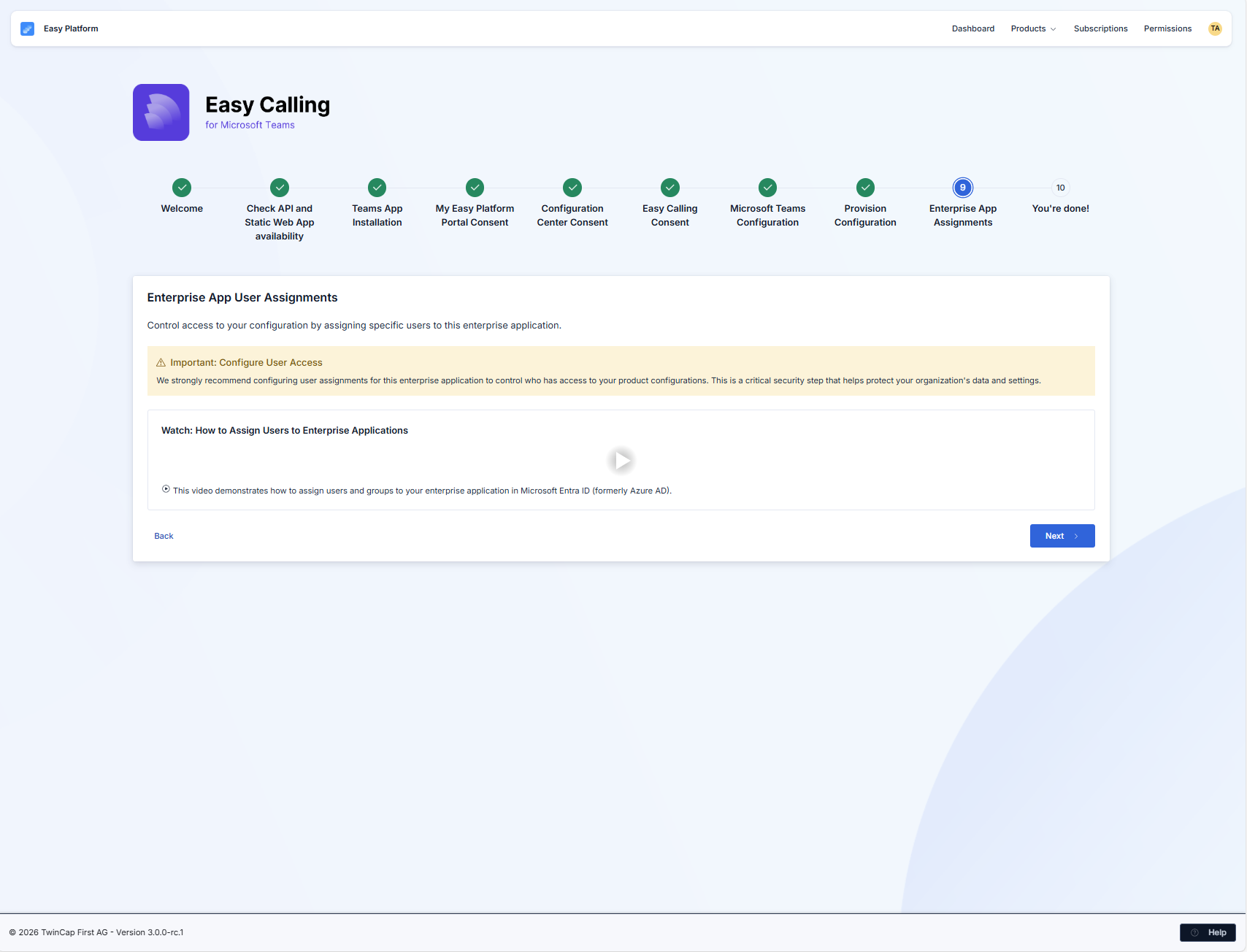
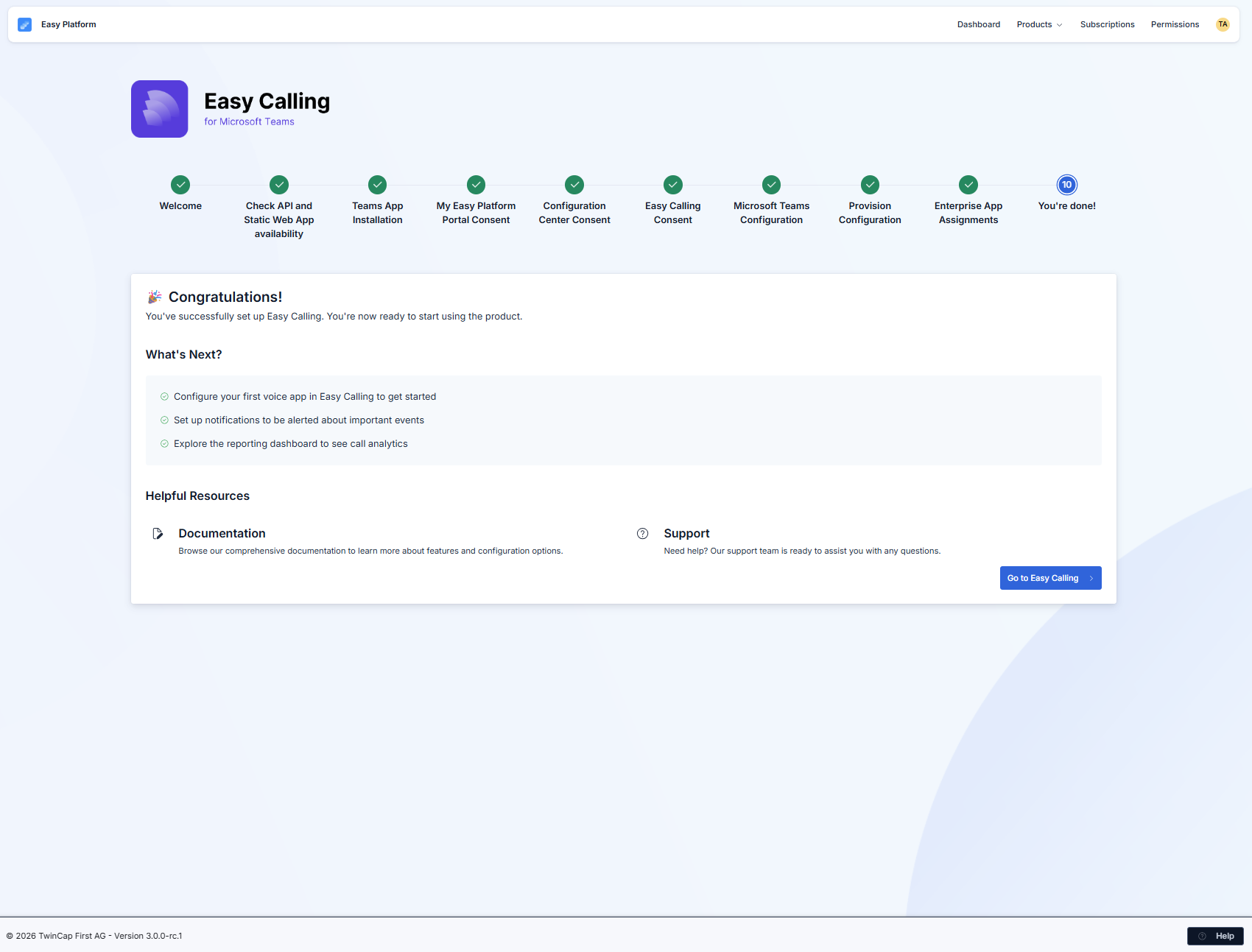
## Step 4: Installation Complete!

You've successfully installed Easy Calling. The final screen shows important links and resources.

<figure><img src="https://8483818-files.gitbook.io/~/files/v0/b/gitbook-x-prod.appspot.com/o/spaces%2FdKIXVVI8Ve4TBJ4ft1WC%2Fuploads%2Fgit-blob-bdd4426de5d95bb38427dcd9afabf0a4a6803333%2Fimage.png?alt=media" alt=""><figcaption></figcaption></figure>

**Save these links:**

* **Easy Platform Configuration Portal** – Where you'll create call queues
* **Easy Calling Documentation** – This guide and others
* **Support Contact** – If you need help

{% hint style="success" %}
**Congratulations!** You've successfully installed Easy Calling. Now it's time to create your first call queue.
{% endhint %}

***

## What's Next?

### Immediate Next Steps (Do These Now)

1. [**Configure Best Practices – Call Life Cycle Queue**](/getting-started/easy-calling-configuration) – Set up a call queue so calls can be routed to your team
2. [**Configure Teams Call Flow**](https://github.com/easy-platform/easycalling/blob/main/docs/end-user/getting-started/microsoft-teams-call-flow.md) – Connect your phone numbers to Easy Calling
3. **Add Your Team** – Assign agents to your call queue

### After Best Practices – Call Life Cycle Queue is Working

4. [**Train Your Team**](/getting-started/best-practices-call-life-cycle) – Share the Quick Start Guide with your agents
5. [**Set Up Voicemail**](https://github.com/easy-platform/easycalling/blob/main/docs/end-user/guides/how-to/setup-voicemail.md) – Configure voicemail greetings and routing
6. [**Customize Caller ID**](/getting-started/easy-calling-configuration#enable-entra-id-lookup-name-resolution) – Connect external databases for better caller identification

***

## Troubleshooting Installation Issues

### "Grant Consent" Button Doesn't Work

**Possible causes:**

* You're not signed in as a Global Administrator
* Your organization has additional security policies that block consent

**Solution:**

1. Confirm you're using a Global Administrator account
2. Contact your security team to temporarily allow admin consent
3. Try again in a private/incognito browser window

***

### "Validate Consent" Fails

**Possible causes:**

* The consent wasn't fully processed yet (Microsoft sometimes takes a minute)
* There was a network interruption

**Solution:**

1. Wait 60 seconds and click "Validate Consent" again
2. If it still fails, go back and grant consent again
3. Check the Azure Active Directory admin center to confirm the app permissions are listed

***

### Can't Upload the App Package

**Possible causes:**

* You don't have permissions to upload custom apps
* Custom app uploads are disabled in your tenant

**Solution:**

1. Verify you have Teams Administrator or Global Administrator rights
2. In Teams Admin Center, go to **Teams apps** → **Manage apps** → **Org-wide app settings**
3. Ensure "Upload custom apps" is turned ON
4. Try uploading again

***

### Installation Wizard Link Doesn't Work

**Possible causes:**

* The link expired
* You're opening it in an unsupported browser

**Solution:**

1. Contact TwinCap First support to request a new installation link
2. Try opening the link in Microsoft Edge or Google Chrome
3. Clear your browser cache and try again

***

### Performance Issues or Delayed Notifications in Virtual Environments (AVD, Citrix, Thin Clients)

**Possible causes:**

* The Easy Calling app relies on real-time signaling for call control and logic, making it highly sensitive to infrastructure latencies
* Virtual environments and terminal servers often experience unpredictable performance peaks, high CPU usage, or network latencies from the cloud provider
* These platform characteristics can throttle or block the app's real-time data transmission, resulting in delayed call cards or lagging UI actions

**Solution:**

* Best Practice: For a guaranteed synchronous and lag-free experience, we highly recommend deploying and running the Easy Calling app directly on local physical devices (Fat Clients).
* For Virtual Deployments: If running inside a virtual environment is mandatory, ensure that the virtualization platform is allocated sufficient, unthrottled resources so that the app's real-time signaling is never blocked.

***

## Need Help?

If you encounter any issues during installation:

* **Email:** <support@twincapfirst.ch>
* **Phone (Switzerland):** +41 44 666 50 50
* **Phone (Germany):** +49 7431 893 99 60

**Before contacting support, have this information ready:**

* Which step you're stuck on
* Any error messages you're seeing
* Screenshots (if applicable)
* Your organization's domain name

***

## Installation Checklist

Use this checklist to track your progress:

* [ ] Downloaded Easy Calling app package
* [ ] Uploaded app to Teams Admin Center
* [ ] Verified app appears in Manage Apps
* [ ] Received installation wizard link via email
* [ ] Opened wizard and signed in as Global Administrator
* [ ] Granted consent for User Settings
* [ ] Granted consent for Easy Platform
* [ ] Granted consent for Call Management
* [ ] Activated Teams Policy
* [ ] Configured global feature settings
* [ ] Set access permissions
* [ ] Saved configuration portal link
* [ ] **Next:** [Configure first call queue](/getting-started/easy-calling-configuration)

***

**Ready to create your first call queue?** Head to the [Configuration Guide](/getting-started/easy-calling-configuration) to get started!


# Configuration Guide

Follow these steps to configure and enable Easy Calling in your tenant

General Settings

<figure><img src="https://8483818-files.gitbook.io/~/files/v0/b/gitbook-x-prod.appspot.com/o/spaces%2FdKIXVVI8Ve4TBJ4ft1WC%2Fuploads%2Fgit-blob-cf280858b06fae39f900c7d681da5d4830f7d091%2Fimage.png?alt=media" alt=""><figcaption></figcaption></figure>

#### Enable Microsoft Planner

This feature allows you to connect your Easy Calling with your Microsoft Planner. This gives you the option of creating an entry in the Microsoft Planner at the touch of a button, which takes over all the information from the Easy Calling

#### Enable Personal Tasks

With Personal Tasks, users can create tasks in their personal task list (Microsoft Todo) directly from Easy Calling.

#### Enable Perosnal Contact Creation

With Personal Contact Creation, users can create contacts in their personal address book directly from Easy Calling.

#### Enabel Send Mail

With Send Mail, users can send emails directly from Easy Calling.

#### Enable Entra ID Lookup (Name Resolution)

With Entra ID Lookup, you can search for contacts in your organization's Entra ID. The phone numbers must be stored in E164 format (e.g. +41791234567).

{% hint style="danger" %}
The phone number must be stored in Entra in the format E164 so that this integration works properly:

+41XXXXXXXXX | +49XXXXXXXXXXX | etc.
{% endhint %}

#### Enable Shared Mailbox Search Lookup (Name Resolution)

Enabling the Shared Mailbox Search enables us to search for telephone numbers of incoming calls in a shared mailbox. The search is just supported in mailboxes that are handled by Easy Contact Sync. If there is an existing contact in your tenant with a matching telephone number, the bot will display the contact information in the call card.

{% hint style="danger" %}
The "Easy Contact Sync" product is required for this feature
{% endhint %}

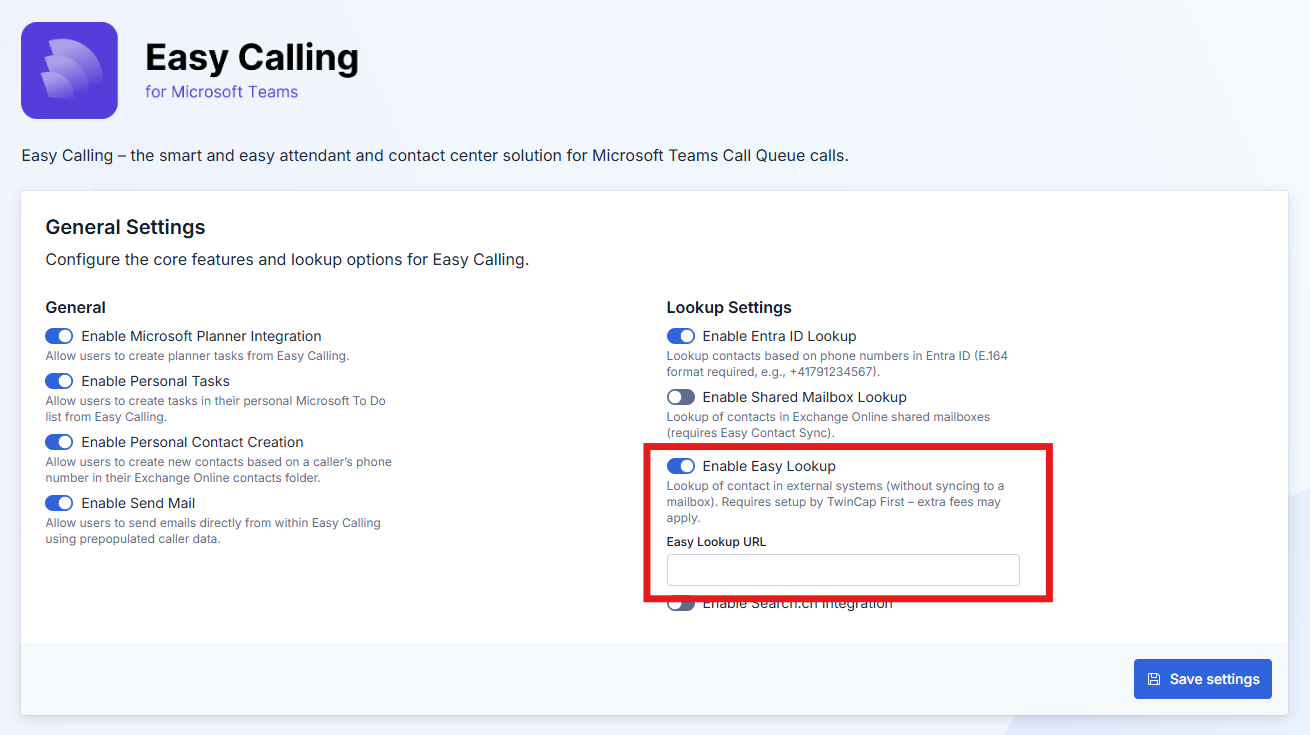
#### Enable Easy Lookup (Name Resolution)

With Easy Lookup, you can search for contacts directly in your third party backends, without synchronising contacts to a Shared Mailbox.

{% hint style="danger" %}
**This feature must be set up together with TwinCap First. Additional costs will apply.**
{% endhint %}

#### Enable Search.ch Integration (Name Resolution)

Enabling the Search.ch Integration enables us to search for telephone numbers of incoming calls in Search.ch. If there is an existing contact in your tenant with a matching telephone number, the bot will display the contact information in the call card.

{% hint style="warning" %}
Please note, that you need your own API Key, to search against Search.ch. You can get an API Key for free directly from Search.ch
{% endhint %}

## Voice App Configuration

The voice app configuration is the core component of Easy Calling. It enables the complete setup and management of the telephony infrastructure.

{% tabs %}
{% tab title="Create and configure a voice app" %}

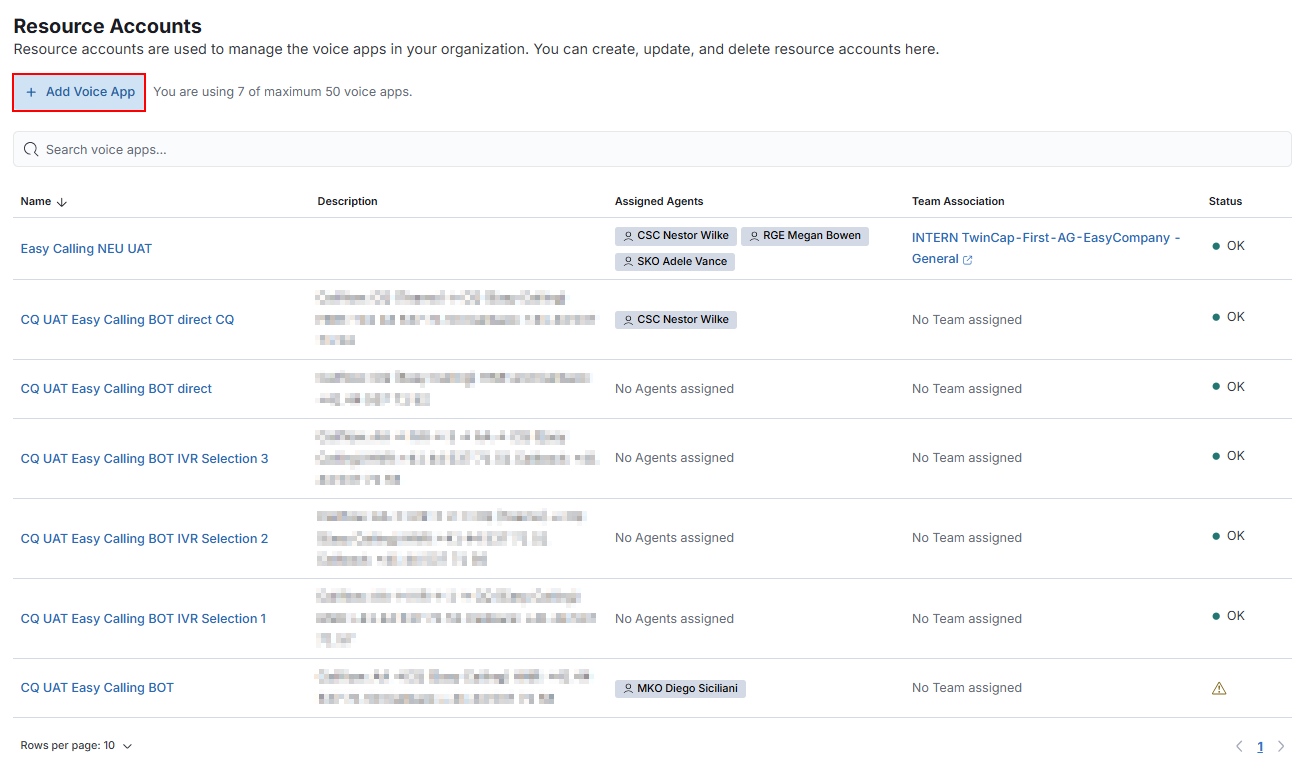
1. Click "Add Voice App"

<figure><img src="https://8483818-files.gitbook.io/~/files/v0/b/gitbook-x-prod.appspot.com/o/spaces%2FdKIXVVI8Ve4TBJ4ft1WC%2Fuploads%2Fgit-blob-5cfdebe389bbaec285d7551ab3531cd3ec6d657b%2Fimage.png?alt=media" alt=""><figcaption></figcaption></figure>

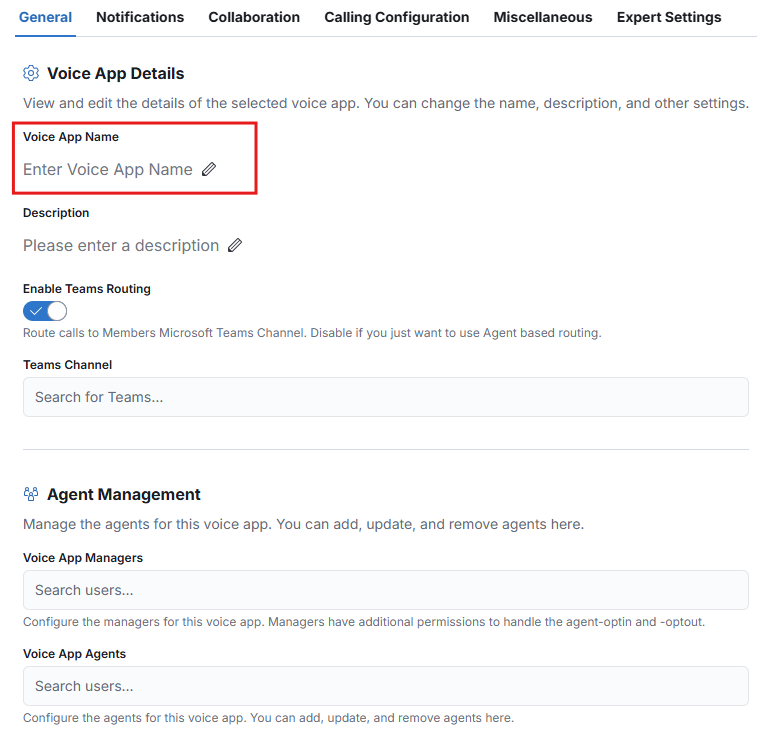
2. Define a name for this voice app

<figure><img src="https://8483818-files.gitbook.io/~/files/v0/b/gitbook-x-prod.appspot.com/o/spaces%2FdKIXVVI8Ve4TBJ4ft1WC%2Fuploads%2Fgit-blob-9b3df3f60235c34615e0e9f63ac054ae10f8cb28%2Fimage.png?alt=media" alt=""><figcaption></figcaption></figure>

{% hint style="warning" %}
This name will later be used to automatically create a resource account in the Microsoft Teams Admin Center.
{% endhint %}

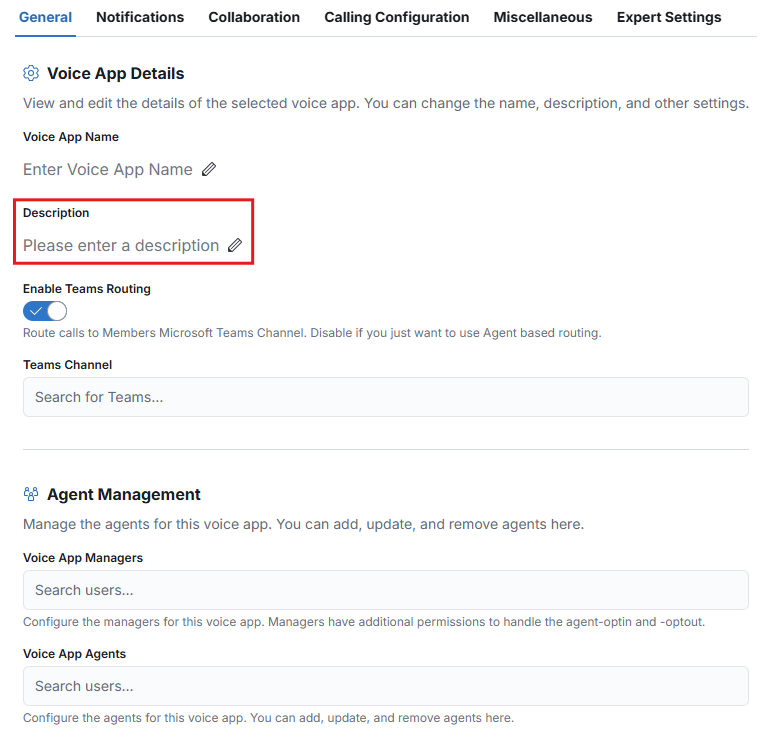
3. Optional: You can add an individual description to this voice app

<figure><img src="https://8483818-files.gitbook.io/~/files/v0/b/gitbook-x-prod.appspot.com/o/spaces%2FdKIXVVI8Ve4TBJ4ft1WC%2Fuploads%2Fgit-blob-42d9278fd9b74e55c676528ea1a669faaf7df094%2Fimage.png?alt=media" alt=""><figcaption></figcaption></figure>

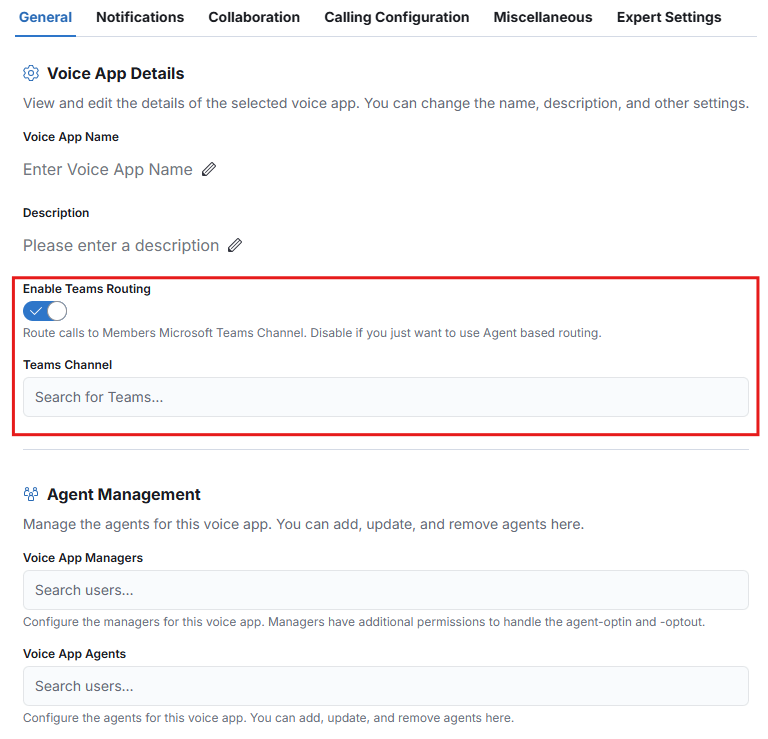
4. Choose between **Teams routing** and **agent routing**

**Team Routing:**

In Teams Routing, you can select an existing team in Microsoft Teams and all users within this team will receive the calls

<figure><img src="https://8483818-files.gitbook.io/~/files/v0/b/gitbook-x-prod.appspot.com/o/spaces%2FdKIXVVI8Ve4TBJ4ft1WC%2Fuploads%2Fgit-blob-9b49c1e75a6326a6488b0332f40e070722f3bcf6%2Fimage.png?alt=media" alt=""><figcaption></figcaption></figure>

**Agent routing:**

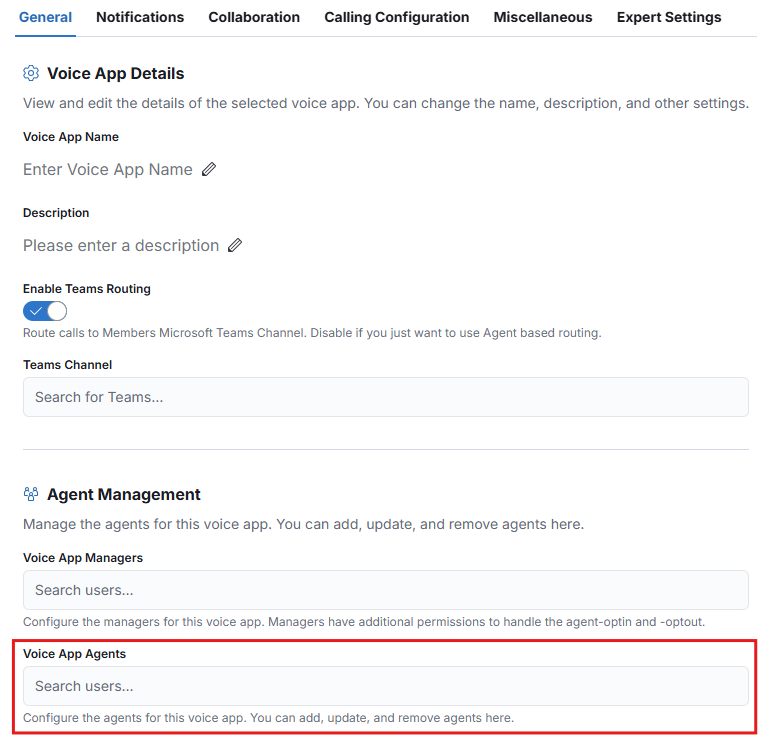
In Agent routing, select the individual users who are to receive the call

<figure><img src="https://8483818-files.gitbook.io/~/files/v0/b/gitbook-x-prod.appspot.com/o/spaces%2FdKIXVVI8Ve4TBJ4ft1WC%2Fuploads%2Fgit-blob-16a527dac1c4bf10db0df00f2f428574328aa2cc%2Fimage.png?alt=media" alt=""><figcaption></figcaption></figure>

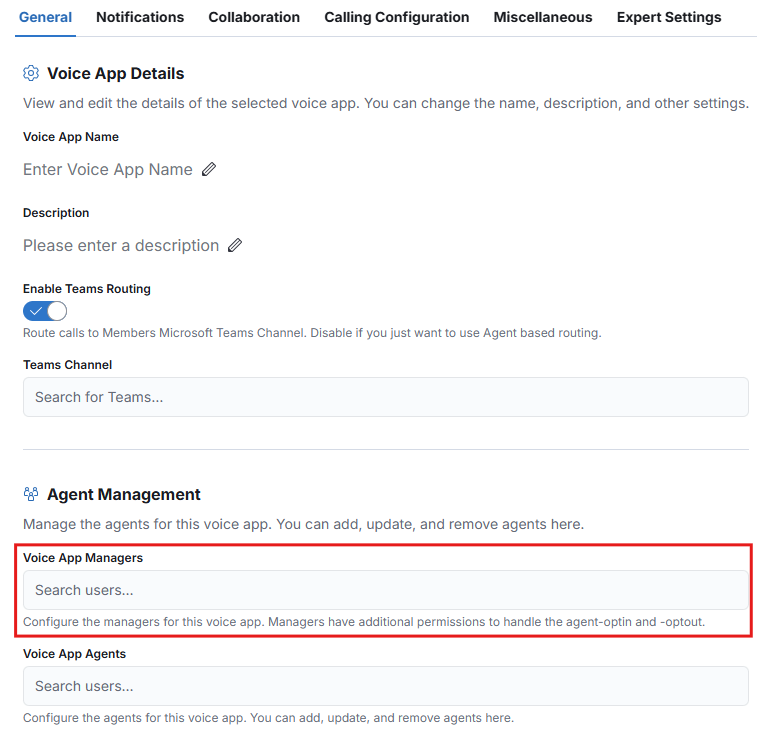
5. Selecting the Voice App Manager

The Voice App Manager has the additional right to determine which agents are active within this Voice App. The call will then ring for these agents (agent opt in/out). At the same time, the Voice App Manager can carry out individual configurations such as changing an announcement text

<figure><img src="https://8483818-files.gitbook.io/~/files/v0/b/gitbook-x-prod.appspot.com/o/spaces%2FdKIXVVI8Ve4TBJ4ft1WC%2Fuploads%2Fgit-blob-df12886150ba3cb3d83bac662138a6a10f34e93a%2Fimage.png?alt=media" alt=""><figcaption></figcaption></figure>

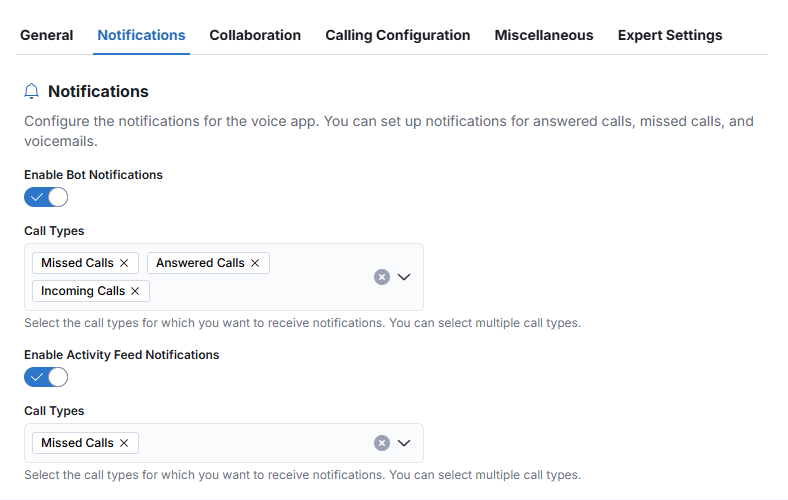
6. Select how and for what you would like to receive a notification for a call

<figure><img src="https://8483818-files.gitbook.io/~/files/v0/b/gitbook-x-prod.appspot.com/o/spaces%2FdKIXVVI8Ve4TBJ4ft1WC%2Fuploads%2Fgit-blob-d1e0c9179cc40236af3e3b0e76bddfbc0f8ded17%2Fimage.png?alt=media" alt=""><figcaption></figcaption></figure>

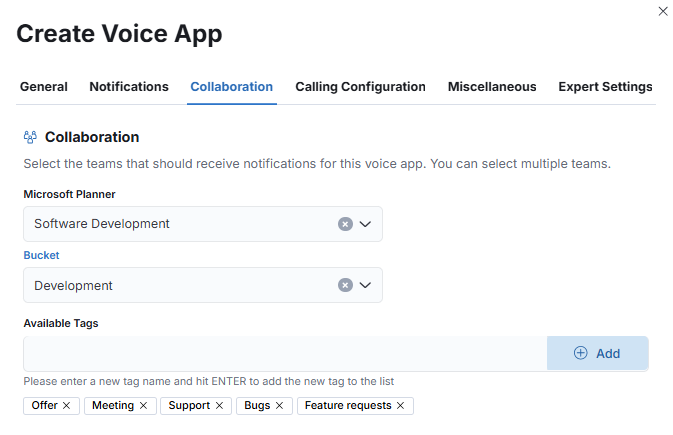
7. Create individual tags to categorize your calls and select your Microsoft Planner

<figure><img src="https://8483818-files.gitbook.io/~/files/v0/b/gitbook-x-prod.appspot.com/o/spaces%2FdKIXVVI8Ve4TBJ4ft1WC%2Fuploads%2Fgit-blob-3fe4802cd540a2a0af01d6bdb42a0a5fdae76002%2Fimage.png?alt=media" alt=""><figcaption></figcaption></figure>

{% hint style="warning" %}
**Teams Routing** must be activated in order to activate the Microsoft Planner
{% endhint %}

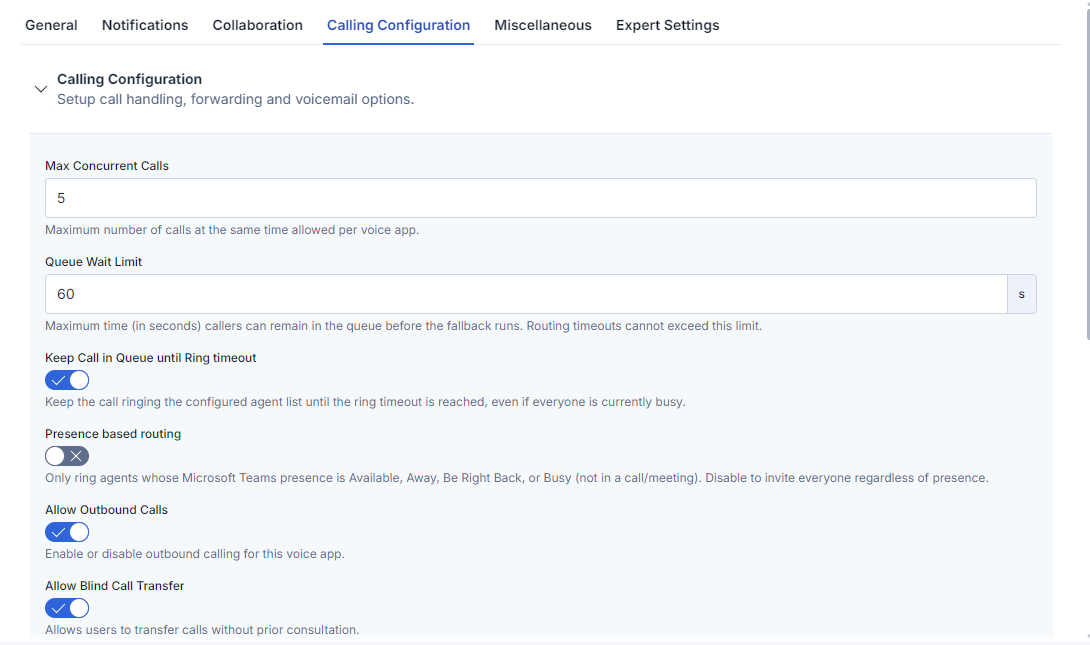
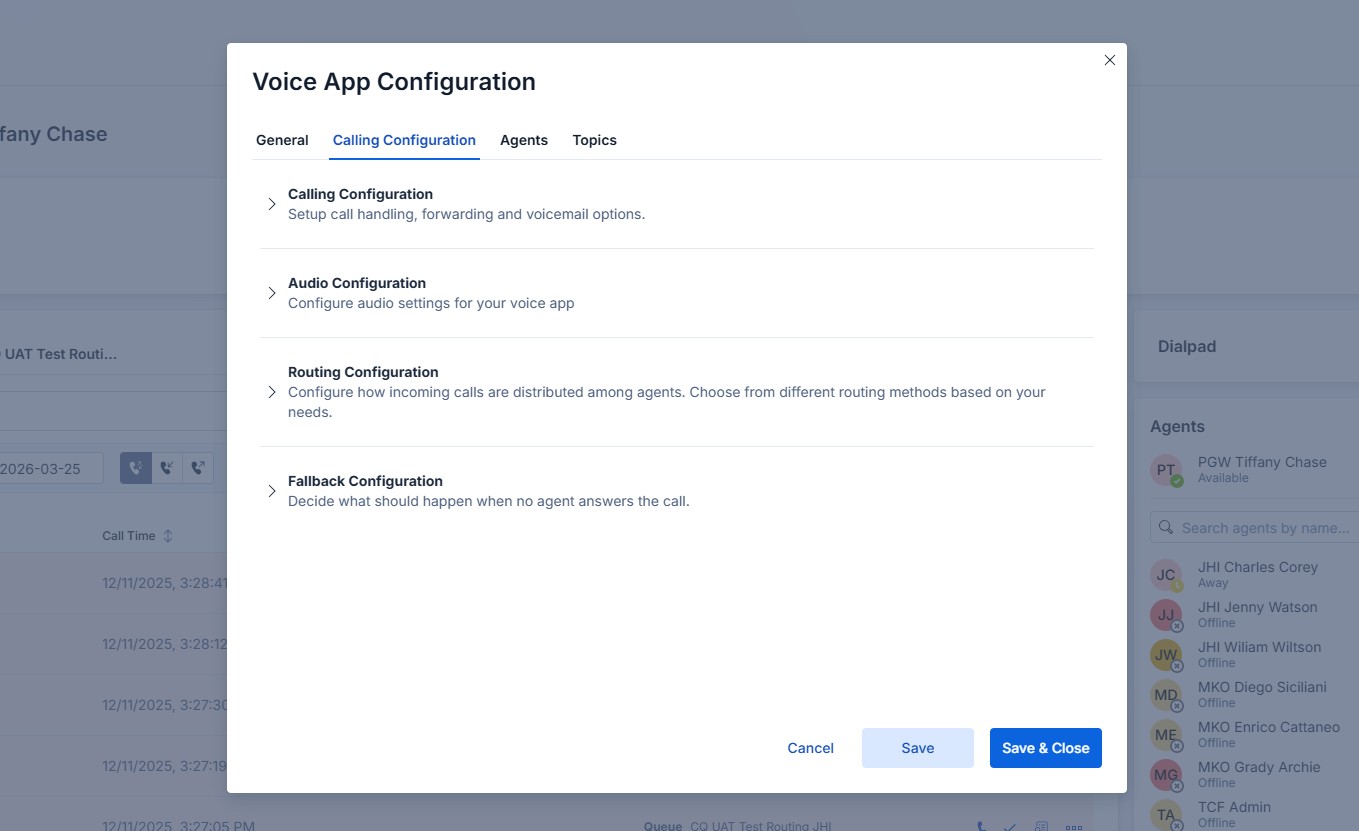
8. **Calling Configuration**: Define how many callers can be in the queue at the same time and how long it should ring before the call will be forwarded. Additional settings:\
   \- Keeping a call in the queue until timeout even if no agent is available\
   \- Observe Teams presence status of agents-\
   \- Allow outbound calls\
   \- Allow blind transfer

<figure><img src="https://8483818-files.gitbook.io/~/files/v0/b/gitbook-x-prod.appspot.com/o/spaces%2FdKIXVVI8Ve4TBJ4ft1WC%2Fuploads%2Fgit-blob-676e2841ccb8bfec492391a4d9a36275b2f37388%2FScreenshot%202026-03-31%20130948.png?alt=media" alt=""><figcaption></figcaption></figure>

9. **Audio Configuration:** Create a welcome message with the help of “Text to Speach” or upload an audio file\\

Record a waiting music or upload an audio file

{% hint style="warning" %}
All audio file formats are automatically formatted in **.wav** format
{% endhint %}

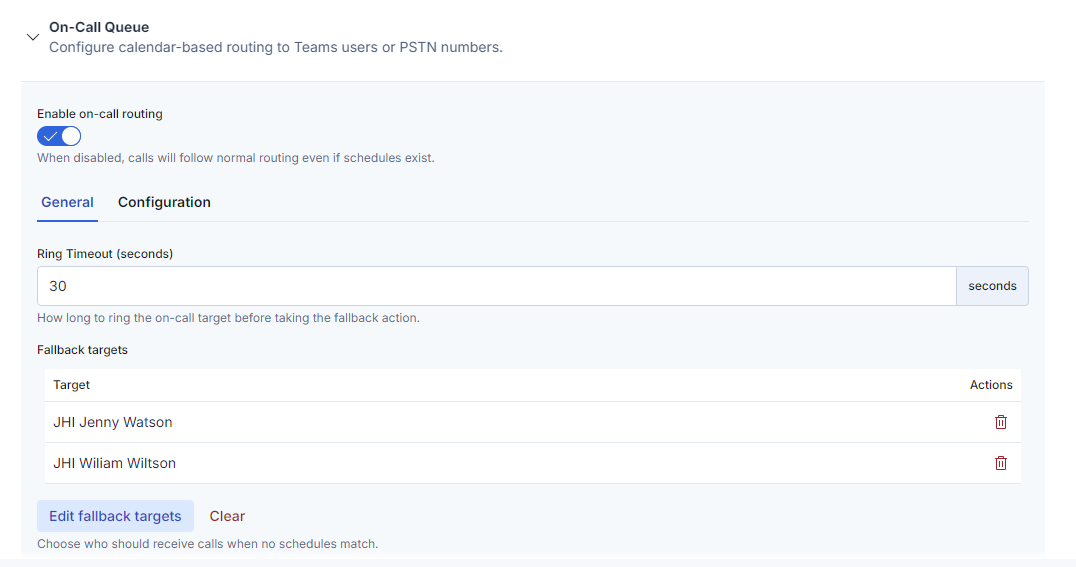
10. **On-Call Queue:** Configure calendar-based routing to Teams or PSTN numbers.<br>

    <figure><img src="https://8483818-files.gitbook.io/~/files/v0/b/gitbook-x-prod.appspot.com/o/spaces%2FdKIXVVI8Ve4TBJ4ft1WC%2Fuploads%2Fgit-blob-a8a395abfb26d23dbe5556053d1b72b61cdfbaf6%2Fimage.png?alt=media" alt=""><figcaption></figcaption></figure>

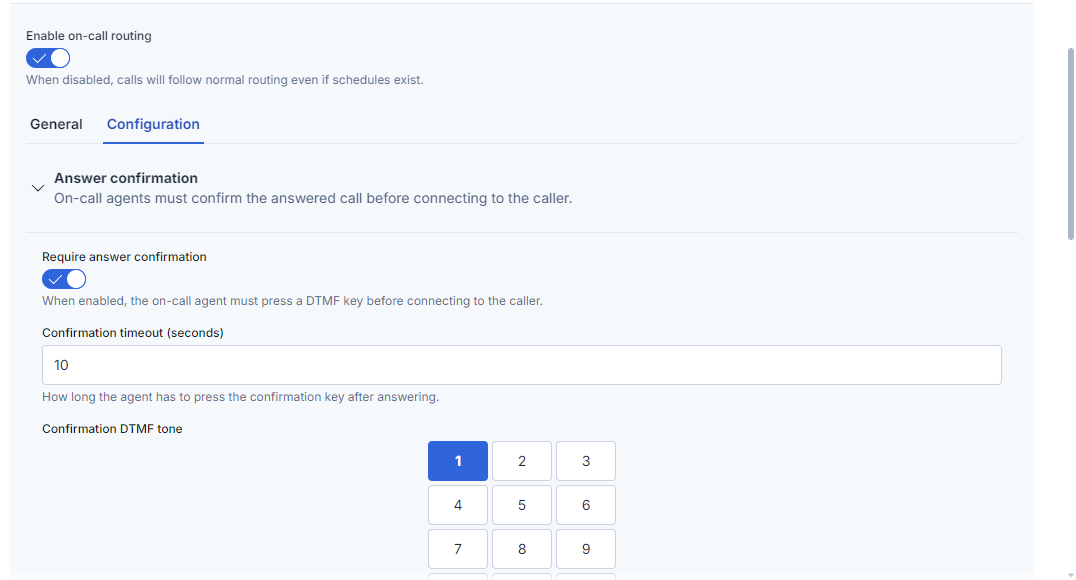
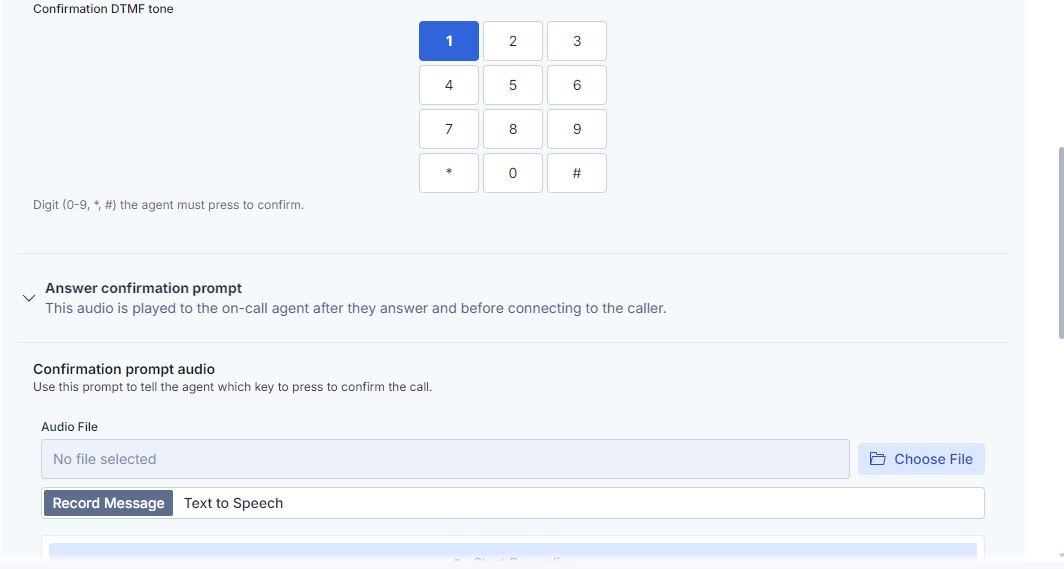
**Configuration**, Answer confirmation. Let the agent confirm that he/she will take care of the call by pressing a pre-defined confirmation key. playback a confirmation message.

<figure><img src="https://8483818-files.gitbook.io/~/files/v0/b/gitbook-x-prod.appspot.com/o/spaces%2FdKIXVVI8Ve4TBJ4ft1WC%2Fuploads%2Fgit-blob-bfdf5d605616a2683072ec0b6e3c1cf4d6451ce2%2Fimage.png?alt=media" alt=""><figcaption></figcaption></figure>

<figure><img src="https://8483818-files.gitbook.io/~/files/v0/b/gitbook-x-prod.appspot.com/o/spaces%2FdKIXVVI8Ve4TBJ4ft1WC%2Fuploads%2Fgit-blob-c0a43b1e44f1f2b043f40632fd111219c13fb55c%2Fimage.png?alt=media" alt=""><figcaption></figcaption></figure>

Configure Audio and Voicemail settings

<figure><img src="https://8483818-files.gitbook.io/~/files/v0/b/gitbook-x-prod.appspot.com/o/spaces%2FdKIXVVI8Ve4TBJ4ft1WC%2Fuploads%2Fgit-blob-2eaa3f0a8b9584ea76d8fd3f31c3ff91edfee270%2Fimage.png?alt=media" alt=""><figcaption></figcaption></figure>

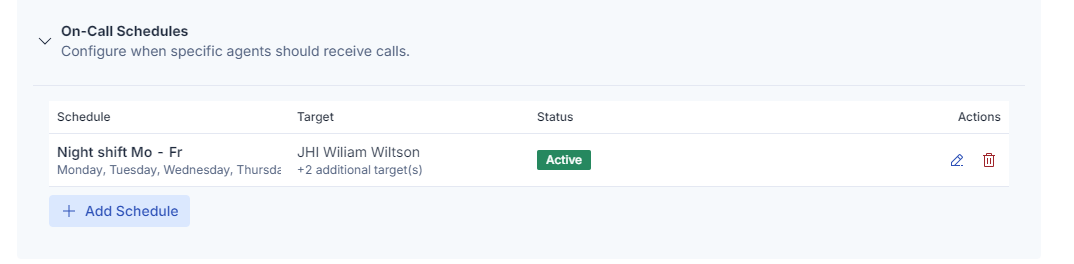
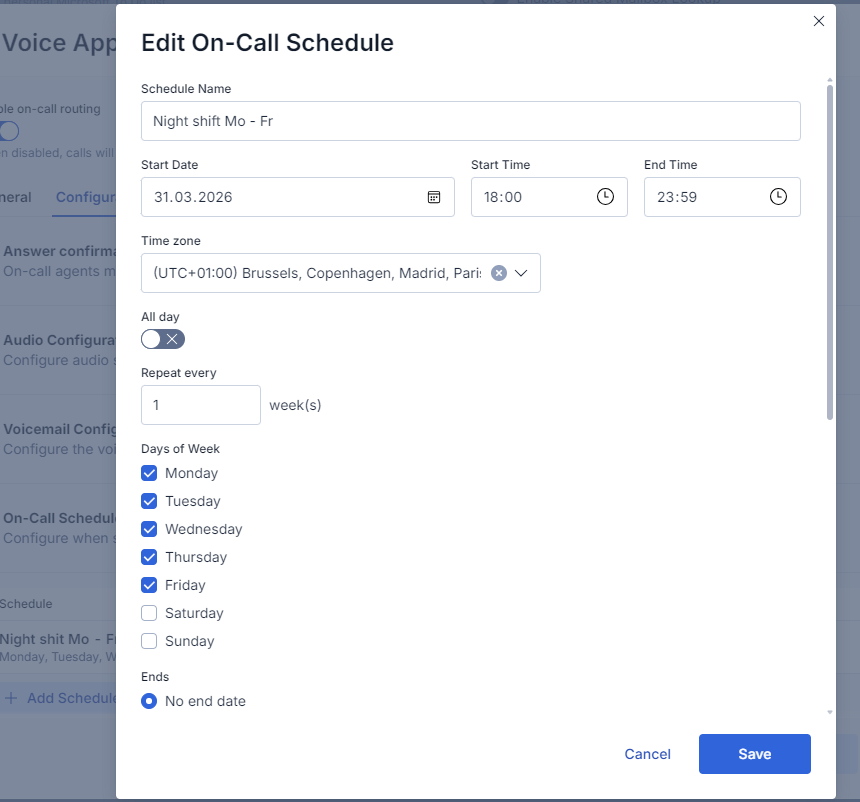
Create on-call schedules. Define when the on-call actions have to be active.

<figure><img src="https://8483818-files.gitbook.io/~/files/v0/b/gitbook-x-prod.appspot.com/o/spaces%2FdKIXVVI8Ve4TBJ4ft1WC%2Fuploads%2Fgit-blob-9aea24bb2b6068313d56870f15be9776ccaf7234%2Fimage.png?alt=media" alt=""><figcaption></figcaption></figure>

<figure><img src="https://8483818-files.gitbook.io/~/files/v0/b/gitbook-x-prod.appspot.com/o/spaces%2FdKIXVVI8Ve4TBJ4ft1WC%2Fuploads%2Fgit-blob-e50ff300456adf95e2fb203a965080cf30d3fc45%2Fimage.png?alt=media" alt=""><figcaption></figcaption></figure>

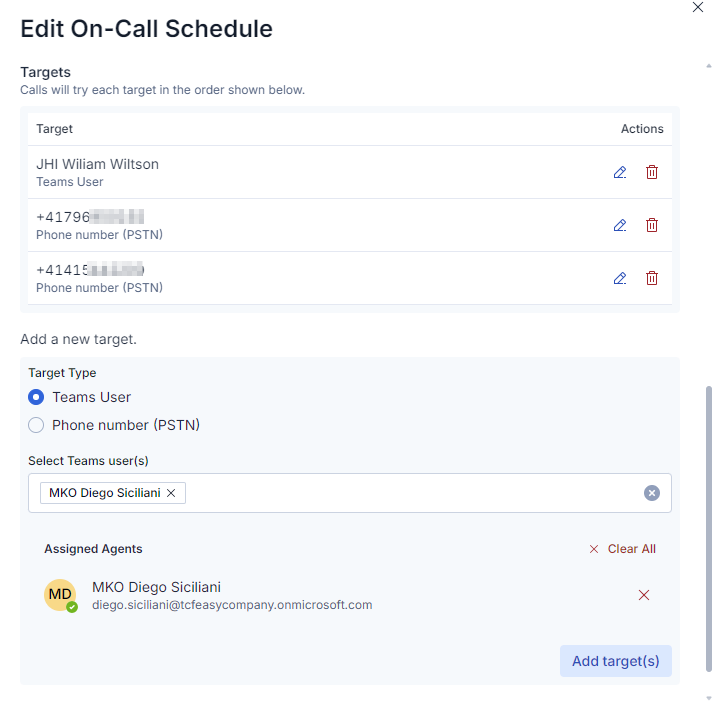
Add targets to be called when the schedule is active

<figure><img src="https://8483818-files.gitbook.io/~/files/v0/b/gitbook-x-prod.appspot.com/o/spaces%2FdKIXVVI8Ve4TBJ4ft1WC%2Fuploads%2Fgit-blob-86593872d3316a61209551b95ae336bb5aa8f514%2Fimage.png?alt=media" alt=""><figcaption></figcaption></figure>

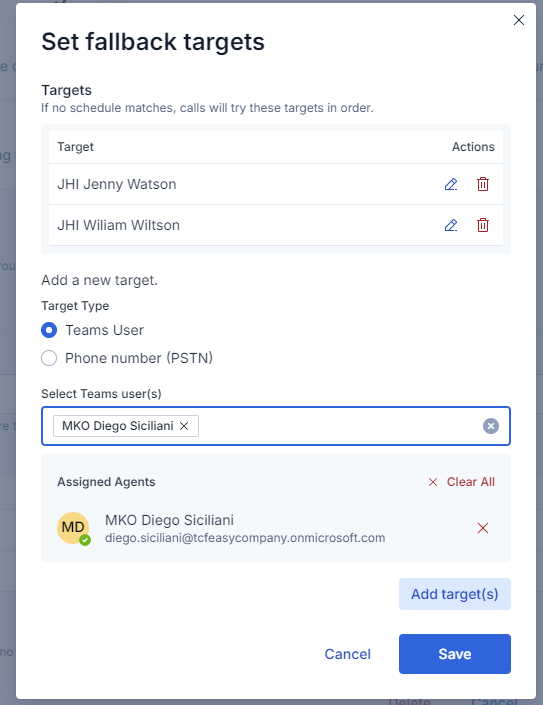
Fallback. Add targets (internal users or external numbers) if no schedule is configured

<figure><img src="https://8483818-files.gitbook.io/~/files/v0/b/gitbook-x-prod.appspot.com/o/spaces%2FdKIXVVI8Ve4TBJ4ft1WC%2Fuploads%2Fgit-blob-e50ff300456adf95e2fb203a965080cf30d3fc45%2Fimage.png?alt=media" alt=""><figcaption></figcaption></figure>

<figure><img src="https://8483818-files.gitbook.io/~/files/v0/b/gitbook-x-prod.appspot.com/o/spaces%2FdKIXVVI8Ve4TBJ4ft1WC%2Fuploads%2Fgit-blob-ec125ebb3b050a2672cd45e1dc30ae773d928ffe%2Fimage.png?alt=media" alt=""><figcaption></figcaption></figure>

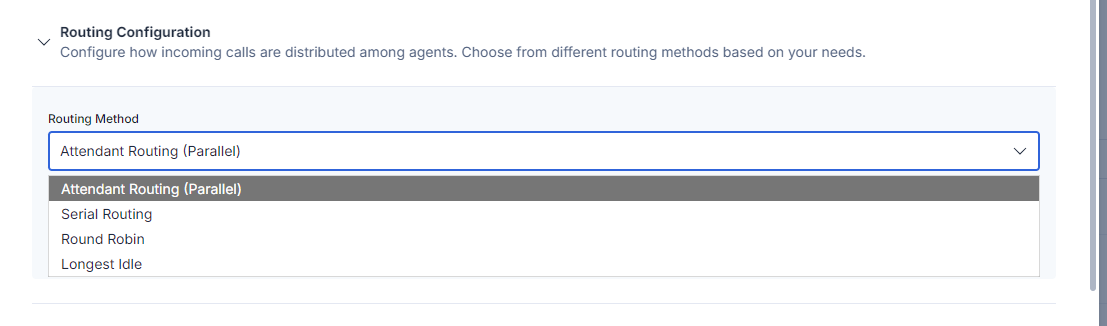
10. **Routing Configuration:** Define how the calls are distributed among the available agents\
    \- Attendant Routing (Parallel)\
    \- Serial Routing\
    \- Round Robin\
    \- Longest idle<br>

    <figure><img src="https://8483818-files.gitbook.io/~/files/v0/b/gitbook-x-prod.appspot.com/o/spaces%2FdKIXVVI8Ve4TBJ4ft1WC%2Fuploads%2Fgit-blob-60445ed564f11671ea0c65c927606b02d436bbdb%2Fimage.png?alt=media" alt=""><figcaption></figcaption></figure>
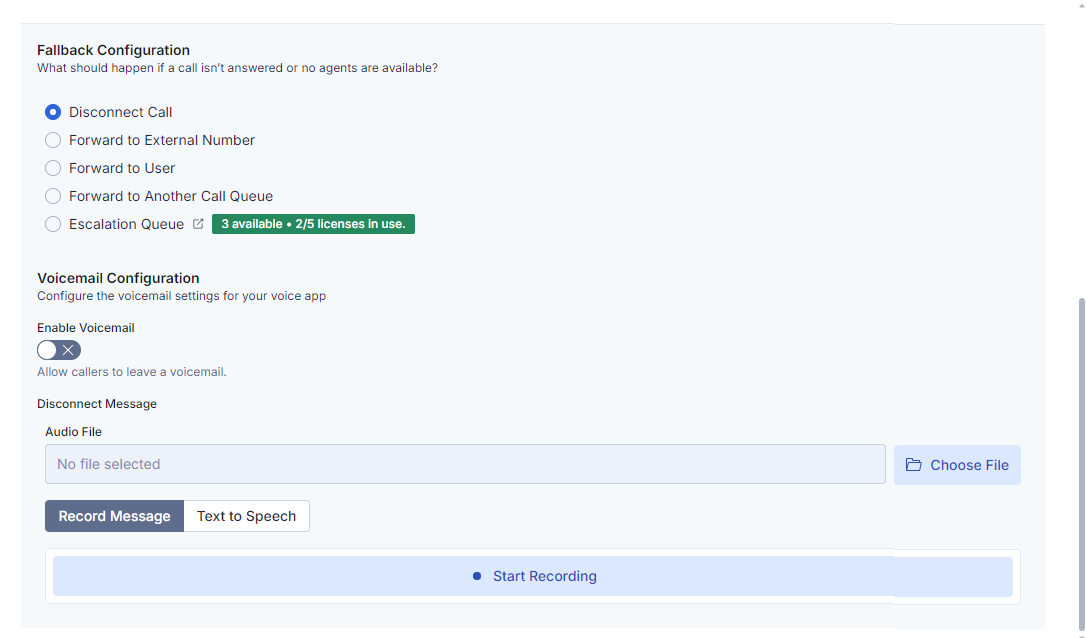
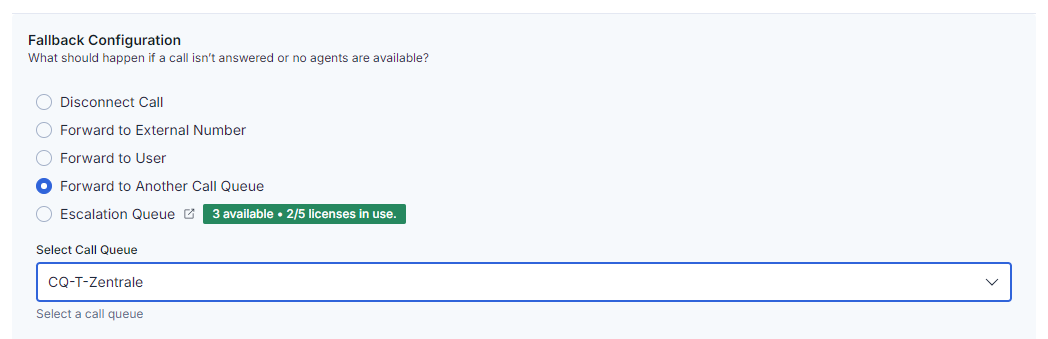
11. **Fallback Configuration:** Define what should happen to the call if no user answers the call

**Disconnect Call:** The call is terminated. Add disconnect message.

<figure><img src="https://8483818-files.gitbook.io/~/files/v0/b/gitbook-x-prod.appspot.com/o/spaces%2FdKIXVVI8Ve4TBJ4ft1WC%2Fuploads%2Fgit-blob-4443cd9641e8c680041cd94dca0b7805d155cb9a%2FScreenshot%202026-03-31%20133902.png?alt=media" alt=""><figcaption></figcaption></figure>

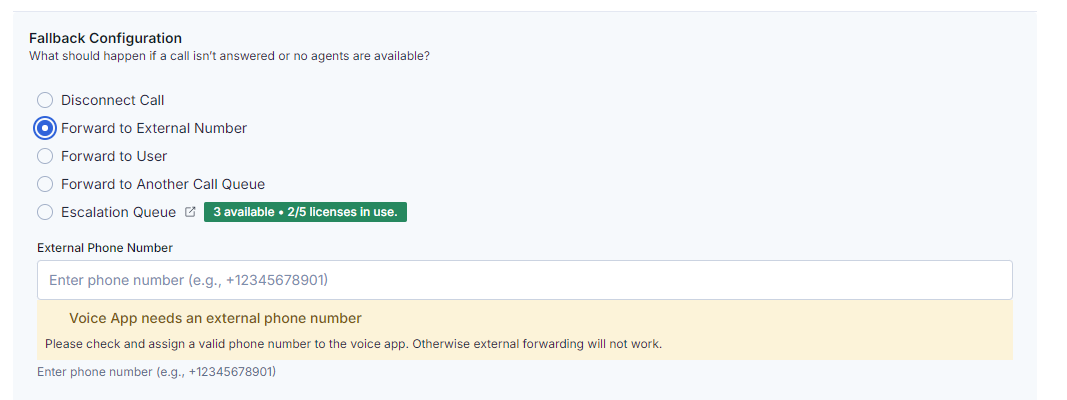
**Forward to external number:** add E164 formatted number to forward to an external target number

<figure><img src="https://8483818-files.gitbook.io/~/files/v0/b/gitbook-x-prod.appspot.com/o/spaces%2FdKIXVVI8Ve4TBJ4ft1WC%2Fuploads%2Fgit-blob-5e50e77959b4ee2fe7e53e30436ed00c48adade9%2Fimage.png?alt=media" alt=""><figcaption></figcaption></figure>

{% hint style="danger" %}
**The resource account must have a phone number and a Voice Routing Policy for forwarding to an external phone number to work**

This number and policy must be carried out using the following PowerShell commands

```
Connect-MicrosoftTeams
Set-CsPhoneNumberAssignment -Identity "<UPN of the Resource Account>" -PhoneNumber "<Phone number>" -PhoneNumberType DirectRouting
Grant-CsOnlineVoiceRoutingPolicy -Identity "<UPN of the Resource Account>" -PolicyName "<Policy name>"
```

{% endhint %}

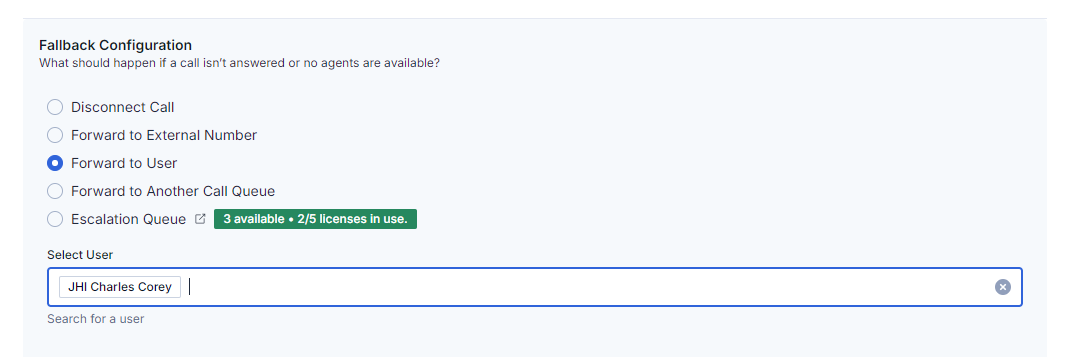
**Forward to user:** The call is forwarded to a specific user

<figure><img src="https://8483818-files.gitbook.io/~/files/v0/b/gitbook-x-prod.appspot.com/o/spaces%2FdKIXVVI8Ve4TBJ4ft1WC%2Fuploads%2Fgit-blob-b51f26f18f8473c9133b808bfbe996c17c84f578%2Fimage.png?alt=media" alt=""><figcaption></figcaption></figure>

**Forward to Another Call Queue**: select from available, fully Easy Calling licensed queues

<figure><img src="https://8483818-files.gitbook.io/~/files/v0/b/gitbook-x-prod.appspot.com/o/spaces%2FdKIXVVI8Ve4TBJ4ft1WC%2Fuploads%2Fgit-blob-8fdefd888e8c412987cf1143e9ecad44dc1f6826%2Fimage.png?alt=media" alt=""><figcaption></figcaption></figure>

{% hint style="warning" %}
Only call queues created by Easy Calling can be selected
{% endhint %}

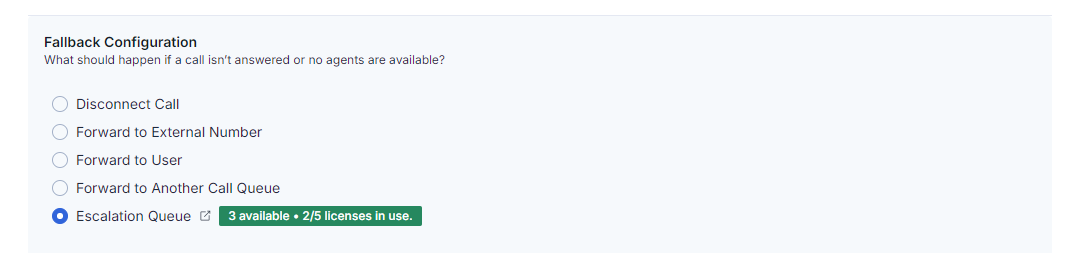
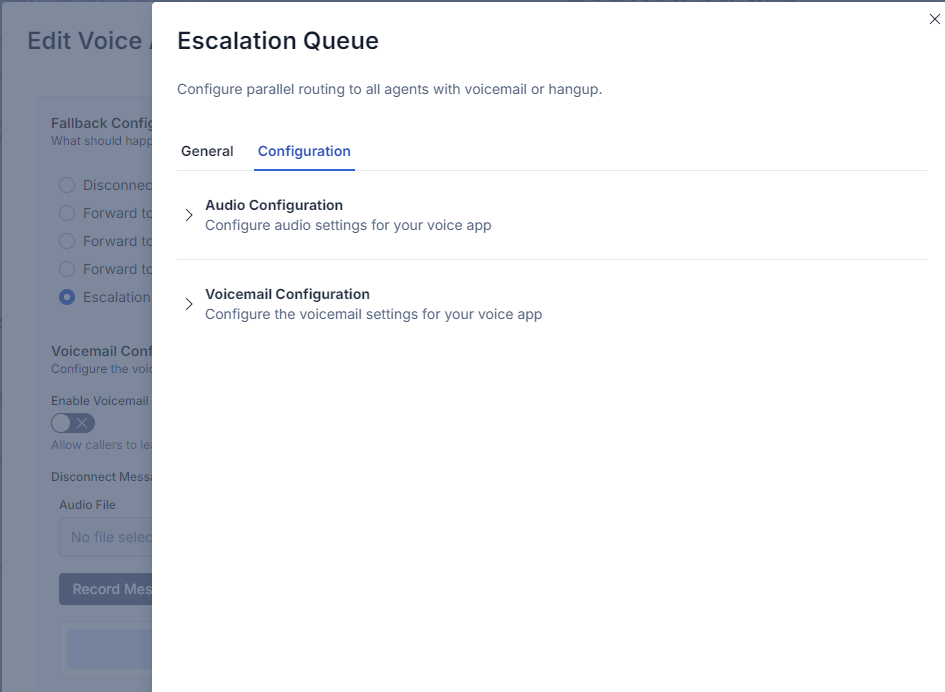
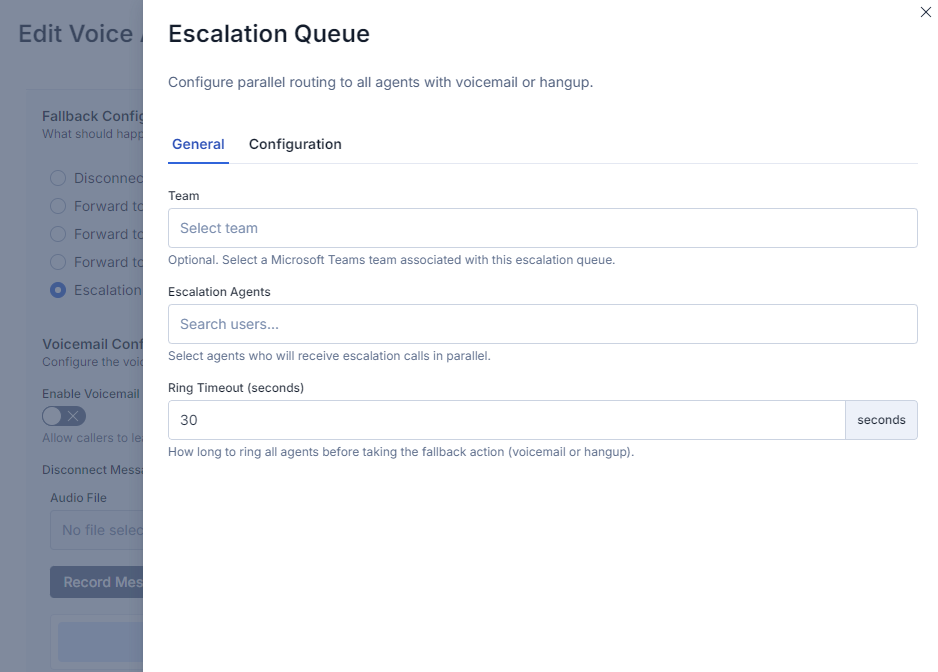
**Escalation Queue**: Configure additional queue details. this is a chargeable add-on that needs to be licensed separately.

<figure><img src="https://8483818-files.gitbook.io/~/files/v0/b/gitbook-x-prod.appspot.com/o/spaces%2FdKIXVVI8Ve4TBJ4ft1WC%2Fuploads%2Fgit-blob-c11e07f58d4e7a7392ed48dba83e0c562cd84836%2Fimage.png?alt=media" alt=""><figcaption></figcaption></figure>

Set escalation agents and final ring timeout

<figure><img src="https://8483818-files.gitbook.io/~/files/v0/b/gitbook-x-prod.appspot.com/o/spaces%2FdKIXVVI8Ve4TBJ4ft1WC%2Fuploads%2Fgit-blob-e1f8193f15b522f725d77265b996e15581fb7dfe%2Fimage.png?alt=media" alt=""><figcaption></figcaption></figure>

Set Audio and Voicemail configuration to be used when final timeout is reached

<figure><img src="https://8483818-files.gitbook.io/~/files/v0/b/gitbook-x-prod.appspot.com/o/spaces%2FdKIXVVI8Ve4TBJ4ft1WC%2Fuploads%2Fgit-blob-3972069c5353e7eadb36886c940dea5d3d6ebfe3%2Fimage.png?alt=media" alt=""><figcaption></figcaption></figure>

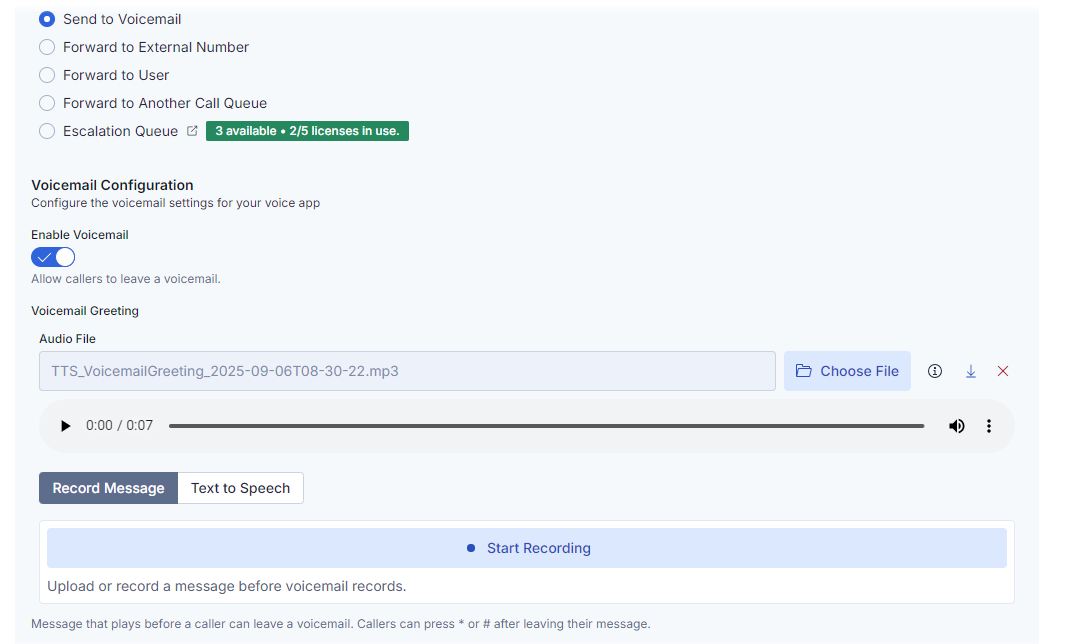
**Send to Voicemail:** The call is forwarded to voicemail

<figure><img src="https://8483818-files.gitbook.io/~/files/v0/b/gitbook-x-prod.appspot.com/o/spaces%2FdKIXVVI8Ve4TBJ4ft1WC%2Fuploads%2Fgit-blob-fd6ad2de67d1ed36937a0041936812d49d91d6f8%2Fimage.png?alt=media" alt=""><figcaption></figcaption></figure>

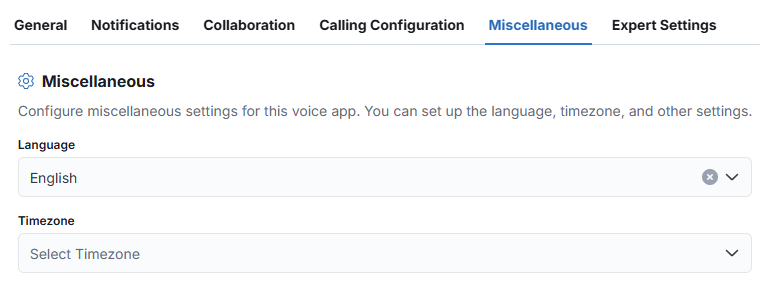
11. Select the language and time zone

<figure><img src="https://8483818-files.gitbook.io/~/files/v0/b/gitbook-x-prod.appspot.com/o/spaces%2FdKIXVVI8Ve4TBJ4ft1WC%2Fuploads%2Fgit-blob-1d5290777131518d37e858afba9651d89076d035%2Fimage.png?alt=media" alt=""><figcaption></figcaption></figure>

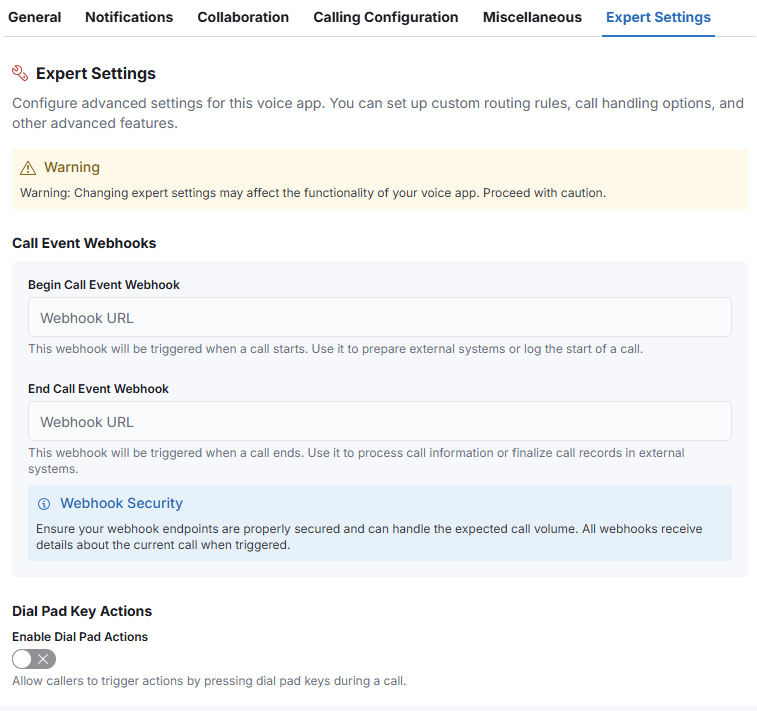
12. Optional: Expert Settings

{% hint style="danger" %}
The Expert settings are used for special situations where you can send various events via a webhook. These settings can affect the entire voice app if configured incorrectly
{% endhint %}

<figure><img src="https://8483818-files.gitbook.io/~/files/v0/b/gitbook-x-prod.appspot.com/o/spaces%2FdKIXVVI8Ve4TBJ4ft1WC%2Fuploads%2Fgit-blob-f3ba73533ca2ec58204ba4a2375b1179501f6327%2Fimage.png?alt=media" alt=""><figcaption></figcaption></figure>

{% hint style="success" %}
You have now successfully created a voice app in Easy Calling.
{% endhint %}
{% endtab %}
{% endtabs %}

{% hint style="danger" %}
Now take a look at the steps you need to take in the [Microsoft Teams Call Flow](broken://pages/Yq3MXT9Z66wT8mISjJ74)
{% endhint %}


# Registration in Teams Admin Center

Follow these steps to configure and enable Easy Calling in your tenant

After you have created a voice app in Easy Calling, a resource account with the same name as the created voice app has been created for you in the Microsoft Teams Admin Center

You must now integrate this resource account into your existing call flow. As the call flow can be very different, it is important that you integrate it in the right place

<figure><img src="https://8483818-files.gitbook.io/~/files/v0/b/gitbook-x-prod.appspot.com/o/spaces%2FdKIXVVI8Ve4TBJ4ft1WC%2Fuploads%2Fgit-blob-11e3dc7679bfe921410aff5e15fdada0ef48fe45%2Fimage.png?alt=media&amp;token=f777caa1-14c0-447c-bc46-911df0f010e6" alt=""><figcaption></figcaption></figure>

{% hint style="success" %}
You have now successfully extended the call flow in Microsoft Teams
{% endhint %}

## Fallback solution

In the event of an Easy Calling error, you should have a second call queue ready which is identical to the one used for Easy Calling. You can then change this resource account again here until we have rectified the errors and you can use Easy Calling again without restrictions

{% hint style="danger" %}
See the next steps for Microsoft Teams configuration below.
{% endhint %}

## Phone number directly to the call queue

To connect the phone number directly to the Easy Calling call queue, the following PowerShell commands must be executed. These commands will assign the phone number to the specified call queue, configure the appropriate resource account, and ensure that all routing settings are correctly applied. Please make sure you have the necessary administrative permissions and that the Microsoft Teams PowerShell module is installed and up to date before proceeding.

```
Connect-MicrosoftTeams
Set-CsPhoneNumberAssignment -Identity "<UPN of the Resource Account>" -PhoneNumber "<Phone number>" -PhoneNumberType DirectRouting
Grant-CsOnlineVoiceRoutingPolicy -Identity "<UPN of the Resource Account>" -PolicyName "<Policy name>"
```


# Progressive Web App

Follow these steps to configure and enable Easy Calling in your tenant

Please follow the installation guidelines to use Easy Calling in your organization as a progressive web application outside of Microsoft Teams

### Step-by-Step Installation Guide

1. Open the web version of Easy Call Report: [http://easycalling.easyplatform.app/](https://easycalling.easyplatform.app/)
2. Log in with your user
3. Click on the following icon to install the Progressive Web Application

<figure><img src="https://8483818-files.gitbook.io/~/files/v0/b/gitbook-x-prod.appspot.com/o/spaces%2FdKIXVVI8Ve4TBJ4ft1WC%2Fuploads%2Fgit-blob-089e2cdc13cb71b8b9487741396b53f9c47bdae6%2Fimage.png?alt=media" alt=""><figcaption></figcaption></figure>

4. Once the Progressive Web Application has been installed, you can now store the icon in the various locations

<figure><img src="https://8483818-files.gitbook.io/~/files/v0/b/gitbook-x-prod.appspot.com/o/spaces%2FdKIXVVI8Ve4TBJ4ft1WC%2Fuploads%2Fgit-blob-9409b21fc2ba034bfdf26455b1aed29fe644f9bb%2Fimage.png?alt=media" alt=""><figcaption></figcaption></figure>

{% hint style="success" %}
You have now successfully installed the Prorgessive Web Application
{% endhint %}


# Day in the Life: Contact Center Agent

See how Easy Calling fits into a typical contact center agent's workday

**Meet Sarah** – She's a customer support agent at a mid-sized software company. Her team of 8 agents handles about 150 calls per day – everything from simple password resets to complex technical issues. Here's how Easy Calling makes her day smoother.

***

## 8:45 AM – Starting the Day

Sarah arrives 15 minutes before her shift starts. She likes to get settled before the phones start ringing.

### What She Does:

1. Opens **Microsoft Teams** on her computer
2. Clicks the **Easy Calling** app (she has it pinned to her sidebar)
3. Checks the dashboard to see if any voicemails came in overnight
4. Notices **3 voicemails** highlighted in yellow – listens to them quickly
5. Creates follow-up tasks for 2 of them (the third was a misdial)

**Time saved with Easy Calling:** Instead of checking a separate voicemail system and writing sticky notes, everything's in one place. **5 minutes saved.**

### What She Sees:

Her Easy Calling dashboard shows:

* **0 calls in queue** (it's early)
* **6 agents** currently available (green status)
* **Call History** from yesterday with color-coded indicators
* **3 voicemail notifications** at the top

***

## 9:00 AM – First Call of the Day

The phones officially "open" at 9 AM. Within seconds, the first call comes in.

### What Happens:

**1. The Call Notification Appears**

Sarah sees:

* **Caller:** John Smith from Acme Corp
* **Phone:** +1 555-0123
* **Queue:** Technical Support
* **Waiting:** 3 seconds

The caller ID automatically pulled John's name from their CRM integration, so Sarah knows who he is before answering.

**2. Sarah Answers**

She clicks **"Answer"** and greets him: *"Good morning, this is Sarah from Support. Hi John, how can I help you today?"*

John is impressed she knows his name right away – it sets a professional tone.

**3. During the Call**

While talking, Sarah:

* Types notes in the **notes section**: "Password reset for admin account"
* Checks John's company details in the caller info panel
* Sees that John called twice last week (shown in call history)

**4. After the Call**

The call lasts 4 minutes. Once John hangs up, Sarah:

* Clicks **"Send Email"** to send John a password reset guide
* The email pre-fills with John's address
* She types a quick message and clicks "Send"

**Time saved with Easy Calling:** No need to copy/paste phone numbers, look up emails, or switch between apps. **2 minutes saved per call** = **60 minutes saved across 30 calls/day.**

***

## 9:30 AM – Handling a Tricky Call

Sarah gets a call from a frustrated customer whose account is locked.

### The Situation:

**Caller:** "I've been locked out for 2 hours! I need this fixed NOW!"

**What Sarah Does:**

1. **Stays calm** – Easy Calling shows the caller's info, including their account tier (Premium)
2. **Takes detailed notes** while the customer explains the issue
3. Realizes this is a billing issue, not technical support
4. Clicks **"Transfer"** → **"Transfer to Voice App"**
5. Selects **"Billing Department"** from the dropdown
6. Adds a note: *"Premium customer, account locked, needs urgent help"*
7. Clicks **"Transfer"**

**What the Customer Experiences:**

Sarah says: *"I understand this is urgent. Let me connect you with our Billing team right now – they can unlock your account immediately. Please hold for just a moment."*

The customer is transferred in **3 seconds**. The billing agent sees Sarah's notes and the customer's info before answering, so they don't have to re-explain everything.

**What would have happened without Easy Calling:**

* Sarah would have to put the customer on hold
* Look up the billing department's phone number
* Manually transfer the call (hoping it doesn't drop)
* The billing agent would have no context

**Time saved with Easy Calling:** Seamless transfer with context = **happier customer** + **no wasted time**

***

## 10:45 AM – Quick Coffee Break

Sarah's been on calls for 90 minutes straight. She needs a break.

### What She Does:

1. Opens **Easy Calling**
2. Clicks the **"Opt-Out"** toggle to remove herself from the call queue

**What Happens:**

Sarah is opted out of the queue and **stops receiving calls**. Other agents who are still opted in will get the incoming calls instead.

**After her 15-minute break:**

1. She toggles back to **"Opt-in"**
2. Calls start coming to her again

**Why this matters:** Sarah controls her own queue availability. No more awkward "I'm supposed to be on break but calls keep ringing" situations.

***

## 11:30 AM – Callback Request

Sarah listens to a voicemail from a customer who wants a callback.

### What She Does:

1. Opens **Call History**
2. Clicks on the voicemail entry
3. Listens to the message: *"Hi, this is Tom. I need help with invoice #5678. Please call me back at 555-9876."*
4. Clicks **"Create Task"**
5. Selects **"Personal Task"** (Microsoft To-Do)
6. Sets task:

* **Title:** "Call Tom about invoice #5678"
* **Due:** Today, 2:00 PM
* **Notes:** Auto-filled with caller info and voicemail details

7. Clicks **"Save"**

**At 2:00 PM:**

Sarah's phone buzzes with a task reminder. She calls Tom back, references the voicemail, and resolves his issue.

**Time saved with Easy Calling:** No sticky notes, no forgetting callbacks. **Callbacks are tracked automatically.**

***

## 12:15 PM – Team Lead Asks for Help

Sarah's team lead, Mike, walks over. *"Hey Sarah, can you check how many calls we missed this morning?"*

### What Sarah Does:

1. Opens **Call History**
2. Clicks the **"Missed Calls"** filter
3. Sees **4 missed calls** between 9:00-12:00
4. Exports the list and sends it to Mike

**Time taken:** **30 seconds.**

**What would have happened without Easy Calling:** *"Uh... I'm not sure. Let me check with everyone and get back to you."*

***

## 1:00 PM – The Lunch Rush

After lunch, call volume spikes. Between 1:00-2:00 PM, Sarah handles **12 calls**.

### How Easy Calling Helps:

* **Caller ID:** Shows names for 10 out of 12 callers (pulled from Entra ID and CRM)
* **Quick Actions:** Sarah sends 5 follow-up emails without leaving Easy Calling
* **Notes:** She types notes during each call, so nothing gets forgotten
* **Transfers:** She transfers 3 calls to other departments seamlessly

**Without Easy Calling:** Sarah would be frantically switching between Teams, email, CRM, and sticky notes. She'd be exhausted.

**With Easy Calling:** She stays in one app and handles calls efficiently. She's busy, but not stressed.

***

## 3:30 PM – A Memorable Call

Sarah gets a call from an elderly customer who's confused about logging in.

### What Happens:

The call takes **18 minutes** (way longer than average). Sarah patiently walks the customer through each step.

### After the Call:

Sarah adds detailed notes:

* *"Customer: Margaret (70s), very patient and kind"*
* *"Issue: Didn't realize she needed to click the email link to activate her account"*
* *"Resolution: Walked her through step-by-step. She's all set now."*
* *"Note: She mentioned she'd love a printed quick start guide – might be a good idea for other seniors"*

Sarah clicks **"Create Task"** and adds:

* **"Suggestion: Create printed quick start guide for senior customers"**
* Assigns it to her team lead, Mike

**Why this matters:** Sarah's idea gets captured and shared, not forgotten. Easy Calling isn't just for call handling – it's for continuous improvement.

***

## 4:45 PM – End of Day Wrap-Up

Sarah's shift ends at 5:00 PM. She has 15 minutes to finish up.

### What She Does:

1. Checks **Call History** to see if she missed anything
2. Reviews any open tasks in Microsoft To-Do
3. Sees one task: *"Follow up with Jane about software update"*
4. Calls Jane quickly, resolves the issue, marks the task as complete
5. Toggles her status to **"Unavailable"** so she doesn't get calls after 5 PM

**Time taken:** **5 minutes.**

At 5:00 PM, Sarah closes Easy Calling and logs off. She knows:

* All her calls are documented
* No callbacks were forgotten
* Her notes are saved for the next agent who talks to these customers
* Tomorrow, she can jump right back in

***

## What Sarah Says About Easy Calling

> *"Before Easy Calling, I felt like I was constantly behind. I'd forget to call people back, lose my notes, and waste time switching between apps. Now, everything's in one place. I can focus on helping customers instead of managing chaos. My job is still busy, but it's so much easier."*

***

## Key Takeaways for Agents

If you're a contact center agent like Sarah, here's what Easy Calling does for you:

### 1. **Everything in One Place**

No more switching between Teams, email, voicemail, and sticky notes. Handle calls, send emails, create tasks, and take notes – all in Easy Calling.

### 2. **Know Who's Calling Before You Answer**

Caller ID pulls information from your directory and CRM. You'll greet customers by name and have context before the call even starts.

### 3. **Never Forget a Callback**

Convert voicemails to tasks with one click. Get reminders so nothing slips through the cracks.

### 4. **Transfer Calls with Confidence**

Transfer calls to the right person or department in seconds – with notes included so the next agent has full context.

### 5. **Control Your Availability**

Opt in and out of call queues when you need breaks, meetings, or focus time. No more calls ringing when you're supposed to be unavailable.

### 6. **Save Time on Every Call**

Quick actions, automatic call logging, and pre-filled emails save 2-3 minutes per call. Over 30 calls a day, that's **an hour back in your day**.

***

## Want to Learn More?

* [**Quick Start Guide**](/getting-started/quick-start-guide) – Get started in 5 minutes
* [**Best Practices – Call Life Cycle**](/getting-started/best-practices-call-life-cycle) – Step-by-step walkthrough
* [**How-To Guides**](/features-and-how-to/easy-calling-in-microsoft-teams) – Master specific features
* [**Tips & Tricks**](/user-guides/tips-and-tricks) – Work smarter, not harder

***

**Ready to have a day like Sarah's?** Open Easy Calling and start handling calls like a pro!


# Day in the Life: Voice App Manager

See how Easy Calling helps supervisors and team leads manage their contact center

**Meet Mike** – He's a team lead managing 8 support agents at a software company. His team handles technical support calls, and he's responsible for making sure calls don't slip through the cracks, agents aren't overwhelmed, and service levels stay high. Here's how Easy Calling helps him keep everything running smoothly.

***

## 8:30 AM – Morning Dashboard Check

Mike arrives 30 minutes before his team starts taking calls. He uses this time to prepare for the day.

### What He Does:

1. Opens **Easy Calling** in Microsoft Teams
2. Switches to the **"Voice App Manager"** view
3. Reviews yesterday's call statistics
4. Checks which agents are scheduled for today

### What He Sees:

**Yesterday's Stats:**

* **147 calls answered** (target: 140)
* **8 calls missed** (target: <5)
* **Average wait time: 42 seconds** (target: <60 seconds)
* **6 voicemails left**

**Agent Availability for Today:**

* **8 agents scheduled**
* **2 agents on training** from 2:00-3:00 PM
* **1 agent on vacation**

**Mike's Takeaway:** Yesterday was good overall, but 8 missed calls is higher than usual. He makes a mental note to check call volume patterns today.

***

## 9:00 AM – Calls Start Coming In

The phone lines officially "open" at 9 AM. Mike watches the dashboard to ensure everything runs smoothly.

### What He Monitors:

**Real-Time Agent Status:**

<figure><img src="https://8483818-files.gitbook.io/~/files/v0/b/gitbook-x-prod.appspot.com/o/spaces%2FdKIXVVI8Ve4TBJ4ft1WC%2Fuploads%2Fgit-blob-725f9203bf08e005f956ef6e10d0798188a5da3c%2FReal%20Time%20Agent%20Status.jpg?alt=media" alt="Agent status dashboard"><figcaption><p>Mike sees which agents are available, on calls, or on break</p></figcaption></figure>

Mike sees:

* **Tiffany** – Available (green)
* **Charles** – Away (yellow)
* **Jenny** – Offline (gray)

**Incoming Call Queue:** Mike sees **1 call waiting** in the queue: Waiting 8 seconds (from Main Support Line)

**What Mike Notices:** Charles is on break (away) and Jenny is offline, but with just 1 call in the queue and 1 available agent (Tiffany), the situation is under control. Mike doesn't need to intervene.

***

## 9:45 AM – A Call Volume Spike

Suddenly, **5 calls** hit the queue at once. Mike sees wait times climbing.

### What He Sees:

* **5 calls in queue**
* **Average wait time: 78 seconds** (exceeding the 60-second target)
* **4 agents available**, **3 agents on calls**

### What Mike Does:

**Option 1: Notify the Team**

Mike opens the Teams chat for his support team: *"Hey team, we've got a call spike – 5 in queue. If anyone can wrap up quickly or hop back from break, that'd be great! "*

**Option 2: Check Agent Status**

Mike clicks on Kevin's profile. He sees Kevin's been on break for 18 minutes (scheduled for 15 minutes). Mike sends Kevin a quick Teams message: *"Hey Kevin, we're swamped – can you jump back in when you're ready?"*

Kevin responds immediately and toggles back to "Available" in Easy Calling.

**Result:**

Within 2 minutes, all 5 calls are answered. Wait times drop back to normal.

**Time saved with Easy Calling:** Mike spotted the spike immediately and intervened in **60 seconds**. Without real-time visibility, calls would have sat in queue much longer.

***

## 10:30 AM – Investigating Missed Calls

Mike remembers that yesterday had 8 missed calls - more than usual. He wants to understand why.

### What He Does:

1. Open **Call Queue** to see designated **Call History**
2. Filters by **"Date (Yesterday)"**
3. Filters by **"Missed Calls"**

### What He Finds:

<figure><img src="https://8483818-files.gitbook.io/~/files/v0/b/gitbook-x-prod.appspot.com/o/spaces%2FdKIXVVI8Ve4TBJ4ft1WC%2Fuploads%2Fgit-blob-6b3b24038a688b98789e7830ba771163e1e58895%2FInvestigating%20Missed%20Calls.jpg?alt=media" alt="Call history with filters"><figcaption><p>Mike filters call history to investigate missed calls - and exports CSV file</p></figcaption></figure>

**The 8 Missed Calls:**

<figure><img src="https://8483818-files.gitbook.io/~/files/v0/b/gitbook-x-prod.appspot.com/o/spaces%2FdKIXVVI8Ve4TBJ4ft1WC%2Fuploads%2Fgit-blob-cfaccd78c46bf7e4de838facc2c2dad50d179102%2FCSV-file%20Calling%20History.jpg?alt=media" alt=""><figcaption><p>The CSV file ready for analysis</p></figcaption></figure>

**Mike's Analysis:**

* **5 missed calls** happened during lunch break (12:00-2:00 PM)
* **2 missed calls** happened during training (2:00-3:00 PM)

**Mike's Action Plan:**

1. **Lunch breaks:** Stagger lunch breaks so at least 2 agents are always available
2. **Training:** Notify customers via voicemail greeting that training is happening

Mike clicks on each missed call and creates tasks:

* **Task 1:** "Update agent lunch schedule"
* **Task 2:** "Record temporary voicemail greeting for training days"

**Time saved with Easy Calling:** Mike identified the root cause in **5 minutes** instead of asking each agent individually and piecing together the story.

***

## 11:00 AM – Updating the Voicemail Greeting

Mike needs to record a new voicemail greeting for training days.

### What He Does:

1. Opens **Easy Calling** → **Voice App Configuration** → **Calling Configuration**
2. Clicks **"Audio Configuration"**
3. Selects **"Greeting Message"**
4. Records a new message:

*"Thank you for calling \[Company] support. Our team is currently in training and may have longer wait times than usual. Please leave a message, and we'll return your call within 2 hours. Thank you for your patience."*

5. Clicks **"Save"**

**Result:**

The next time the team has training, customers will hear this greeting and understand why wait times are longer.

**Time saved with Easy Calling:** Mike updated the greeting in **3 minutes** without needing IT support or special tools.

***

## 12:00 PM – Reviewing Queue Performance

Mike wants to understand how the support queues performed this week.

### What He Does:

1. Selects the **Last 7 Days** on the time table
2. Clicks on the **Analytics Icon**
3. Reviews queue statistics

### What He Sees:

**Queue Statistics (Last 7 Days):**

* Total Calls: 197
* Answered Calls: 73
* Missed Calls: 125
* Wait Time: 13s

<figure><img src="https://8483818-files.gitbook.io/~/files/v0/b/gitbook-x-prod.appspot.com/o/spaces%2FdKIXVVI8Ve4TBJ4ft1WC%2Fuploads%2Fgit-blob-12e83c2d9b976f5517c27fe7350596c5cb706ffd%2FAnalystics%20Easy%20Calling.jpg?alt=media" alt=""><figcaption></figcaption></figure>

**Mike's Observations:**

* The **Call Queue** has a 63.5% missed call rate – high above target
* Most Calls come in between 9:00 - 11:00 AM and 1:00-3:00 PM

**Mike's Action:**

Mike exports the statistics report as PDF and adjusts the schedule to stagger breaks and maintain a better queue coverage.

**Time saved with Easy Calling:** Mike has queue-level insights in **5 minutes** instead of manually collecting data.

***

## 1:30 PM – Adjusting Agent Availability

Mike's staggered lunch schedule is working well, but he notices Amy is still marked as "On Break" even though her break ended 10 minutes ago.

### What He Does:

1. Takes a look at **Agent** status panel
2. Sees Amy's status: **"Away"**
3. Sends Amy a Teams message: *"Hey Amy, just checking – are you back from lunch? Still showing you as "away"*

Amy responds: *"Oh! I forgot to toggle back. Thanks!"*

Amy switches to "Available" and starts taking calls again.

**Why this matters:** Mike caught the issue before calls piled up. Without real-time visibility, Amy might have stayed "unavailable" for another 20 minutes.

***

## 2:30 PM – Handling an Escalation

Sarah transfers a frustrated customer to Mike. The customer wants to speak to a manager.

### What Happens:

**1. Mike Gets a Teams Call Notification**

The Easy Calling dashboard shows:

* **Caller:** David Lee (VIP Customer)
* **Transferred by:** Sarah
* **Sarah's Notes:** *"Customer's order was delayed. Very upset. Wants manager."*

**2. Mike Answers**

Because Mike can see Sarah's notes, he greets David with context:

*"Hi David, this is Mike, the team lead. I understand your order was delayed – I'm so sorry about that. Sarah filled me in. Let me see what I can do to make this right."*

David is relieved he doesn't have to re-explain everything.

**3. After the Call**

Mike:

* Reviews the order details
* Sends a follow-up email to David with a shipping update
* Creates a task: *"Check with warehouse about VIP order delays"*
* Adds a note to David's call record: *"Escalation resolved – customer satisfied"*

**Time saved with Easy Calling:** Sarah's notes gave Mike full context in **0 seconds**. The customer didn't waste time repeating themselves, and Mike resolved the issue faster.

***

## 3:00 PM – Team Training (Mike Opts Out)

From 3:00-4:00 PM, Mike is running a training session for the team on a new product feature.

### What He Does:

**Before Training Starts:**

1. Opens Easy Calling
2. Opts out the agents who are in training via the **Agents** panel
3. The voicemail greeting he recorded earlier kicks in automatically

**During Training:**

Mike keeps an eye on the Easy Calling dashboard on his second monitor. He sees:

* **3 calls** came in and went to voicemail (as expected)
* **No one is marked as available** (correct – everyone's in training)

**After Training:**

1. Mike opts all agents back in to the queue
2. Agents check voicemails and start returning calls

**Time saved with Easy Calling:** Mike controlled the entire team's availability in **30 seconds** without needing to tell everyone individually.

***

## 4:00 PM – End-of-Day Reporting

Mike's manager asks for a daily report on call performance.

### What He Does:

1. Selects the voice app and date range
2. Opens **Analytics**
3. Clicks **"Export to PDF"**
4. The report includes:

* Total calls answered and missed
* Average wait time
* Total Duration
* Call Outcomes (answered / missed)
* Calls per hour
* Performance summary: Answer Rate | Miss Rate | Average Call Duration | Outbound Rate | On-Call Queue Rate

5. Mike emails the report to his manager

**Time taken:** **2 minutes.**

**What would have happened without Easy Calling:** Mike would spend 30+ minutes manually compiling data from multiple sources, asking agents for information, and creating a report from scratch.

***

## 4:30 PM – Preparing for Tomorrow

Mike's day is winding down, but he uses the last 30 minutes to prepare for tomorrow.

### What He Does:

**1. Reviews Tomorrow's Schedule**

* **7 agents scheduled** (1 is still on vacation)
* **No training sessions**
* **Expected call volume: \~140 calls**

**2. Checks Open Tasks**

Mike opens Microsoft Planner and reviews tasks assigned to the team:

* **5 customer callbacks pending**
* **2 follow-up emails**
* **1 escalation from yesterday**

He sends a quick Teams message to the team: *"Hey team – 5 callbacks for tomorrow. Let's knock those out first thing in the morning. Have a great evening! "*

**3. Adjusts Agent Assignments**

Since one agent is still on vacation, Mike reassigns some tasks to other agents to balance the workload.

***

## What Mike Says About Easy Calling

> *"Before Easy Calling, I felt like I was constantly putting out fires. I'd find out about problems after they'd already caused issues. Now, I can see everything in real-time – who's on calls, who's available, where the bottlenecks are. I can fix problems before they become big issues. And the reporting? Game-changer. I used to spend an hour every day pulling data together. Now it's 5 minutes. Easy Calling doesn't just help my agents – it makes me a better manager."*

***

## Key Takeaways for Voice App Managers

If you're a supervisor or team lead like Mike, here's what Easy Calling does for you:

### 1. **Real-Time Visibility**

See exactly what's happening right now – which agents are available, busy, or offline. Spot issues before they become problems.

### 2. **Data-Driven Decisions**

Make decisions based on actual call queue data. Understand call volume patterns, missed call trends, and identify scheduling improvements.

### 3. **Instant Adjustments**

Update voicemail greetings, change agent availability, and adjust call routing in seconds – no IT tickets required.

### 4. **Effortless Reporting**

Generate daily, weekly, or monthly reports with one click. Export to CSV or PDF and share with your manager.

### 5. **Proactive Management**

Catch missed calls, long wait times, and agent availability issues immediately. Fix them before customers notice.

### 6. **Less Time on Admin, More Time on People**

Spend less time gathering data and more time coaching your team, improving processes, and delivering great customer experiences.

***

## Want to Learn More?

* [**Voice App Manager Guide**](/feature-categories/administration-and-configuration) – Complete feature guide for supervisors
* [**How to Configure Call Queues**](/getting-started/easy-calling-configuration) – Set up and manage call queues
* [**Analytics & Reporting**](/feature-categories/analytics-and-reporting) – Master the analytics dashboard
* [**Agent Management**](/feature-categories/administration-and-configuration) – Control agent availability and assignments

***

**Ready to manage like Mike?** Open Easy Calling and take control of your contact center.


# Tips and Tricks

Work smarter with these time-saving tips for Easy Calling

**Master Easy Calling with these pro tips.** Here's how experienced agents save time every day.

***

## Quick Wins (Do These Right Away)

### 1. Pin Easy Calling to Your Sidebar

**Why:** Access Easy Calling with one click instead of searching for it.

**How to do it:**

1. Open Easy Calling in Microsoft Teams
2. Right-click the app icon
3. Select **"Pin"**

**Time saved:** 5-10 seconds every time you open it (adds up to 30+ minutes per week)

***

### 2. Enable Desktop Notifications

**Why:** Never miss a call, even when you're working in another app.

**How to do it:**

1. Go to **Microsoft Teams Settings** → **Notifications**
2. Ensure **"Incoming calls"** is enabled
3. Set notification sound to your preference

**Time saved:** Catch calls instantly instead of checking the dashboard every few minutes.

***

### 3. Use the Search Bar in Call History

**Why:** Find past calls in 3 seconds instead of scrolling forever.

**How to do it:**

* Type the caller's name, number, or keywords from your notes
* Press Enter

**Example:** Manager asks, "Did we hear from Acme Corp today?" Type "Acme" → Found in 3 seconds.

***

### 4. Create Email Templates for Common Responses

**Why:** Send follow-up emails in 10 seconds instead of typing the same thing over and over.

<figure><img src="https://8483818-files.gitbook.io/~/files/v0/b/gitbook-x-prod.appspot.com/o/spaces%2FdKIXVVI8Ve4TBJ4ft1WC%2Fuploads%2Fgit-blob-069935130d638193a2f6540ac8cdb88da32e02e3%2FButton%20My%20Easy%20Plattform%20Settings.jpg?alt=media" alt=""><figcaption><p>Create New Email Templates using the "My Easy Platform Settings"</p></figcaption></figure>

**How to do it:**

1. Click **"My Easy Platform Settings"** to open the **My Easy Platform**
2. Click **Seetings** (on the left side of your name) and choose the tab **Email template**
3. Set up Templates for common scenarios using variables
4. Click **"Create"** to save your Email template

**Time saved:** 2-3 minutes per email = 30-60 minutes per day

<figure><img src="https://8483818-files.gitbook.io/~/files/v0/b/gitbook-x-prod.appspot.com/o/spaces%2FdKIXVVI8Ve4TBJ4ft1WC%2Fuploads%2Fgit-blob-1f64d55443977f89fccde2305c4d9bcd6e322331%2FCreate%20New%20Email%20Template.jpg?alt=media" alt=""><figcaption><p>Create email templates with useful variables to save time</p></figcaption></figure>

***

## Advanced Tips for Agents

### 5. Take Notes During the Call (Not After)

**Why:** You'll remember more details, and follow-ups are easier.

**How to do it:**

* While the caller is speaking, type quick notes in the **notes section**
* Use shorthand or bullet points
* Clean up the notes after the call if needed

**Example:**

```
- Password reset for admin account
- Emailed instructions to john@acme.com
- Follow-up needed: Check if issue resolved tomorrow
```

**Time saved:** No need to try remembering what was discussed–it's all documented.

***

### 6. Use Color-Coded Filters to Prioritize Callbacks

**Why:** Spot missed calls and voicemails at a glance.

**How to do it:**

1. Open **Call History**
2. Click **"Missed Calls"** filter (shows red indicator)
3. Review and create tasks for callbacks

**Pro Tip:** Do this first thing in the morning and after lunch to ensure no callbacks slip through the cracks.

***

### 7. Create Personal Tasks for Quick Callbacks

**Why:** Get reminders without cluttering your team's Planner.

**How to do it:**

* Click **"Create Task"** after a call
* Choose **"Personal Task"** (Microsoft To-Do)
* Set a due time (e.g., "Call back at 2:00 PM today")

**Time saved:** No more sticky notes or trying to remember callbacks.

***

### 8. Transfer with Context Notes

**Why:** The next agent knows what's going on without making the customer repeat themselves.

**How to do it:**

* Before transferring, add a note:
* *"Customer needs billing help – account #12345"*
* *"VIP customer, very frustrated"*
* *"Already tried password reset – didn't work"*

**What the customer experiences:** *"Oh, I see you already tried that. Let me check something else..."*

**Result:** Customers feel heard, transfers are seamless.

***

### 9. Save Frequent Callers as Contacts

**Why:** Next time they call, you'll instantly see their name.

**How to do it:**

* After a call, click the **person icon**
* The caller is saved to your Microsoft contacts

**Pro Tip:** Do this for anyone who calls more than once a month.

***

### 10. Use the "Opt Out" Feature Strategically

**Why:** Avoid burnout by controlling when you receive calls.

**When to use it:**

* You're in a meeting or training
* You need 30 minutes of focus time for urgent tasks
* You're about to leave for the day

**How to do it:**

1. Toggle your status to **"Unavailable"**
2. Other agents will cover calls
3. Toggle back to **"Available"** when you're ready

**Pro Tip:** Coordinate with your team so someone is always available.

***

## Tips for Voice App Managers

### 11. Check the Dashboard Every Hour

**Why:** Catch issues before they become problems.

**What to look for:**

* Are wait times climbing?
* Are multiple agents on break at the same time?
* Are calls piling up in the queue?

**Action:** Send a quick Teams message to the team if you spot an issue.

***

### 12. Export Weekly Reports on Monday Morning

**Why:** Share performance data with leadership without scrambling.

**How to do it:**

1. Set **time range**
2. Open **Analytics**
3. Click **"Export PDF"**
4. Email to your manager

**Time saved:** 30 minutes of manual data gathering.

***

### 13. Setup Voicemail Greetings

**Why:** Set customer expectations during holidays, training, or system outages.

**Examples:**

* *"Our team is currently in training. Wait times may be longer than usual."*
* *"Our office is closed for the holiday. We'll return your call on \[date]."*
* *"We're experiencing high call volume. Please leave a message, and we'll call you back within 4 hours."*

**How to do it:**

1. Go to **Voice App Manager** → **Calling Configuration** → **Audio Configuration**
2. Record a new greeting
3. Save

**Time taken:** 2 minutes.

***

### 14. Use Analytics to Understand Queue Performance

**Why:** Data-driven decisions improve service levels and team efficiency.

**How to do it:**

1. Set **time range**
2. Open **Analytics**
3. Review call queue statistics and look for patterns:

* **High missed call rates** → Review staffing or queue capacity
* **Long average wait times** → Consider adding more agents to the queue
* **Consistently good answer rates** → Recognize and share the winning approach with the team

**Pro Tip:** Share positive stats with the team in weekly meetings to boost morale.

***

## Workflow Hacks

### 15. Use Two Monitors (If Possible)

**Setup:**

* **Monitor 1:** Microsoft Teams + Easy Calling
* **Monitor 2:** CRM, email, or reference materials

**Why:** No more alt-tabbing between apps.

***

### 16. Use Microsoft To-Do for Daily Callbacks

**Why:** Keep personal callbacks separate from team tasks.

**How to do it:**

* Create a To-Do list called "Callbacks"
* Add tasks with due times
* Get reminders throughout the day

**Example:**

* [ ] 10:00 AM – Call Sarah about invoice #12345
* [ ] 2:00 PM – Follow up with Tom on password reset
* [ ] 4:00 PM – Call Jane about software update

***

## Common Mistakes to Avoid

### Forgetting to Toggle Back to "Available"

**Problem:** You go on break, toggle to "Unavailable," and forget to toggle back. Calls keep going to other agents.

**Solution:** Set a timer or reminder to toggle back after your break.

***

### Not Adding Notes During Calls

**Problem:** You finish the call and can't remember the details.

**Solution:** Type notes while the caller is speaking. Even bullet points help.

***

### Transferring Calls Without Context

**Problem:** The next agent has no idea what the call is about. The customer has to repeat everything.

**Solution:** Always add a note before transferring: *"Customer needs help with \[issue]"*

***

### Ignoring Missed Calls

**Problem:** Missed calls pile up, and customers don't get callbacks.

**Solution:** Check the "Missed Calls" filter daily and create tasks for callbacks.

***

### Not Using Search in Call History

**Problem:** You scroll through hundreds of calls trying to find one from yesterday.

**Solution:** Use the search bar! Type the caller's name or number.

***

## Learn More

* [**Quick Start Guide**](/getting-started/quick-start-guide) – Get up to speed in 5 minutes
* [**Best Practices – Call Life Cycle**](/getting-started/best-practices-call-life-cycle) – Step-by-step walkthrough
* [**Day in the Life Guides**](/user-guides/contact-center-agent) – See how real users work with Easy Calling

***

**Ready to work smarter?** Try 3 tips from this list today and see the difference!


# Easy Calling in Microsoft Teams

A visual tour of Easy Calling's key features and how they help you work smarter

**Welcome to the visual tour!** This guide shows you what Easy Calling looks like and how each feature helps you handle calls more efficiently.

***

## Overview of Features

### Administration and Configuration

*For Administrators and Voice App Managers only.*

<table><thead><tr><th width="374">Feature</th><th width="374">Info</th></tr></thead><tbody><tr><td><a href="/feature-categories/administration-and-configuration#1-queue-management">Queue Management</a></td><td>Administrative control over logic and assignment of service lines</td></tr><tr><td><a href="/feature-categories/administration-and-configuration#2-agent-management-central-opt-inopt-out">Agent Management (Opt-in / Opt-out)</a></td><td>Centrally add or remove agents from queues to control team capacity</td></tr><tr><td><a href="/feature-categories/administration-and-configuration#3-custom-call-logic">Custom Call Logic</a></td><td>Design call flows for timeouts, announcements, voicemail, and hold music</td></tr><tr><td><a href="/feature-categories/administration-and-configuration#4-escalation-management-and-overflow-timeout-control--routing">Escalation Management and Overflow</a></td><td>Define rules for unanswered calls – add-on license required</td></tr><tr><td><a href="#administration-and-configuration">Escalation to additional queue</a></td><td>Separate overflow queue with limited functions at an affordable price - Additional function "Escalation" required</td></tr><tr><td><a href="/feature-categories/administration-and-configuration#5-on-call-availability-and-duty-management">On-Call (Availability and Duty Management)</a></td><td>Plan and manage on-call schedules and availability – Additional function “On-Call” required</td></tr><tr><td><a href="/feature-categories/administration-and-configuration#6-webhooks">Webhooks</a></td><td>Configure webhook triggers at the start and/or end of a call</td></tr><tr><td><a href="/feature-categories/administration-and-configuration#7-configuration-center">Configuration Center</a></td><td>Central web portal for all system management</td></tr></tbody></table>

### Call Management (Inbound and Outbound)

*For all users.*

| Feature                                                                                                      | Info                                                                   |
| ------------------------------------------------------------------------------------------------------------ | ---------------------------------------------------------------------- |
| [Queue Display](/feature-categories/call-management#1-queue-display)                                         | Real-time view of all callers currently waiting                        |
| [Intelligent Caller Recognition](/feature-categories/call-management#2-intelligent-caller-recognition)       | Instant caller identification via third-party integrations             |
| [Call Handling and Transfer](/feature-categories/call-management#3-call-handling-and-transfer)               | Answer and transfer calls directly to colleagues or voicemail          |
| [Direct Calling from App (Outbound)](/feature-categories/call-management#4-direct-calling-from-app-outbound) | Initiate outbound calls directly from Easy Calling                     |
| [After-Call Handling](/feature-categories/call-management#5-after-call-handling)                             | Structured post-call processing with quick actions and email templates |
| [Voicemail](/feature-categories/call-management#6-voicemail)                                                 | Automatic voicemail notifications available in call history            |
| [Agent Opt-in/Opt-out](/feature-categories/call-management#7-agent-opt-inopt-out)                            | Agents can join or leave queues with a single click                    |

### Analytics and Reporting

*For Voice App Managers.*

| Feature                                                                                            | Info                                                                     |
| -------------------------------------------------------------------------------------------------- | ------------------------------------------------------------------------ |
| [Real-Time Dashboard](/feature-categories/analytics-and-reporting#1-real-time-dashboard)           | Live overview of waiting, active, answered, and missed calls             |
| [Call History (CSV Export)](/feature-categories/analytics-and-reporting#2-call-history-csv-export) | Export call data for external analysis and quality management (6 months) |
| [Statistics (PDF Export)](/feature-categories/analytics-and-reporting#3-statistics-pdf-export)     | Visual statistics on call outcomes and duration                          |

### Integration

| Feature                                                                                            | Info                                                            |
| -------------------------------------------------------------------------------------------------- | --------------------------------------------------------------- |
| [Microsoft Teams Native](/feature-categories/integration#1-microsoft-teams-native-integration)     | Full integration into the Teams environment (app and telephony) |
| [Third-Party System Integration](/feature-categories/integration#2-third-party-system-integration) | Connect CRM or ERP systems for caller identification            |
| [Workflow Integration](/feature-categories/integration#3-workflow-integration)                     | Seamless connection to MS Planner, Microsoft To-Do, and email   |
| [Multi-Platform](/feature-categories/integration#4-multi-platform-support)                         | Via Teams app or web browser, device and OS independent         |

***

## The Dashboard: Your Command Center

**What you see when you open Easy Calling:**

<figure><img src="https://8483818-files.gitbook.io/~/files/v0/b/gitbook-x-prod.appspot.com/o/spaces%2FdKIXVVI8Ve4TBJ4ft1WC%2Fuploads%2Fgit-blob-725f9203bf08e005f956ef6e10d0798188a5da3c%2FReal%20Time%20Agent%20Status.jpg?alt=media" alt="Easy Calling dashboard"><figcaption><p>Your Easy Calling dashboard – everything you need in one view</p></figcaption></figure>

### What This Means for You:

**No more guessing.** At a glance, you can see:

* **Who's calling right now** (and how long they've been waiting)
* **Which agents are available** vs. on calls
* **Your call history** with color-coded indicators
* **Voicemail notifications** you need to check

**Why this matters:** You stay informed without switching apps or asking colleagues "Are you on a call?" Everything you need is right here.

***

## Incoming Calls: Know Who's Calling Before You Answer

**When a call comes in, you'll see:**

<figure><img src="https://8483818-files.gitbook.io/~/files/v0/b/gitbook-x-prod.appspot.com/o/spaces%2FdKIXVVI8Ve4TBJ4ft1WC%2Fuploads%2Fgit-blob-9c4a1398d8e44e938a3a7f0fd32333d732fa1566%2FEasy%20Calling%20Dashboard.jpg?alt=media" alt="Incoming call card"><figcaption><p>Incoming call with caller information and quick actions</p></figcaption></figure>

### What You See:

* **Caller's name and company** (if available in your directory or CRM)
* **Phone number**
* **How long they've been waiting** (in real-time)
* **Which call queue** the call came through
* **Quick action buttons** (View Details | Request Call | Direct Transfer | Transfer to Voice App | Reject Call | Force Cleanup)

### What This Means for You:

**Greet customers by name.** You know who's calling before you answer, so you can say:

* *"Hi Sarah, thanks for calling back!"* (instead of "Hello, how can I help you?")
* *"Good morning, Acme Corp–this is \[Your Name]. How can I help?"*

**Customers feel recognized**, and you sound professional from the first second.

***

## Caller Details: Everything You Need During the Call

**Click "View Details" to see the full caller profile:**

<figure><img src="https://8483818-files.gitbook.io/~/files/v0/b/gitbook-x-prod.appspot.com/o/spaces%2FdKIXVVI8Ve4TBJ4ft1WC%2Fuploads%2Fgit-blob-54bc4123fdd560dad91c0a2cf58d6dbb369dda02%2FCaller%20Details%20Easy%20Calling.jpg?alt=media" alt="Caller details panel"><figcaption><p>All available information about the caller in one place</p></figcaption></figure>

### What You See:

* **Name**
* **Phone number(s)**
* **Call Queue**
* **Company name**
* **Email address** (for follow-up emails)
* **Notes from previous calls** (if any)
* **Past call history** with this caller
* **Quick action buttons** (Accept Transfer | Create Task | Save Contact | Close)

### What This Means for You:

**Reference past interactions.** If this customer called last week, you'll see the notes from that call. You can say:

* *"I see you called last Thursday about \[issue] – is this about the same thing, or something new?"*

**Follow up effortlessly.** After the call, click "Send Email" or "Create Task" without leaving the screen.

**No more scrambling.** All the caller's information is right there – no need to open your CRM, search Outlook, or ask colleagues.

***

## Transferring Calls: Seamless and Professional

### Option 1: Direct Transfer to a Specific Person

**Need to send the call to someone who can help?**

<figure><img src="https://8483818-files.gitbook.io/~/files/v0/b/gitbook-x-prod.appspot.com/o/spaces%2FdKIXVVI8Ve4TBJ4ft1WC%2Fuploads%2Fgit-blob-e3e0ef156679e0c43878eeb8ec995fd9021df387%2FTransfer%20Call%20Easy%20Calling.jpg?alt=media" alt="Direct transfer dialog"><figcaption><p>Transfer directly to a colleague with one click</p></figcaption></figure>

**How it works:**

1. Click **"Direct Transfer"**
2. Add a note (e.g., *"Customer needs help with billing"*)
3. Search for the person's name
4. Click **"Transfer Call"**

**What the customer experiences:**

* *"Let me connect you with John, who can help with that right away."*
* The call transfers in **3 seconds**
* John sees your note before he answers

**What would happen without Easy Calling:** You'd put the customer on hold, look up John's extension, manually transfer the call, and hope John picks up. The customer would have to re-explain everything.

***

### Option 2: Transfer to Another Call Queue

**Need to send the call to a different department?**

<figure><img src="https://8483818-files.gitbook.io/~/files/v0/b/gitbook-x-prod.appspot.com/o/spaces%2FdKIXVVI8Ve4TBJ4ft1WC%2Fuploads%2Fgit-blob-9f25fbc8a565bde06e58b1e357834c525eb5b190%2FTransfer%20to%20Voice%20App%20Easy%20Calling.jpg?alt=media" alt="Transfer to queue dialog"><figcaption><p>Transfer to another call queue (e.g., Billing, Technical Support)</p></figcaption></figure>

**How it works:**

1. Select **"Transfer to Voice App"**
2. Add a note (e.g., *"VIP customer, needs urgent help"*)
3. Choose the queue (e.g., "Billing" or "Technical Support")
4. Click **"Transfer"**

**What the customer experiences:**

* *"I'm transferring you to our billing team right now – they'll take care of this for you."*
* The call goes straight to the billing queue
* The next agent sees your note and has full context

{% hint style="info" %}
**Note:** You can only transfer to call queues created in Easy Calling. If you don't see a queue, ask your Voice App Manager to set it up.
{% endhint %}

***

### Option 3: Send to Voicemail

**Can't answer or the caller prefers to leave a message?**

**How it works:**

1. Click **"Send to Voicemail"**
2. The caller hears your voicemail greeting
3. They leave a message
4. You get a Microsoft Teams notification when the voicemail is ready
5. Listen to it later from Call History

**What the customer experiences:**

* *"You've reached \[Your Company]. We're currently assisting other customers. Please leave a message, and we'll call you back within \[timeframe]."*

**What you do next:**

* Listen to the voicemail
* Click **"Create Task"** to schedule a callback
* Get a reminder when it's time to call back

**No more missed callbacks.** Voicemails turn into tasks automatically–nothing falls through the cracks.

***

## Call History: Find Any Call in Seconds

**Your complete call log with powerful search and filters:**

<figure><img src="https://8483818-files.gitbook.io/~/files/v0/b/gitbook-x-prod.appspot.com/o/spaces%2FdKIXVVI8Ve4TBJ4ft1WC%2Fuploads%2Fgit-blob-870196b669e6cdb52004cc17642f30319742c8fc%2F5%20Minute%20Quick%20Start%20-%20Explore%20your%20Call%20History.jpg?alt=media" alt="Call history with filters"><figcaption><p>Search and filter call history to find exactly what you need</p></figcaption></figure>

### What You Can Do:

**Search by:**

* Phone number
* Caller name
* Keywords in notes

**Filter by:**

* Date range
* Call queue
* **All calls**
* **Missed calls** **only**
* **Voicemails only**
* **Missed + Voicemails**
* **On-Call Queue only**

### What This Means for You:

**Find calls instantly.** Your manager asks: *"Did anyone talk to Acme Corp today?"*

You type "Acme" in the search bar → Found in 3 seconds.

**Catch up after vacation.** You've been out for a week. Filter by "Missed Calls" to see what you need to follow up on.

**Learn from past calls.** Search for a specific customer to see their call history and notes – so you have context for the next time they call.

***

## Voice App Manager Features (For Supervisors & Team Leads)

**If you're a Voice App Manager, you get additional superpowers:**

### Real-Time Agent Status

<figure><img src="https://8483818-files.gitbook.io/~/files/v0/b/gitbook-x-prod.appspot.com/o/spaces%2FdKIXVVI8Ve4TBJ4ft1WC%2Fuploads%2Fgit-blob-725f9203bf08e005f956ef6e10d0798188a5da3c%2FReal%20Time%20Agent%20Status.jpg?alt=media" alt="Agent status dashboard"><figcaption><p>See which agents are available, on calls, or on break in real-time</p></figcaption></figure>

**What you see:**

* **Available agents** (ready for calls)
* **Agents on calls** (busy)
* **Agents on break/offline** (unavailable)

**Why this matters:**

* **Spot issues immediately.** If 5 calls are in the queue and everyone's offline, you know to send a Teams message.
* **Balance workload.** See who's taking most of the calls and adjust assignments.
* **No more guessing.** You know exactly what's happening right now.

***

### Visual Analytics & Reporting

<figure><img src="https://8483818-files.gitbook.io/~/files/v0/b/gitbook-x-prod.appspot.com/o/spaces%2FdKIXVVI8Ve4TBJ4ft1WC%2Fuploads%2Fgit-blob-6b3b24038a688b98789e7830ba771163e1e58895%2FInvestigating%20Missed%20Calls.jpg?alt=media" alt="Call analytics dashboard"><figcaption><p>Visual reports show call patterns and team performance</p></figcaption></figure>

<figure><img src="https://8483818-files.gitbook.io/~/files/v0/b/gitbook-x-prod.appspot.com/o/spaces%2FdKIXVVI8Ve4TBJ4ft1WC%2Fuploads%2Fgit-blob-2dda37902cb488ff221966ef9d94a6790287dbee%2Fimage.png?alt=media&amp;token=d85a553e-d8d1-46e8-a584-83ea989f6dd3" alt="Call statistics charts"><figcaption><p>Charts and graphs make it easy to spot trends and peak times</p></figcaption></figure>

**What you can see:**

* **Calls per hour/day/week**
* **Average wait times**
* **Calls answered vs. missed**
* **Individual agent performance**
* **Peak call times**

**Why this matters:**

* **Data-driven decisions.** Stop guessing–see exactly when you need more agents.
* **Identify training opportunities.** If one agent has longer call times, offer coaching.
* **Report to leadership.** Export reports with one click–no manual data gathering.

***

### On-the-Fly Configuration

**Adjust call queue settings without needing IT:**

<figure><img src="https://8483818-files.gitbook.io/~/files/v0/b/gitbook-x-prod.appspot.com/o/spaces%2FdKIXVVI8Ve4TBJ4ft1WC%2Fuploads%2Fgit-blob-7aa7002b15a10e965933e7e71029ec130a9b5dc0%2FOn%20the%20Fly%20Configuration.jpg?alt=media" alt="Queue settings panel"><figcaption><p>Update voicemail greetings, audio settings, and routing rules instantly</p></figcaption></figure>

**What you can change:**

* **General Settings:** Configure the general settings for the voice app
* **Calling Configurations:** Set up sall handling, forwarding and voicemail options
* **Audio Configurations:** Configure audio settings for your voice app (Greeting Message, Waiting Music)
* **Routing Configuration:** Configure how incoming calls are distributed among agents. Choose from different routing methods based on your needs
* **Fallback Configuration (Timeout sctions):** Decide what should happen if no agent answers the call
* **Agent Management:** Add or remove agents from queues
* **Manage Call Topics:** Add or remove topics that can be used to categorize calls

<figure><img src="https://8483818-files.gitbook.io/~/files/v0/b/gitbook-x-prod.appspot.com/o/spaces%2FdKIXVVI8Ve4TBJ4ft1WC%2Fuploads%2Fgit-blob-9473610ca25ba1b6825ee465531c7f11cba90a8b%2FVoice%20App%20Configuration.jpg?alt=media" alt="Audio settings"><figcaption><p>Configure how calls are distributed, define what happens when calls go unanswered, manage agents and tags</p></figcaption></figure>

**Why this matters:**

* **React quickly.** Training session tomorrow? Update the voicemail greeting in 2 minutes.
* **No IT tickets.** Make changes yourself without waiting days for IT support.
* **Test and iterate.** Try different ring times or routing rules and see what works best.

***

## Key Takeaways

**Easy Calling's interface is designed to save you time and reduce stress:**

* **Everything in one place** – No more switching apps
* **Know before you answer** – Caller ID shows names and context
* **Transfer with confidence** – One-click transfers with notes
* **Never lose a callback** – Voicemails turn into tasks with one click
* **Find calls instantly** – Powerful search and filters
* **Real-time visibility** – See what's happening right now (for managers)
* **Self-service configuration** – Update settings without IT (for managers)

***

## Want to Try It Yourself?

* [**5-Minute Quick Start**](/getting-started/quick-start-guide) – Get hands-on in 5 minutes
* [**Best Practices – Call Life Cycle**](/getting-started/best-practices-call-life-cycle) – Step-by-step walkthrough
* [**Day in the Life Guides**](https://github.com/easy-platform/easycalling/blob/main/docs/end-user/guides/day-in-the-life/README.md) – See how real users work with Easy Calling

***

**Ready to experience Easy Calling?** Open the app in Microsoft Teams and start exploring!


# Administration and Configuration

Central management of users, licenses, and system settings to ensure a smooth IT infrastructure. All configurations in Easy Calling are managed through the Easy Platform configuration center.

***

## Features in Detail

### 1. Queue Management

Administrative control over the logic and assignment of different service lines.

**How it works:**

* **Action:** In the configuration center, select the desired service line.
* **Response:** The system opens the assignment matrix for agents and priorities.
* **Result:** Calls are immediately distributed to the right teams based on the new logic.

**Key capabilities:**

* Create and manage multiple call queues for different service lines
* Assign agents to specific queues based on skills or departments
* Configure queue behavior (ring duration, overflow handling, etc.)

***

### 2. Agent Management (Central Opt-in/Opt-out)

Managers can centrally add or remove agents from queues to control team capacity.

**How it works:**

* **Action:** The manager sees a list of all agents and their current status.
* **Response:** Use a toggle switch to activate or deactivate an agent for a specific queue.
* **Result:** Queue capacity adjusts in real-time.

**Key capabilities:**

* View all agents and their queue assignments in one place
* Enable or disable agents for specific queues
* Override individual agent opt-in/opt-out preferences when needed
* Monitor which agents are actively handling calls
* Manage team capacity during peak times or staff shortages

***

### 3. Custom Call Logic

Design call flows according to your needs in the configuration center (timeout, announcements, voicemail, hold music).

**How it works:**

* **Action:** Open the call flow designer in the configuration center.
* **Response:** Drag and drop elements to create your custom call flow.
* **Result:** Incoming calls follow the newly configured flow immediately.

**Key capabilities:**

* Set ring timeout duration before routing to next option
* Configure custom greeting messages and announcements
* Enable/disable voicemail with custom greetings
* Upload and manage hold music or use system default
* Create different flows for business hours vs. after hours *(On-Call add-on required)*
* Test call flows before activating them

***

### 4. Escalation Management and Overflow (Timeout Control / Routing)

Define rules for what happens when no agent answers within the defined time (e.g., forward to alternative queue or voicemail).

**How it works:**

* **Action:** Set timeout duration and define escalation behavior.
* **Response:** Configure primary and fallback routing options.
* **Result:** Calls automatically escalate when timeout is reached, ensuring no call is lost.

**Key capabilities:**

* Set timeout thresholds (e.g., 30 seconds, 60 seconds)
* Forward to alternative queues when primary queue is busy
* Route to voicemail as final fallback
* Forward to external numbers (requires proper licensing)
* Create multi-level escalation chains
* Configure different escalation paths for different queues
* Monitor escalation events in real-time dashboard

{% hint style="info" %}
You can forward calls to one of your other licensed call queues or to a separate escalation queue with limited features at a lower price.
{% endhint %}

***

### 5. On-Call (Availability and Duty Management)

Targeted planning and control of agents to flexibly coordinate team deployments and availability.

**How it works:**

* **Action:** Define on-call schedules with specific agents or groups.
* **Response:** Set active time periods and assign on-call targets (Teams users or PSTN numbers).
* **Result:** Calls route to designated on-call personnel during scheduled periods.

**Key capabilities:**

* Create on-call schedules for after-hours coverage
* Assign specific agents to on-call duty for defined time periods
* Route to PSTN numbers for external on-call staff
* Configure multiple on-call targets with fallback options
* Override standard queue routing when on-call schedule is active
* View current on-call status at a glance
* Ensure 24/7 coverage without manual intervention

**Answer Confirmation (optional):**

When on-call agents are reachable on external numbers (e.g., mobile phones), there is a risk that a call is answered by voicemail instead of a person. The Answer Confirmation feature prevents this:

* **How it works:** Enable "Require answer confirmation" in the On-Call configuration. The agent must press a configured DTMF key (0–9, \*, or #) within a set timeout (e.g., 10 seconds) after answering the call. Only then is the caller connected.
* **Action:** The on-call agent's phone rings and they answer.
* **Response:** The agent hears a prompt and must press the configured DTMF tone within the confirmation timeout.
* **Result:** If confirmed, the caller is connected. If not confirmed within the timeout, the call is treated as unanswered and follows the configured fallback routing.

| Setting                        | Description                                                             |
| ------------------------------ | ----------------------------------------------------------------------- |
| Require answer confirmation    | Toggle to enable/disable confirmation for this on-call queue            |
| Confirmation timeout (seconds) | How long the agent has to press the confirmation key (e.g., 10 seconds) |
| Confirmation DTMF tone         | The digit the agent must press to confirm (0–9, \*, #)                  |

***

### 6. Webhooks

Simple setup and management of webhook URLs (triggers) at the start and/or end of a call.

**How it works:**

* **Action:** Enter webhook URL in the voice app configuration.
* **Response:** Configure which events should trigger the webhook (call start, call end, or both).
* **Result:** External systems receive real-time notifications for call events.

**Key capabilities:**

* Configure webhooks for begin-call events
* Configure webhooks for end-call events
* Send call data to CRM, ticketing, or analytics systems
* Integrate with custom automation workflows
* Receive JSON payloads with comprehensive call information
* Support for idempotent webhook handling
* Monitor webhook delivery status

**Use cases:**

* Automatically create tickets in your support system when calls are received
* Update CRM records when calls are completed
* Trigger custom notifications to external chat platforms
* Feed call data into analytics and reporting systems
* Integrate with third-party automation tools

> **For developers:** Technical webhook integration documentation is available in the Developer section of this documentation.

***

### 7. Configuration Center

Central web portal for complete system management.

**How it works:**

* **Action:** Access the Easy Platform configuration center via web browser.
* **Response:** Navigate through organized sections for voice apps, queues, agents, and settings.
* **Result:** All configurations are applied in real-time to your Teams environment.

**Key capabilities:**

* Manage multiple voice apps from a single interface
* Configure call routing, queues, and agent assignments
* Upload audio files for greetings and hold music
* Set up integrations (CRM, Planner, Microsoft To-Do)
* Configure webhooks for external system integration
* Manage call topics/tags for categorization
* Export call history and analytics
* Control licensing and permissions
* Access comprehensive activity logs
* User-friendly interface with real-time validation

**Access:**

* Web-based portal accessible at <https://docs.easyplatform.app/>
* Requires admin or manager permissions
* Works in all modern web browsers
* No installation required

***

## Technical Requirements and Information

**Microsoft Licenses:**

* Microsoft 365 or Office 365 subscription
* Microsoft Teams Phone System license
* Teams Calling Plan or Direct Routing for PSTN calls
* Easy Calling license per call queue

**Network:**

* Internet connection for web portal access
* Ports and protocols required by Microsoft Teams
* WebSocket support for real-time updates

**Teams Integration:**

* Teams resource accounts for voice apps
* Teams Call Queue or Auto Attendant licenses
* Microsoft Graph API permissions

**Data Sources:**

* Microsoft Entra ID (formerly Azure AD) for user directory
* Optional: CRM integration for caller lookup
* Optional: External webhook endpoints

**Data Privacy:**

* Call records stored within your Microsoft 365 tenant
* GDPR compliant data handling
* Data retention policies configurable per tenant
* Webhook payloads may contain PII–handle accordingly

***

## Pricing

**Included in the Easy Calling Basic license:**

* Queue Management
* Agent Management (Central Opt-in/Opt-out)
* Custom Call Logic
* Webhooks
* Configuration Center

**Available as paid add-ons:**

* **On-Call (Availability and Duty Management)** – CHF/EUR 30.– per month per On-Call Queue. Enables planning and management of on-call personnel.
* **Escalation Management and Overflow** – CHF/EUR 10.– per month per dedicated Escalation Queue. Enables multi-level escalation rules and overflow routing to a seperate call queue.

***

## Support & Troubleshooting

### Quick Help (FAQ)

**Problem:** Changes to call logic are not taking effect immediately.\
**Solution:** Verify that you saved the configuration changes and wait a moment for changes to take effect.

**Problem:** Agents are not receiving calls after queue assignment.\
**Solution:** Verify that agents have opted in to the queue. Check that agents have the required Teams licenses and are signed in to Teams.

**Problem:** Webhook is not receiving notifications.\
**Solution:** Verify the webhook URL is correct and accessible. Check that the endpoint returns a 2xx status code. Review webhook logs in the configuration center.

**Problem:** Cannot access configuration center.\
**Solution:** Verify you have admin or manager permissions. Clear browser cache and try again. Ensure you're signed in with the correct account.

**Need more help?** Contact support through the [Support page](/troubleshooting-and-support/support).


# Call Management (Inbound and Outbound)

Comprehensive call handling capabilities for both incoming and outgoing calls. These features are available to all users (agents) and designed for efficient daily call operations.

***

## Features in Detail

### 1. Queue Display

Real-time view of currently waiting callers for all agents.

**How it works:**

* **Action:** Open the Easy Calling dashboard in Teams or web browser.
* **Response:** Live tiles display all active calls, showing caller information and wait time.
* **Result:** Agents can see queue depth and prioritize their responses accordingly.

**Key capabilities:**

* View all calls waiting in your queues in real-time
* See caller name, number, and wait duration
* Monitor queue status across all service lines
* Visual indicators for call priority and status
* Automatic updates as queue changes
* Filter view to show only queues you've opted into
* Desktop notifications for new calls

**Benefits:**

* **Transparency:** Everyone knows exactly what's in the queue
* **Prioritization:** Handle urgent calls first based on wait time
* **Team awareness:** See your colleagues' workload at a glance
* **Reduced missed calls:** Never lose track of waiting callers

***

### 2. Intelligent Caller Recognition

Instant identification of the caller through integration with third-party sources.

**How it works:**

* **Action:** A call arrives in Easy Calling.
* **Response:** System automatically queries Microsoft Entra ID, connected CRM, or configured lookup sources.
* **Result:** Caller's name, company, and relevant information display before you answer.

**Key capabilities:**

* Automatic lookup in Microsoft Entra ID directory
* Integration with external CRM systems (Salesforce, Dynamics, etc.)
* Custom lookup sources via API configuration
* Display caller history from previous interactions
* Show related contacts and accounts
* Enrich call data with external information
* Priority caller identification

**Benefits:**

* **Personalized service:** Greet callers by name immediately
* **Faster resolution:** Access caller context before answering
* **Better preparation:** See previous interactions and notes
* **VIP handling:** Automatically identify priority customers

> **For developers:** See [Caller Number Resolution documentation](https://github.com/easy-platform/easycalling/blob/main/docs/developer/caller-number-resolution.md) for technical details on lookup logic and configuration.

***

### 3. Call Handling and Transfer

Easy acceptance and direct transfer of calls to colleagues or voicemail.

**How it works:**

* **Action:** Click "Answer" to accept a call, or "Transfer" to route it elsewhere.
* **Response:** For transfers, select the target (colleague, queue, or voicemail) and add optional notes.
* **Result:** Call connects immediately, and transfer history is logged automatically.

**Key capabilities:**

* One-click call answering from dashboard
* Transfer to specific Teams users
* Transfer to other call queues
* Transfer to voicemail
* Add transfer notes for context
* View complete transfer history
* Blind and consultative transfer support
* Manual call acceptance for control

**Transfer note example:**

> "Customer calling about order #12345, needs urgent shipping update"

**Benefits:**

* **Efficient routing:** Get calls to the right person quickly
* **Seamless handoffs:** Transfer notes ensure continuity
* **Audit trail:** Complete transfer history for quality assurance
* **Flexibility:** Choose how you want to handle each call

***

### 4. Direct Calling from App (Outbound)

Initiate calls directly from Easy Calling for outbound contact.

**How it works:**

* **Action:** Open the dialpad in Easy Calling dashboard.
* **Response:** Enter phone number or select from recent calls, choose calling mode (via Easy Calling bot or native Teams).
* **Result:** Call initiates immediately with full logging and tracking.

**Key capabilities:**

* Built-in dialpad for manual number entry
* Select from recent call history
* Search and call Teams users directly
* Call as yourself or through a voice app identity
* Choose between bot-mediated or native Teams calls
* Add notes before initiating call
* Schedule callbacks for later
* Hide private calls from shared dashboards (advanced option)

**Calling modes:**

* **Easy Calling bot:** Call is logged, tracked, and appears in call history
* **Native Teams:** Opens standard Teams calling window for private calls

**Benefits:**

* **Unified interface:** Make calls without leaving Easy Calling
* **Full tracking:** All bot-mediated calls are automatically logged
* **Flexibility:** Choose visibility level for each call
* **Callback scheduling:** Plan follow-up calls in advance
* **Recent numbers:** Quick access to frequently called contacts

***

### 5. After-Call Handling

Structured post-call processing directly in the tool using quick actions and email templates.

**How it works:**

* **Action:** After ending a call, the call details modal remains open.
* **Response:** Use quick action buttons to create tasks, send emails, or add notes.
* **Result:** Follow-up actions are completed in seconds without switching apps.

**Key capabilities:**

* Add call topics/tags for categorization
* Write call notes with rich text formatting
* Create tasks in Microsoft Planner
* Create tasks in Microsoft To-Do
* Send follow-up emails using templates
* Add caller to favorites
* Mark calls as answered/resolved
* Export call details

**Quick action examples:**

* **Create Planner task:** "Follow up on customer complaint - due in 2 days"
* **Send email:** "Thank you for calling. Here's the information you requested..."
* **Add topic tags:** "Billing", "Technical Support", "Escalation"

**Benefits:**

* **2-3 minutes saved per call:** No app switching or copy-pasting
* **Consistent follow-up:** Templates ensure nothing is missed
* **Organized records:** Topics and tags make calls searchable
* **Team collaboration:** Tasks sync with your existing workflow tools

***

### 6. Voicemail

Automatic notification and availability of voicemails in call history.

**How it works:**

* **Action:** Caller leaves a voicemail when no agent answers.
* **Response:** Easy Calling stores the voicemail and sends a Teams notification.
* **Result:** Listen to voicemail directly in the call history, with full caller context.

**Key capabilities:**

* Custom voicemail greetings per queue
* Instant Teams notifications for new voicemails
* Play voicemails directly in Teams or web app
* Voicemails appear in call history with full context
* Download voicemail audio files
* Mark voicemails as handled
* Create follow-up tasks from voicemail screen
* Voicemail completion with \* or # key

**Voicemail workflow:**

1. Caller leaves message after greeting
2. Teams notification appears immediately
3. Voicemail shows in call history with red indicator
4. Click to play audio inline
5. Add notes and create follow-up tasks
6. Mark as handled when complete

**Benefits:**

* **Never miss important messages:** Instant notifications keep you informed
* **Context at a glance:** See who called and when without listening first
* **Quick response:** Create callbacks or tasks directly from voicemail
* **Professional greetings:** Customizable per queue or service line

***

### 7. Agent Opt-in/Opt-out

Agents can independently opt in or out of queues with one click.

**How it works:**

* **Action:** Open agent management panel and toggle queue availability.
* **Response:** System updates your status for the selected queue.
* **Result:** You start or stop receiving calls from that queue immediately.

**Key capabilities:**

* Self-service queue management
* View all your assigned queues in one place
* Toggle availability per queue independently
* See current status at a glance (opted in/out)
* Real-time capacity updates
* Visual indicators for active queues
* Override central opt-in (if permissions allow)

**Use cases:**

* **Taking a break:** Opt out temporarily during lunch
* **Specialized support:** Opt in only to queues matching your expertise
* **Training period:** New agents opt in as they gain confidence
* **Flexible scheduling:** Control your workload dynamically

**Benefits:**

* **Agent autonomy:** Control your own availability
* **Workload balance:** Manage your capacity based on current load
* **Specialization:** Focus on calls you're best equipped to handle
* **Reduced stress:** Take breaks without affecting team metrics

***

## Technical Requirements and Information

**Microsoft Licenses:**

* Microsoft 365 or Office 365 subscription
* Microsoft Teams Phone System license
* Teams Calling Plan or Direct Routing for outbound PSTN calls
* Easy Calling license per call queue

**Interfaces:**

* Microsoft Teams native app integration
* Web browser access (Chrome, Edge, Firefox, Safari)

**Network:**

* Internet connection for real-time updates
* WebSocket support for live call notifications
* Ports required by Microsoft Teams telephony

**Teams Integration:**

* Microsoft Graph API for user lookups
* Teams calling APIs for outbound calls
* Teams activity feed for notifications

**Data Sources:**

* Microsoft Entra ID (formerly Azure AD) for user directory
* Optional: External CRM or database for caller enrichment
* Call history stored in Microsoft 365 tenant (6 months retention)

**Data Privacy:**

* All call records stored within your Microsoft 365 tenant
* GDPR compliant data handling
* Recording and voicemail files encrypted at rest
* Optional data retention policies

***

## Pricing

All Call Management features (Inbound and Outbound) are included in the Easy Calling Basic license.

***

## Support & Troubleshooting

### Known Limitations

* **Outbound call visibility:** Native Teams calls (callback mode) are not tracked in Easy Calling history.
* **Caller identification:** External lookup may fail if API endpoints are unavailable; falls back to Teams directory.
* **Voicemail duration:** Maximum recording length is configured per voice app (default 3 minutes).

### Quick Help (FAQ)

**Problem:** Cannot see waiting calls in the queue display.\
**Solution:** Verify you have opted in to the relevant queues. Check Teams connection status. Refresh the Easy Calling app.

**Problem:** Caller name shows as "Unknown Caller."\
**Solution:** Verify caller lookup sources are configured. Check that caller's number is in E.164 format. External lookups may be experiencing delays.

**Problem:** Outbound call fails to connect.\
**Solution:** Verify you have outbound calling enabled in your license. Check that you're using E.164 format for phone numbers (e.g., +1234567890). Ensure voice app has an assigned phone number.

**Problem:** Cannot transfer call to colleague.\
**Solution:** Verify the colleague is a Teams user and available. Check that you have transfer permissions. Ensure the colleague's phone system is properly configured.

**Problem:** Voicemail notification not appearing.\
**Solution:** Check Teams notification settings. Verify voicemail is enabled for the queue. Ensure Teams app is running and signed in.

**Problem:** Agent opt-in/opt-out toggle not working.\
**Solution:** Check if central management has overridden your preference. Verify you have the required permissions. Refresh the app and try again.

**Need more help?** Contact support through the [Support page](/troubleshooting-and-support/support).


# Analytics & Reporting

Comprehensive insights and data export capabilities for call analytics, performance monitoring, and quality management. Access historical data and real-time metrics to drive informed decisions.

***

## Features in Detail

### 1. Real-Time Dashboard

Live overview of waiting, active, answered, and missed calls.

**How it works:**

* **Action:** Open the Easy Calling dashboard in Teams or web browser.
* **Response:** Dashboard displays live tiles with current call status and metrics.
* **Result:** Instant visibility into queue performance and agent activity.

**Key capabilities:**

* **Live call tiles:** See all active calls with caller info and duration
* **Waiting queue:** View all calls in queue with wait times
* **Agent status:** Monitor which agents are on calls, available, or opted out
* **Call statistics:** Real-time counters for answered, missed, and active calls
* **Visual indicators:** Color-coded status (green=active, red=missed, yellow=Voicemail)
* **Auto-refresh:** Dashboard updates automatically without manual refresh
* **Filter by queue:** Focus on specific service lines
* **Multi-voice app view:** Monitor multiple voice apps simultaneously

**Dashboard metrics:**

* Total calls today
* Calls waiting right now
* Agents available/busy
* Average wait time
* Missed call count
* Active call count

**Benefits:**

* **Immediate insights:** No waiting for reports–see what's happening now
* **Proactive management:** Spot bottlenecks before they escalate
* **Team coordination:** Everyone sees the same real-time picture
* **Quick decision-making:** Adjust staffing or routing on the fly

***

### 2. Call History (CSV Export)

Export of call data initiated via Easy Calling for external analysis and quality management (6-month retention).

**How it works:**

* **Action:** Navigate to call history, apply filters, and click "Export CSV."
* **Response:** System generates CSV file with selected call records.
* **Result:** Download file for analysis in Excel, Power BI, or other tools.

**Key capabilities:**

* **6-month history:** Access up to 6 months of call records
* **Advanced filtering:** Filter by date range, queue, agent, call type, status, topic
* **Comprehensive data:** Includes caller, agent, duration, timestamps, status, topics, notes
* **Batch export:** Export thousands of records in a single file
* **On-demand generation:** No scheduled reports–export when you need it
* **Data privacy compliant:** Export respects user permissions

**Exported fields:**

* Call start date/time
* Call end date/time
* Caller number and name
* Assigned call queue
* Answered by (agent name)
* Call duration
* Call type (answered, missed, voicemail, transferred)
* Call topics/tags
* Call notes

**Use cases:**

* **Performance analysis:** Analyze agent productivity and call patterns
* **Quality management:** Review call handling for training purposes
* **Compliance reporting:** Maintain audit trails for regulatory requirements
* **Trend identification:** Discover peak call times and seasonal patterns
* **External BI tools:** Import into Power BI, Tableau, or custom dashboards

**Benefits:**

* **Data ownership:** Your call data, in your preferred format
* **Flexible analysis:** Use any tool you're comfortable with
* **Historical insights:** Track improvements over time
* **Compliance ready:** Maintain required records effortlessly

***

### 3. Statistics (PDF Export)

Statistical data and visualizations of call outcomes (missed and answered calls) and call duration.

**How it works:**

* **Action:** Select date range and navigate to analytics section.
* **Response:** System generates visual charts and summary statistics.
* **Result:** Download PDF report with graphs and tables for sharing or archiving.

**Key capabilities:**

* **Visual charts:** Bar charts, pie charts, and line graphs for call metrics
* **Summary statistics:** Total calls, answer rate, average duration, peak times
* **Date range selection:** Daily, weekly, monthly, or custom ranges
* **Queue comparison:** Compare performance across different service lines
* **Trend analysis:** Week-over-week or month-over-month comparisons
* **Professional formatting:** Polished PDF suitable for management presentations

**Report sections:**

1. **Executive Summary**
   * Total calls in period
   * Answered calls
   * Missed calls
   * Average wait time
   * Total Duration
2. **Call Distribution**
   * Answered vs. missed breakdown
   * Calls by hour of day
3. **Performance Metrics**
   * Answer rate
   * Missed rate
   * Average call duration
   * Outbound trate
   * On-Call queue rate

**Benefits:**

* **Executive reporting:** Share insights with stakeholders quickly
* **Performance tracking:** Monitor KPIs against goals
* **Identify improvements:** Data-driven decisions for process optimization
* **Team visibility:** Transparent metrics foster accountability
* **Archive record:** Maintain historical performance documentation

***

## Technical Requirements and Information

**Microsoft Licenses:**

* Microsoft 365 or Office 365 subscription
* Easy Calling license per call queue
* No additional license required for reporting features

**Interfaces:**

* Web browser access for report generation
* Microsoft Teams app for real-time dashboard

**Network:**

* Internet connection for data access
* WebSocket support for real-time dashboard updates

**Data Sources:**

* Call records stored in Microsoft 365 tenant
* Real-time data from Easy Calling service
* Optional: Integration with external BI tools via CSV export

**Data Privacy:**

* Call history data retained for 6 months by default
* Configurable retention policies available
* GDPR compliant data handling
* Export permissions controlled by admin roles
* Personal data handling follows Microsoft 365 compliance policies

**Browser Requirements:**

* Modern web browser (Chrome, Edge, Firefox, Safari)
* JavaScript enabled
* Pop-up blocker disabled for downloads

***

## Pricing

All Analytics & Reporting features are included in the Easy Calling Basic license.

***

## Support & Troubleshooting

### Known Limitations

* **Historical data:** Call history is retained for 6 months by default.
* **Real-time latency:** Dashboard updates may have 5-10 second delay during high call volumes.
* **Export size:** CSV exports are limited to 50,000 records per download. Use filters for larger datasets.
* **Browser compatibility:** PDF export works best in Chrome and Edge. Safari users may need to adjust pop-up settings.

### Quick Help (FAQ)

**Problem:** CSV export file is empty or incomplete.\
**Solution:** Check your filter settings–you may have filtered out all records. Verify the date range includes call data. Ensure you have permission to export call history.

**Problem:** Real-time dashboard is not updating.\
**Solution:** Check your internet connection. Refresh the page. Verify Teams is connected. Check browser console for WebSocket errors.

**Problem:** Cannot see calls from certain queues in reports.\
**Solution:** Verify you have permission to view those queues. Check that calls actually occurred in the selected date range. Confirm queue filters are not excluding data.

**Problem:** PDF statistics report shows "no data available."\
**Solution:** Verify calls occurred during the selected period. Check that you have selected at least one voice app. Try a different date range.

**Problem:** Excel cannot open CSV file properly.\
**Solution:** Use Excel's "Data > From Text/CSV" import wizard instead of double-clicking the file. This ensures proper encoding and delimiter detection.

**Problem:** Dashboard shows different numbers than exported CSV.\
**Solution:** Dashboard shows real-time data; exports show historical data. Ensure you're comparing the same time periods. Dashboard may include currently active calls not yet in history.

**Need more help?** Contact support through the [Support page](/troubleshooting-and-support/support).


# Integration

Seamless connectivity with Microsoft Teams, third-party systems, and workflow tools. Easy Calling integrates deeply into your existing Microsoft 365 environment while supporting external CRM and ERP systems.

***

## Features in Detail

### 1. Microsoft Teams Native Integration

Complete integration into the Teams environment (app & telephony).

**How it works:**

* **Action:** Install Easy Calling from Microsoft Teams app store or deploy via admin portal.
* **Response:** Easy Calling appears as a native Microsoft Teams app with full Teams calling integration.
* **Result:** Access all call features directly within Microsoft Teams – no separate applications needed.

**Key capabilities:**

* **Native Teams app:** Pin Easy Calling tab in Microsoft Teams for quick access
* **Microsoft Teams calling integration:** Uses Microsoft Teams Phone System for all calls
* **Activity feed notifications:** New calls, voicemails, and updates appear in Microsoft Teams feed
* **Microsoft Teams presence integration:** Agent availability syncs with Microsoft Teams status
* **Microsoft Teams chat integration:** Initiate Microsoft Teams chats from call records
* **Microsoft Teams contacts:** Automatic caller lookup in Microsoft Teams directory
* **Single sign-on:** Seamless authentication using Microsoft Teams credentials
* **Mobile support:** Access from Microsoft Teams mobile app

**Deep integration points:**

* **Call routing:** Leverages Teams Call Queue infrastructure
* **Resource accounts:** Uses Microsoft Teams resource accounts for voice apps
* **Phone numbers:** Inherits phone numbers from Microsoft Teams Phone System
* **Call controls:** Answer, hold, transfer using Microsoft Teams calling engine
* **Notifications:** Desktop, mobile, and email notifications via Microsoft Teams
* **Meeting integration:** Join Micorosft Teams meetings from Easy Calling interface

**Benefits:**

* **Zero learning curve:** If you know Microsoft Teams, you know how to use Easy Calling
* **Single app experience:** No switching between applications
* **Unified notifications:** All alerts in one place
* **Mobile ready:** Full functionality on iOS and Android via Microsoft Teams app
* **Enterprise security:** Inherits Microsoft Teams security policies and compliance

***

### 2. Third-Party System Integration

Connection to CRM or ERP systems for caller identification.

**How it works:**

* **Action:** Configure external lookup sources in Easy Platform configuration center.
* **Response:** Provide API endpoint, authentication, and field mapping.
* **Result:** When calls arrive, Easy Calling queries external systems and displays enriched caller information.

**Key capabilities:**

* **CRM integration:** Salesforce, Microsoft Dynamics 365, HubSpot, Zoho, custom CRMs
* **ERP integration:** SAP, Oracle, Microsoft Business Central, NetSuite
* **Custom API support:** Connect to any system with REST API
* **Caller enrichment:** Display customer name, company, account status, order history
* **Priority detection:** Automatically identify VIP customers
* **Field mapping:** Configure which external data fields to display
* **Fallback logic:** If external lookup fails, falls back to Teams directory

**Integration architecture:**

* Easy Calling makes HTTP POST request with caller number
* External system responds with JSON containing caller details
* Data displayed in real-time before agent answers call
* Response cached temporarily to reduce API calls

**Supported data fields:**

* Customer name and company
* Account number and status
* Last contact date
* Open tickets or orders
* Customer lifetime value
* Custom fields (configurable)

**Use cases:**

* **Customer service:** Display open support tickets when customer calls
* **Sales:** Show account value and opportunity status
* **Healthcare:** Display patient information (HIPAA-compliant configuration)
* **Financial services:** Show account balance and recent transactions
* **E-commerce:** Display order status and shipping information

> **For developers:** See [Caller Number Resolution documentation](/developer/lookup-integration) for technical implementation details.

**Benefits:**

* **Personalized service:** Agents see full customer context immediately
* **Faster resolution:** No time wasted searching for customer records
* **Better customer experience:** Address customers by name and reference their history
* **Cross-system visibility:** One view of customer across all systems

***

### 3. Workflow Integration

Seamless integration with Microsoft Planner, Microsoft To-Do, and Emails.

**How it works:**

* **Action:** Configure Microsoft Planner/To-Do integration in voice app settings.
* **Response:** Select target Microsoft 365 Group, Planner plan, and To-Do lists.
* **Result:** Create tasks directly from call interface with pre-filled caller context.

**Microsoft Planner Integration:**

* **One-click task creation:** Create Planner tasks from call details screen
* **Pre-filled information:** Caller name, phone number, and call notes auto-populate
* **Configurable templates:** Set default task titles and descriptions
* **Due date selection:** Pick due date with calendar picker
* **Assignment options:** Assign to yourself or team members
* **Link to call:** Task includes link back to call record
* **Team visibility:** Tasks appear in shared Planner board

**Microsoft To-Do Integration:**

* **Personal task lists:** Create tasks in your personal To-Do lists
* **Quick capture:** Faster than Planner for personal follow-ups
* **Due dates and reminders:** Set reminders for callback times
* **My Day integration:** Tasks appear in To-Do "My Day" view
* **Mobile sync:** Access tasks on To-Do mobile app

**Email Integration:**

* **Pre-filled Informations:** Emails with pre-filled caller information
* Email-Templates: Set up your own email templates on the [My Easy Platform](https://my.uat.easyplatform.app/)
* **Quick send:** Send follow-up emails without leaving Easy Calling
* **Outlook integration:** Uses Microsoft Graph to send via your Outlook account
* **Template variables:** Automatically insert caller name, date, call topic
* **Attachment support:** Attach documents or call summaries
* **CC/BCC options:** Loop in team members or managers

**Workflow example:**

1. Customer calls about product issue
2. Agent answers and takes notes in Easy Calling
3. Clicks "Create Task" → Planner task created: "Follow up: Customer complaint #12345"
4. Clicks "Send Email" → Confirmation email sent to customer
5. Task appears in team Planner board for tracking
6. Agent marks task complete after resolution

**Benefits:**

* **No app switching:** Complete all follow-up actions in one interface
* **Time savings:** 2-3 minutes saved per call by eliminating copy-paste
* **Consistent workflows:** Templates ensure no follow-up is forgotten
* **Team coordination:** Shared tasks keep everyone aligned
* **Better accountability:** Every action is logged and trackable

***

### 4. Multi-Platform Support

Available via Microsoft Teams app or web browser, device and OS independent.

**How it works:**

* **Action:** Access Easy Calling from any supported platform.
* **Response:** Responsive interface adapts to screen size and platform.
* **Result:** Consistent experience whether on desktop, tablet, or mobile.

**Supported platforms:**

* **Microsoft Teams (Desktop):** Windows, macOS
* **Microsoft Teams (Web):** Any modern browser
* **Microsoft Teams (Mobile):** iOS, Android
* **Web Browser (Standalone):** Chrome, Edge, Firefox, Safari
* **Progressive Web App (PWA):** Install as standalone app on any OS

**Platform-specific features:**

* **Teams Desktop:** Full feature set with native calling
* **Teams Mobile:** Mobile-optimized interface, push notifications
* **Web Browser:** Full dashboard access, ideal for managers
* **PWA:** Offline call history view, fast startup

**Device compatibility:**

* **Desktop:** Windows 10+, macOS 10.14+, Linux (browser)
* **Tablets:** iPad, Android tablets, Surface
* **Mobile phones:** iPhone (iOS 13+), Android (8.0+)

**Network requirements:**

* **Bandwidth:** Minimum 1 Mbps for real-time updates
* **Protocols:** HTTPS, WebSocket (WSS)
* **Ports:** Standard HTTPS (443), WebSocket (443)
* **Latency:** Best experience with <200ms latency

**Benefits:**

* **Work from anywhere:** Home, office, or on the go
* **BYOD friendly:** Works on personal devices
* **Disaster recovery:** Access from any device if primary is unavailable
* **Flexibility:** Choose the platform that fits your workflow
* **Consistent UX:** Same features and interface everywhere

***

## Technical Requirements and Information

**Microsoft Licenses:**

* Microsoft 365 or Office 365 subscription (E3/E5 or Business Premium)
* Microsoft Teams Phone System license
* Teams Calling Plan or Direct Routing
* Easy Calling license per call queue

**Microsoft Services:**

* Microsoft Graph API access
* Microsoft Teams (for native app integration)
* Microsoft Planner (for task integration)
* Microsoft To-Do (for personal task integration)
* Exchange Online (for email integration)

**Network:**

* Stable internet connection
* WebSocket support (for real-time updates)
* HTTPS (port 443) access
* Firewall exceptions for Teams endpoints

**Third-Party Integration:**

* REST API endpoint from CRM/ERP system
* API authentication credentials
* JSON response format support
* HTTPS connectivity to external systems

**Data Sources:**

* Microsoft Entra ID (formerly Azure AD)
* External CRM/ERP systems (optional)
* Custom API endpoints (optional)

**Data Privacy:**

* All data stored in Microsoft 365 tenant
* GDPR compliant
* Data residency follows Microsoft 365 tenant location
* External integrations must comply with your data policies

**Browser Requirements:**

* Modern browser with JavaScript enabled
* WebSocket support
* LocalStorage enabled
* Pop-ups allowed for downloads

***

## Pricing

All Integration features are included in the Easy Calling Basic license.

Third-party CRM/ERP integrations may require additional configuration services – contact your Easy Calling account manager for details.

***

## Support & Troubleshooting

### Known Limitations

* **External lookups:** Limited to 5-second timeout; slower systems may not return data in time.
* **Planner tasks:** Can only create tasks in Microsoft 365 Groups you're a member of.
* **Email templates:** Limited to 10 custom templates per voice app.
* **Mobile features:** Some advanced configuration options only available on desktop.
* **Offline mode:** Limited to read-only call history; no real-time updates when offline.

### Quick Help (FAQ)

**Problem:** External caller lookup not showing data.\
**Solution:** Verify API endpoint is accessible. Check authentication credentials in configuration. Ensure external system is responding within 5 seconds. Review API logs in configuration center.

**Problem:** Cannot create Planner tasks from calls.\
**Solution:** Verify Planner integration is configured in voice app settings. Check that you're a member of the target Microsoft 365 Group. Ensure you have permissions to create tasks in the selected plan.

**Problem:** Email send button is grayed out.\
**Solution:** Verify email integration is enabled in voice app settings. Check that you have Exchange Online license. Ensure Microsoft Graph permissions are granted.

**Problem:** Easy Calling not appearing in Teams app store.\
**Solution:** Contact your Teams administrator–app may not be approved for your organization. Verify Easy Calling is added to your tenant's app catalog.

**Problem:** Web browser version is slow or unresponsive.\
**Solution:** Clear browser cache and cookies. Disable browser extensions that might interfere. Try a different browser. Check internet connection speed.

**Problem:** Mobile app features missing compared to desktop.\
**Solution:** Some advanced configuration features are desktop-only. For call handling, use Teams mobile app with Easy Calling integration. Switch to desktop for full administrative access.

**Need more help?** Contact support through the [Support page](/troubleshooting-and-support/support).


# Transitioning to Easy Calling

Transitioning from standard Microsoft Teams calling to Easy Calling

You're used to handling calls a certain way in Microsoft Teams, and now your organization is switching to Easy Calling. This guide explains what's different, what's better, and how to make the transition smooth.

***

## The Quick Summary

**What's the same:**

* You still use Microsoft Teams – Easy Calling is an app inside Microsoft Teams
* You still answer calls the same way (click "Answer" in Microsoft Teams)
* You still use your headset, mic, and normal call controls
* Call quality and reliability are the same (or better)

**What's different (and better):**

* You see **all incoming calls** in one dashboard, not just your own
* You can **transfer calls** to specific people or queues without putting callers on hold
* You get **caller information automatically** (name, company, past calls)
* You can **send emails, create tasks, and save contacts** right from the call screen
* You have **complete call history** for your entire team (not just your personal calls)
* You can **opt in/out of call queues** when you need to focus or take a break

**Bottom line:** Easy Calling doesn't replace Microosft Teams – it makes it better for handling customer calls.

***

## Side-by-Side Comparison

| Feature                  | Standard Microsoft Teams Calling                | Easy Calling                                      | Why This Matters                         |
| ------------------------ | ----------------------------------------------- | ------------------------------------------------- | ---------------------------------------- |
| **Answering Calls**      | Click "Answer" in Teams                         | Click "Answer" in Teams or Easy Calling           | Same process, more flexibility           |
| **Caller ID**            | Shows phone number only                         | Shows name, company, past calls, notes            | You know who's calling before you answer |
| **Call History**         | Your personal calls only                        | Entire team's calls + filters                     | Find any call in seconds                 |
| **Transferring Calls**   | Put on hold, dial extension, hope it works      | One-click transfer with notes                     | Seamless transfers, caller gets context  |
| **Voicemail**            | Check separate voicemail system                 | Listen in Easy Calling, get instant notifications | No more forgetting voicemails            |
| **Follow-Up Actions**    | Switch to email, copy/paste info                | Click "Send Email" or "Create Task"               | Save 2-3 minutes per call                |
| **Availability Control** | Set Microsoft Teams status (doesn't stop calls) | Opt in/out of call queue                          | Actually controls when you get calls     |
| **Team Visibility**      | No idea who's on a call                         | See real-time agent status                        | Know who's available to help             |
| **Reporting**            | Request IT to pull call logs                    | Export call history with one click                | Get data yourself, instantly             |

***

## Common Questions About the Transition

### "Do I still use Microsoft Teams?"

**Yes!** Easy Calling is an **app inside Microsoft Teams**. You're not switching to a different system – you're adding a feature to Microsoft Teams.

Think of it like this:

* **Before:** Microosft Teams was a car without a GPS
* **After:** Easy Calling is the GPS you just installed – it makes the car better, but it's still the same car

***

### "Will I lose my old call history?"

**No.** Your previous Microsoft Teams call history is still available. Easy Calling starts tracking calls from the moment it's activated, so you'll have both:

* **Old calls:** Available in Microsoft Teams (as before)
* **New calls:** Available in Easy Calling (with better search, filters, and notes)

Over time, most teams prefer Easy Calling's call history because it's more powerful and easier to search.

***

### "Will calls ring differently?"

**No.** Calls will still ring in Microsoft Teams just like before. You'll hear the same ring tone and see the same "incoming call" notification.

**What's new:** You'll also see the call appear in your Easy Calling dashboard, which gives you more information about who's calling.

**You can answer from either place:**

* Click "Answer" in the Microsoft Teams notification, OR
* Click "Answer" in the Easy Calling dashboard

Both work the same way.

***

### "What if I don't want to use Easy Calling?"

**You don't have a choice in the sense that calls will now flow through Easy Calling.** But here's the good news:

**You can answer calls exactly like before** and ignore the Easy Calling dashboard if you want. The basic call flow still works.

**However, you'll miss out on:**

* Caller information (you won't know who's calling)
* Easy transfers (you'll have to manually dial extensions)
* Quick follow-up actions (you'll still need to switch apps for email, tasks, etc.)
* Call history (you won't see team calls or be able to search easily)

**Our suggestion:** Try Easy Calling for 30 days. Most agents find it saves them 1-2 hours per week once they get used to it.

***

### "Will I need training?"

**Probably not.** If you can handle calls in Microsoft Teams now, you can handle calls in Easy Calling.

**What you should know:**

* Where to find Easy Calling in Microsoft Teams (preferably pinned to your sidebar)
* How to see incoming calls (the dashboard)
* How to transfer calls (click "Transfer" button)
* How to opt in/out of the queue (toggle in the dashboard)

**That's it.** Everything else is intuitive.

**Recommended:** Spend 10 minutes reading the [5-Minute Quick Start Guide](/getting-started/quick-start-guide) and you're good to go.

***

### "What if I make a mistake?"

**Don't worry – Easy Calling is forgiving.**

**Common mistakes and how to fix them:**

**1. Accidentally decline a call**

* The call goes back to the queue
* Another agent can answer, or it goes to voicemail
* The caller doesn't get disconnected

**2. Transfer a call to the wrong person**

* The wrong person can transfer it again to the right person
* Or they can send it back to the main queue
* It's annoying, but fixable

**3. Forget to toggle back to "Available" after a break**

* You just won't get calls until you toggle back
* No harm done – just toggle back when you're ready

**4. Send an email to the wrong person**

* That's on you! But Easy Calling pre-fills the email address, so this is rare
* Double-check before clicking "Send"

**Bottom line:** Easy Calling doesn't have any "catastrophic mistake" buttons. If you mess up, it's easy to fix.


# Frequently Asked Questions

Get answers to your frequently asked questions

**Quick answers to the most common questions about Easy Calling.**

***

## Getting Started

### How do I open Easy Calling?

1. Open **Microsoft Teams** (desktop or web)
2. Click the **Apps** icon in the left sidebar (looks like a grid)
3. Search for **"Easy Calling"**
4. Click to open
5. **Pro Tip:** Right-click and select "Pin" to keep it in your sidebar

***

### Do I need special permissions to use Easy Calling?

**For basic use (answering calls):** No special permissions needed. If you're assigned to a call queue, you're good to go.

**For Voice App Manager features (managing queues, viewing analytics):** You need to be designated as a Voice App Manager by your administrator.

***

### Can I use Easy Calling on my phone?

**Yes!** Easy Calling works in:

* **Microsoft Teams mobile app** (iOS and Android)
* **Teams desktop app** (Windows and Mac)
* **Teams web app** (any browser)
* **Progressive Web App** (standalone app)

See the [Progressive Web App Guide](/getting-started/progressive-web-application-and-agent-overview) for installation instructions.

***

### How do I get added to a call queue?

Your **administrator or Voice App Manager** adds you to call queues. Contact your team lead if you need to be added.

***

### Can I use Easy Calling in virtual environments (e.g., AVD, Citrix, Thin Clients)?

Yes, Easy Calling is **fully functional in virtual environments**. However, please note that we offer **limited support** for installations on virtual platforms.

**Why this matters:** The call control and logic rely on real-time signaling. Virtual environments and terminal servers are inherently prone to unpredictable performance peaks, high CPU usage, or network latencies caused by the cloud provider. These platform characteristics can delay real-time data transmission to the app, resulting in delayed notifications or actions, which may degrade the user experience.

If you experience these delays, they are typically caused by the performance and latency of the underlying virtualization platform, rather than Easy Calling or the phone system itself.

**Our recommendation:**

* **Best practice:** For guaranteed synchronous and lag-free signaling, we highly recommend running Easy Calling directly on a local physical device (**Fat Client**).
* **If using virtual environments:** Ensure that the virtualization platform is allocated sufficient resources so that the app's real-time signaling is never throttled or blocked.

***

## Handling Calls

### How do I know when a call is coming in?

You'll see **two notifications**:

1. **Microsoft Teams call notification** (the standard Teams ring)
2. **Easy Calling dashboard notification** (a call card appears)

You can answer from either place.

***

### What information do I see about callers?

Easy Calling shows:

* **Caller's phone number**
* **Caller's name** (if found in your directory, CRM, or external database)
* **Caller's company** (if available)
* **Call queue** the call came through
* **How long they've been waiting**
* **Past call history** with this caller (if any)

***

### Can I see missed calls?

**Yes!** Go to **Call History** and filter by "Missed Calls." You can see:

* Who called
* When they called
* Which queue they called
* Whether they left a voicemail (if you filter by "Missed Calls + Voicemails)

***

### How do I transfer a call?

**Method 1: Transfer to a specific person**

1. Click the **"Transfer"** button on the call card
2. Select **"Direct Transfer"**
3. Search for the person's name
4. Add a note (optional but helpful)
5. Click **"Transfer"**

**Method 2: Transfer to another call queue**

1. Click the **"Transfer"** button
2. Select **"Transfer to Voice App"**
3. Choose the queue
4. Add a note
5. Click **"Transfer"**

***

### Can I transfer a call back to the main queue?

**Yes!** Just transfer it to the original queue using the "Transfer to Voice App" option.

***

### What if I accidentally decline a call?

**Don't worry!** The call goes back to the queue and another agent can answer it. If no one answers, it goes to voicemail (if configured). The caller doesn't get disconnected.

***

## Voicemail

### Where do I find voicemails?

**Two places:**

1. **Easy Calling dashboard:** Call History – Filter by "Voicemail" to see all voicemails
2. **Microsoft Teams Activity Feed:** You'll see a notification badge in the activity feed (with direct link to voicemail)

***

### How do I listen to a voicemail?

1. Go to **Call History**
2. Find the voicemail entry (marked in yellow)
3. Click the **play icon** to listen

***

### Can I create a task from a voicemail?

**Yes!** This is perfect for callback requests.

1. Click on the **Call Details** of the voicemail entry
2. Click **"Create Task"**
3. Choose **Microsoft Planner** (team task) or **To-Do** (personal task)
4. Set a due date/time
5. The task includes caller info, voicemail details, and a link back to the call

***

### Why don't all voicemails show up?

This is a known limitation. See [Known Issues](/troubleshooting-and-support/known-issues#voicemails-are-not-consistently-displayed) for details and workarounds.

***

## Managing Availability

### How do I stop receiving calls when I'm on break?

1. Open **Easy Calling** and go to the **Agents** section on the right side
2. Use the **opt-out toggle** to remove yourself from the call queue

Calls will stop routing to you and go to other opted-in agents instead.

**Don't forget to opt back in when you're ready!**

***

### Can I still use Teams normally when I'm opted out in Easy Calling?

**Yes!** Your Teams status and Easy Calling queue status are separate.

* **Teams status:** Shows if you're online, busy, away, etc.
* **Easy Calling queue status:** Controls whether you receive calls from the queue

You can be available in Microsoft Teams but opted out of the Easy Calling queue (and vice versa).

***

## Call History and Notes

### Can I search call history?

**Yes!** Use the search bar in Call History to find calls by:

* Caller name
* Phone number
* Keywords in notes

You can also filter by:

* Date range
* Call type (missed, voicemail, etc.)
* Call queue

***

### How long is call history stored?

**Up to 6 months** (may vary based on your organization's settings).

***

### Can I export call history?

**Yes!** Click the **"Export"** button in Call History. You can export to:

* **Excel** (CSV file)

For statistical reports (PDF), use the Analytics section.

***

### Can other agents see my call notes?

**Yes, if they search for that call in Call History.** Notes are shared across your team so anyone can pick up where you left off.

**Privacy tip:** Don't put sensitive personal information in call notes. Stick to call-related details.

***

## Quick Actions (Email, Tasks, Contacts)

### How do I send a follow-up email after a call?

1. Find the call in **Call History**
2. Go to Actions → More Actions (...)
3. Click **Send Email**
4. An email draft opens with the caller's email address pre-filled
5. Type your message
6. Click **"Send"**

**Note:** The caller's email address must be available in your directory or CRM for this to work.

***

### Can I create tasks for myself or my team?

**Both!**

**Personal task (Microsoft To-Do):**

* Only you see it
* Shows up in your To-Do app
* Great for personal callbacks, follow-ups, etc.

**Team task (Microsoft Planner):**

* Entire team sees it
* Shows up in the team's Planner board
* Great for shared responsibilities, escalations, etc.

***

### Can I save a caller as a contact?

**Yes!** Click **Create Contact** on the call card. The caller is saved to your **personal contacts** in Microsoft 365.

***

## Troubleshooting

### Easy Calling isn't showing up in my Microsoft Teams apps

**Possible causes:**

* Easy Calling hasn't been installed yet (contact your IT admin)
* You don't have permission to use it (contact your admin)
* Microsoft Teams needs to be refreshed

**Try this:**

1. Close and restart Microsoft Teams
2. Go to **Apps** → Search for "Easy Calling"
3. If it's not there, contact your IT administrator

***

### I'm not receiving calls, but I'm marked as "Available"

**Check these things:**

**1. Are you assigned to the call queue?**

* Ask your Voice App Manager to confirm you're in the queue

**2. Is your Microsoft Teams status set to "Do Not Disturb"?**

* Change your Teams status to "Available" or "Busy"

**3. Are there calls in the queue?**

* Check the Easy Calling dashboard – maybe there are just no calls right now

**4. Are other agents getting calls?**

* If yes, there's an issue with your assignment
* If no, the issue might be with the call queue itself

**Still not working?** Contact your Voice App Manager or IT support.

***

### Caller information isn't showing up

**Why this happens:**

* The caller's number isn't in your directory or CRM
* The integration isn't configured yet
* The caller is calling from a number not linked to their profile

**What you can do:**

* Manually add the caller as a contact after the call
* Ask your admin to check caller ID integrations (Entra ID, Easy Lookup, Search.ch)

***

### I can hear the caller, but they can't hear me

**This is a Microsoft Teams audio issue, not an Easy Calling issue.**

**Try this:**

1. Check your microphone isn't muted (in Teams and on your headset)
2. Go to **Teams Settings** → **Devices** → Test your microphone
3. If using a headset, unplug and replug it
4. Restart Teams

**Still not working?** Contact IT support.

***

### The call dropped or disconnected

**Possible causes:**

* Network issue (yours or the caller's)
* Microsoft Teams service interruption
* Transfer failed

**What to do:**

* Check your internet connection
* If the caller is important, call them back using their number from Call History
* Report frequent call drops to your IT team

***

### Unable to transfer calls on the Microsoft Teams mobile app (iOS / Android)

You can answer and make queue calls via the Microsoft Teams mobile app as usual. However, transferring these calls to colleagues or other queues is currently not possible on mobile devices.

**Why this happens:** This is a technical limitation from Microsoft. The mobile version of Microsoft Teams currently supports call transfers only for standard Teams calls, but not for advanced voice applications that utilize background bots (like Easy Calling).

**What you can do:**

* For full functionality: If your role requires you to regularly transfer or route incoming queue calls, please use the Microsoft Teams desktop application (Windows / Mac) or the web app.
* On the go: Use the mobile app primarily for answering and handling calls when no transfers are needed.

***

## Voice App Manager Questions

### How do I become a Voice App Manager?

Your **administrator** designates Voice App Managers when setting up call queues. If you need Voice App Manager permissions, ask your IT admin.

***

### Can I change agent availability as a Voice App Manager?

**No.** Agents control their own availability. However, you can:

* **See** who's available, busy, or on break in real-time
* **Message agents** via Microsoft Teams to ask them to change their status
* **Monitor patterns** (e.g., if someone forgets to toggle back from break)

***

### How do I export call reports?

1. Select the call queue and date range
2. Click on the **Analytics** icon
3. Click **"Export PDF"**

See the [Analytics & Reporting Guide](https://github.com/easy-platform/easycalling/blob/main/docs/end-user/guides/how-to/analytics-and-reporting.md) for more details.

***

### Can I update voicemail greetings?

**Yes!** As a Voice App Manager, you can:

* Record new greetings
* Upload audio files
* Change timeout settings

See the [Configuration Guide](/getting-started/easy-calling-configuration) for step-by-step instructions.

***

## Integration Questions

### What's Entra ID Lookup?

**Entra ID Lookup** searches your organization's Microsoft Entra ID (formerly Azure AD) to find caller names automatically.

**How it works:**

* Someone calls your queue
* Easy Calling checks if their phone number is in Entra ID
* If found, their name and profile info appears

**Requirement:** Phone numbers must be stored in E.164 format (+41791234567, +4979123456789, etc.)

***

### What's Easy Lookup?

**Easy Lookup** searches external databases (like your CRM or custom databases) for caller information.

**Requirement:** This feature must be set up by TwinCap First. Contact <support@twincapfirst.ch> for pricing and setup.

***

### What's Search.ch Integration?

**Search.ch Integration** is a Swiss phone directory lookup. If someone calls from a Swiss number, Easy Calling can search Search.ch to find their name and business.

**Requirement:** Your organization needs a Search.ch API key (free from Search.ch).

***

## Billing and Licensing

### How much does Easy Calling cost?

Prices for Easy Calling and the additional features can be found on the website. Click here to visit the [German website](https://twincapfirst.ch/produkt/easy-calling/) / [English website](https://twincapfirst.ch/en/product/easy-calling/).

**Free trial:** 30 days, no credit card required.

***

### Can I try Easy Calling before buying?

**Yes!** Easy Calling offers a **30-day free trial**. Go the [Website in German](https://twincapfirst.ch/produkt/easy-calling/#kostenlos-testen) or to the [International Website](https://twincapfirst.ch/en/product/easy-calling/) for more information about the free trial.

***

## Still Have Questions?

* [**Quick Start Guide**](/getting-started/quick-start-guide) – Get up to speed in 5 minutes
* [**Transitioning to Easy Calling**](/troubleshooting-and-support/whats-changed) – Transitioning from standard Teams calling
* [**Contact Support**](/troubleshooting-and-support/support) – We're here to help

***

**Can't find your question here?** Email us at **<support@twincapfirst.ch>** and we'll add it to this FAQ!


# Known Issues

<details>

<summary>Voicemails are not consistently displayed</summary>

Voicemails are currently not displayed consistently, as we do not receive a notification from Microsoft for every voicemail. As a result, some voicemails may not appear correctly.

We are actively working with Microsoft to resolve this issue.

**Current Workaround**

To ensure that voicemails are reliably displayed in **Easy Calling**, the caller must press one of the following keys at the end of their message: `* or #.`

Please make sure this instruction is included in the voicemail announcement text so that callers are properly informed.

</details>

<details>

<summary>Lagging UI or Delayed Call Notifications in Virtual Environments</summary>

When running Easy Calling inside virtualized environments like Azure Virtual Desktop (AVD), Citrix, or via Thin Clients, call notifications (call cards) or UI actions may appear delayed or desynchronized from the actual Microsoft Teams call.

This behavior is typically caused by the performance characteristics and network latencies of the underlying virtualization platform, rather than Easy Calling itself. Real-time signaling within terminal servers can be temporarily blocked or throttled during CPU or network utilization peaks.

**Workaround & Resolution**

1. **Switch to a Fat Client:** Run the Easy Calling app directly on a local physical endpoint for a guaranteed lag-free experience.
2. **Resource Allocation:** Have your IT administrator verify that your virtual environment has sufficient dedicated resources allocated and that real-time data transmission is not being restricted by cloud provider limits.

</details>


# Contact Support

Didn't found an answer to your question?

Should you experience any issues with Easy Console, our support team is available to assist you at any time. You may either open a new support ticket or contact us directly via email – we are here to help.

{% hint style="info" %}
<support@twincapfirst.ch>
{% endhint %}

You can also contact us via the following phone numbers for any assistance over the phone.

{% hint style="info" %}
**Switzerland:** +41 44 666 50 50

**Germany:** +49 7431 893 99 60
{% endhint %}

If you would like a consultation regarding the product, you are welcome to book an appointment with us.

{% embed url="<https://twincapfirst.ch/en/contact/>" %}


# Permissions

Easy Calling requires three separate app registrations within your tenant to ensure functionality and security:

1. **Easy Calling:** This primary app handles the core functionalities, enabling the display of your call directly within Microsoft Teams.
2. **Easy Calling Configuration**: To enhance security, a second app registration with elevated permissions is used to change the users configuration
3. **Easy Platform Configuration Center**: To enhance security, a third app registration with elevated permissions is used for configuration tasks.
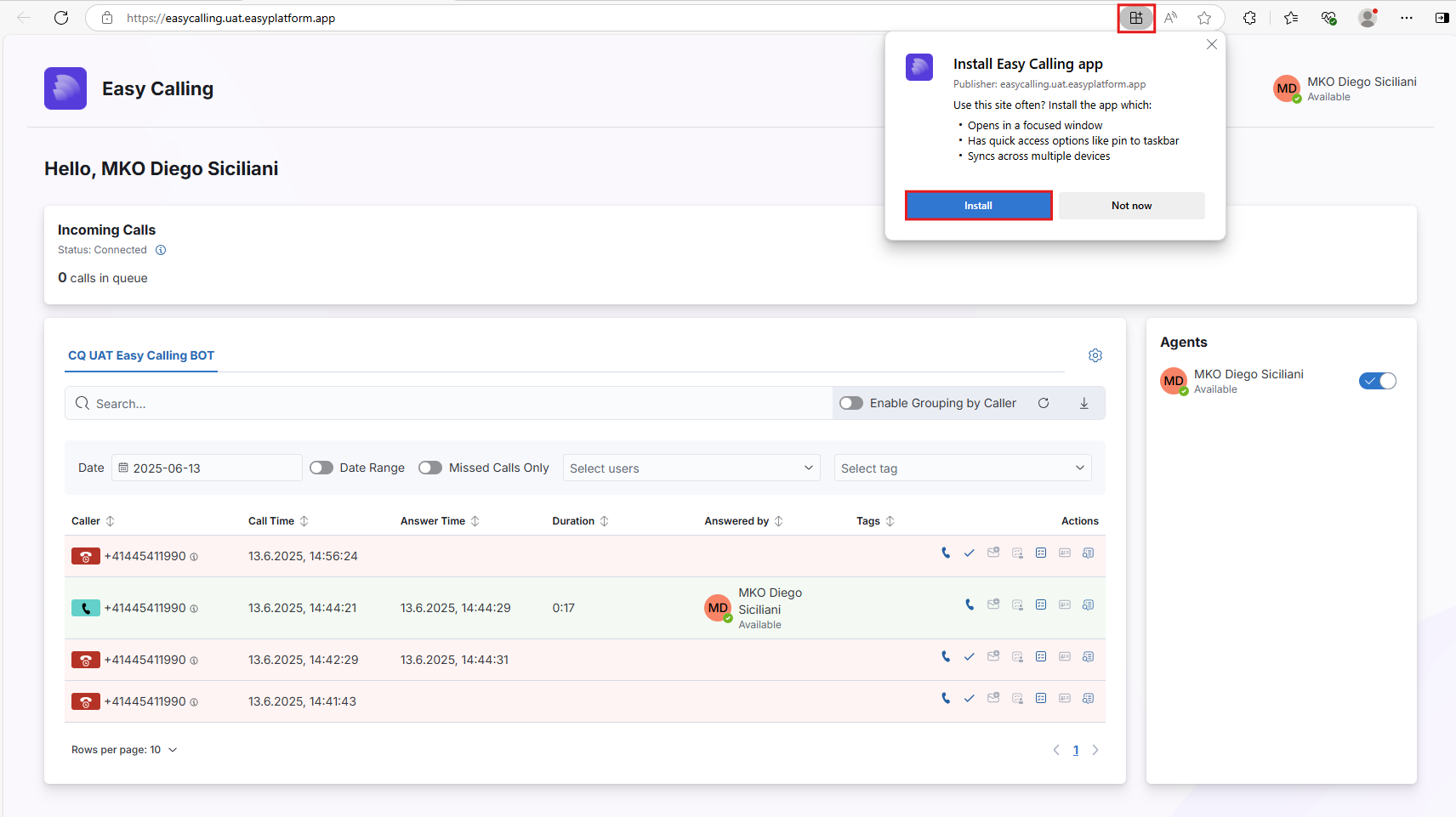
## Easy Calling

<table><thead><tr><th width="239.99993896484375">Permission</th><th width="351.666748046875">Description</th><th width="156.6666259765625">Type<select><option value="LBoB86I6aHG2" label="Application" color="blue"></option><option value="IzcIhKz6t57U" label="Delegated" color="blue"></option></select></th></tr></thead><tbody><tr><td>ChannelMember.Read.All</td><td>Read the members of channels (on behalf of signed-in user).</td><td><span data-option="IzcIhKz6t57U">Delegated</span></td></tr><tr><td>Presence.Read.All</td><td>Read presence information for all users (on behalf of signed-in user).</td><td><span data-option="IzcIhKz6t57U">Delegated</span></td></tr><tr><td>User.Read</td><td>Basic signed-in user profile.</td><td><span data-option="IzcIhKz6t57U">Delegated</span></td></tr><tr><td>User.Read.All</td><td>Read full profiles of all users.</td><td><span data-option="IzcIhKz6t57U">Delegated</span></td></tr><tr><td>CallEvents.Read.All</td><td>Read call event information for all users.</td><td><span data-option="LBoB86I6aHG2">Application</span></td></tr><tr><td>Calls.AccessMedia.All</td><td>Direct access to media streams in a call.</td><td><span data-option="LBoB86I6aHG2">Application</span></td></tr><tr><td>Calls.Initiate.All</td><td>Initiate 1:1 outbound calls and transfer calls.</td><td><span data-option="LBoB86I6aHG2">Application</span></td></tr><tr><td>Calls.InitiateGroupCall.All</td><td>Initiate outbound group calls and add participants.</td><td><span data-option="LBoB86I6aHG2">Application</span></td></tr><tr><td>Calls.JoinGroupCall.All</td><td>Join group calls and scheduled meetings (as app with user privileges).</td><td><span data-option="LBoB86I6aHG2">Application</span></td></tr><tr><td>Calls.JoinGroupCallAsGuest.All</td><td>Join group calls and meetings anonymously (guest).</td><td><span data-option="LBoB86I6aHG2">Application</span></td></tr><tr><td>ChannelMember.Read.All</td><td>Read members of all channels (no user context).</td><td><span data-option="LBoB86I6aHG2">Application</span></td></tr><tr><td>Presence.Read.All</td><td>Read presence info of all users (no user context).</td><td><span data-option="LBoB86I6aHG2">Application</span></td></tr><tr><td>TeamworkActivity.Send</td><td>Send teamwork activity notifications to any user.</td><td><span data-option="LBoB86I6aHG2">Application</span></td></tr><tr><td>User.Read.All</td><td>Read profiles of all users without a signed-in user.</td><td><span data-option="LBoB86I6aHG2">Application</span></td></tr></tbody></table>

**Optional features**

<table><thead><tr><th width="180.333251953125">Permission</th><th width="402.3333740234375">Description</th><th width="165.3333740234375">Type<select><option value="SCahpwXbhYhz" label="Delegated" color="blue"></option><option value="QffOyasFYM4w" label="Application" color="blue"></option></select></th></tr></thead><tbody><tr><td>Tasks.ReadWrite</td><td><p><strong>Planner integration</strong></p><p>Sync Easy Calling activities with Microsoft Planner when enabled.</p></td><td><span data-option="SCahpwXbhYhz">Delegated</span></td></tr><tr><td>Tasks.ReadWrite</td><td><p><strong>Personal tasks</strong></p><p>Allow agents to manage personal tasks from Easy Calling.</p></td><td><span data-option="SCahpwXbhYhz">Delegated</span></td></tr><tr><td>Contacts.ReadWrite</td><td><p><strong>Personal contacts</strong></p><p>Allow agents to access and update personal contacts.</p></td><td><span data-option="SCahpwXbhYhz">Delegated</span></td></tr><tr><td>Mail.Send</td><td><p><strong>Send mail from Easy Calling</strong></p><p>Send emails directly from Easy Calling conversations.</p></td><td><span data-option="SCahpwXbhYhz">Delegated</span></td></tr><tr><td>Chat.Create, ChatMessage.Send</td><td><p><strong>Send chat from Easy Calling</strong></p><p>Send Teams chat messages directly from Easy Calling conversations.</p></td><td><span data-option="SCahpwXbhYhz">Delegated</span></td></tr><tr><td><strong>Contacts.Read</strong> (Application) — on Easy Contact Sync</td><td><p><strong>Shared mailbox search</strong></p><p>Search and display contacts from a shared mailbox.</p></td><td><span data-option="QffOyasFYM4w">Application</span></td></tr></tbody></table>

## Easy Calling Configuration

<table><thead><tr><th width="196.33343505859375">Permission</th><th width="413.66650390625">Description</th><th width="126">Type<select><option value="KAgyRaBh5tiE" label="Delegated" color="blue"></option><option value="qhbolpUPTjUo" label="Application" color="blue"></option></select></th></tr></thead><tbody><tr><td>Team.ReadBasic.All</td><td>Read team names and descriptions (basic team metadata).</td><td><span data-option="KAgyRaBh5tiE">Delegated</span></td></tr><tr><td>Channel.ReadBasic.All</td><td>Read channel metadata with user context.</td><td><span data-option="KAgyRaBh5tiE">Delegated</span></td></tr><tr><td>Group.Read.All</td><td>Read Microsoft 365 groups across the tenant.</td><td><span data-option="KAgyRaBh5tiE">Delegated</span></td></tr><tr><td>Presence.Read.All</td><td>Read presence for all users on behalf of the admin.</td><td><span data-option="KAgyRaBh5tiE">Delegated</span></td></tr><tr><td>User.Read.All</td><td>Read full user profiles with user context.</td><td><span data-option="KAgyRaBh5tiE">Delegated</span></td></tr><tr><td>offline_access</td><td>Allow Easy Calling admin to refresh access tokens.</td><td><span data-option="KAgyRaBh5tiE">Delegated</span></td></tr><tr><td>openid</td><td>Enable OpenID Connect sign-in for Easy Calling admin.</td><td><span data-option="KAgyRaBh5tiE">Delegated</span></td></tr><tr><td>profile</td><td>Request standard profile claims for Easy Calling admin.</td><td><span data-option="KAgyRaBh5tiE">Delegated</span></td></tr><tr><td>user_impersonation</td><td>Access Microsoft Teams and Skype for Business data as the signed in user.</td><td><span data-option="KAgyRaBh5tiE">Delegated</span></td></tr></tbody></table>

## Easy Platform Configuration Portal App

<table><thead><tr><th width="180">Permission</th><th width="402">Description</th><th width="166">Type<select><option value="I3fXQlMw2hBp" label="Delegated" color="blue"></option></select></th></tr></thead><tbody><tr><td>Application.Read.All</td><td>Read applications and service principals on behalf of the signed-in user.</td><td><span data-option="I3fXQlMw2hBp">Delegated</span></td></tr><tr><td>Presence.Read.All</td><td>Read presence information of all users in your organization.</td><td><span data-option="I3fXQlMw2hBp">Delegated</span></td></tr><tr><td>email</td><td>View users' email address (OIDC email claim).</td><td><span data-option="I3fXQlMw2hBp">Delegated</span></td></tr><tr><td>offline_access</td><td>Maintain access to data you have given it access to (issue refresh tokens).</td><td><span data-option="I3fXQlMw2hBp">Delegated</span></td></tr><tr><td>openid</td><td>Sign users in (request ID token via OpenID Connect).</td><td><span data-option="I3fXQlMw2hBp">Delegated</span></td></tr><tr><td>profile</td><td>View basic profile information.</td><td><span data-option="I3fXQlMw2hBp">Delegated</span></td></tr><tr><td>User.Read</td><td>Sign in and read the signed-in user's profile.</td><td><span data-option="I3fXQlMw2hBp">Delegated</span></td></tr><tr><td>User.Read.All</td><td>Read full profiles of all users in the organization.</td><td><span data-option="I3fXQlMw2hBp">Delegated</span></td></tr></tbody></table>

**Optional features**

<table><thead><tr><th width="180.333251953125">Permission</th><th width="402.3333740234375">Description</th><th>Type<select><option value="SCahpwXbhYhz" label="Delegated" color="blue"></option></select></th></tr></thead><tbody><tr><td>CrossTenantInformation.ReadBasic.All</td><td><p><strong>Reseller tenant name resolution</strong></p><p>Show customer tenant display names (instead of only tenant IDs) in reseller subscriptions.</p></td><td><span data-option="SCahpwXbhYhz">Delegated</span></td></tr></tbody></table>


# Webhook Integration

Easy Calling can invoke **external HTTP endpoints** (“webhooks”) during the call lifecycle. These are used to integrate with external systems (e.g., ticketing, CRM, analytics, custom automations).

This document is intended for **external developers** integrating their services with Easy Calling.

## Overview

Easy Calling supports call event notifications to a webhook URL configured per Voice App:

* **Begin-call notification** (call started)
* **End-call notification** (call completed)

## Events

### Begin-call notification

**What it represents**

* A call has been created/answered by the system and is now active within the Easy Calling lifecycle.

**When it is sent**

* Near the beginning of call processing, shortly after the call record has been created.

**Configuration key**

* `BeginCallEventProcessingUrl`

### End-call notification

**What it represents**

* A call has ended (terminated/completed). The payload includes the final call state as known to Easy Calling at the time of sending.

**When it is sent**

* During termination processing after the call is considered ended.

**Configuration key**

* `EndCallEventProcessingUrl`

## Request format

* Method: `POST`
* Content-Type: `application/json`
* Body: a JSON object representing the call record.

### Delivery expectations

Because call processing can be distributed and events can be retried upstream of your service, your webhook handler should be:
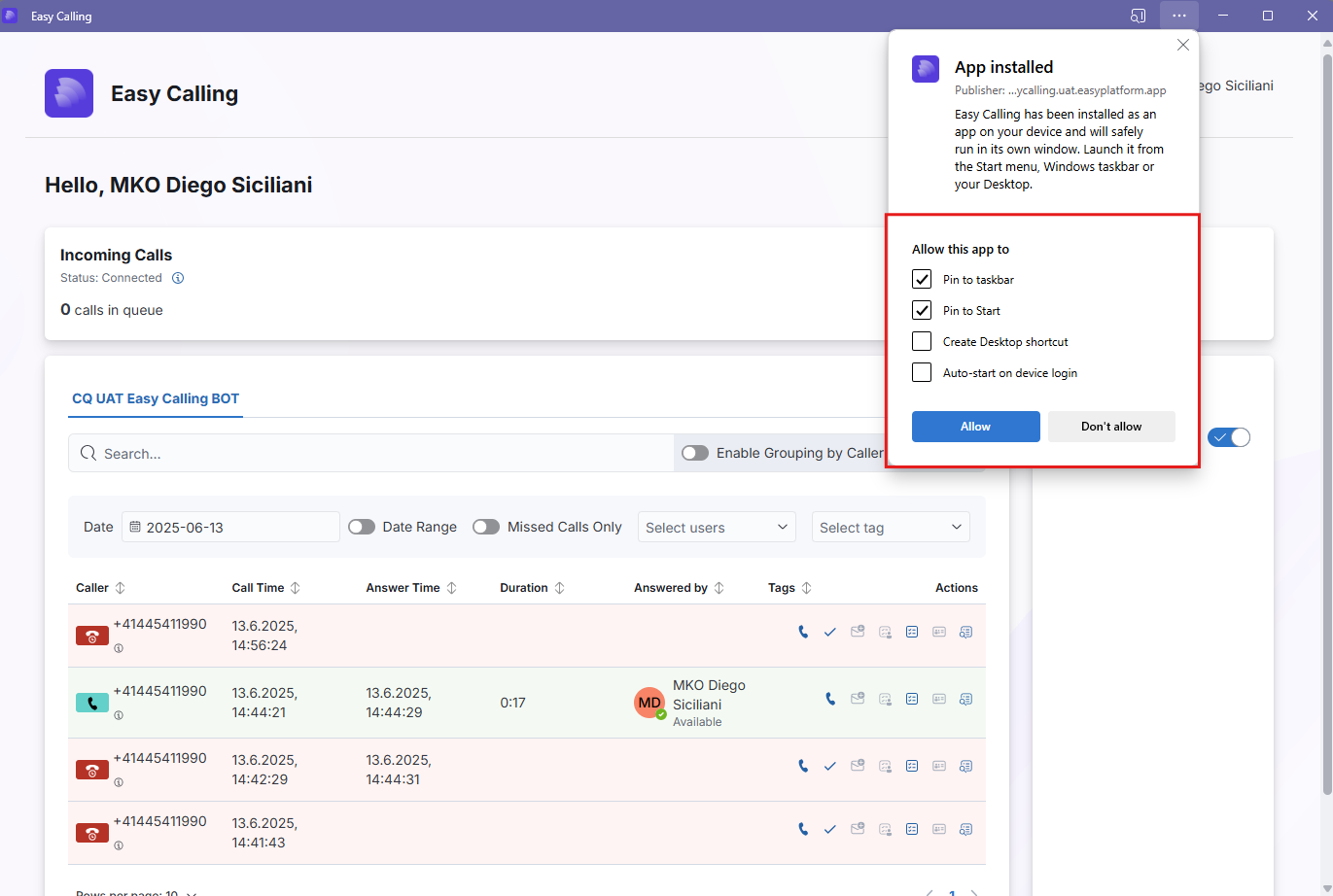
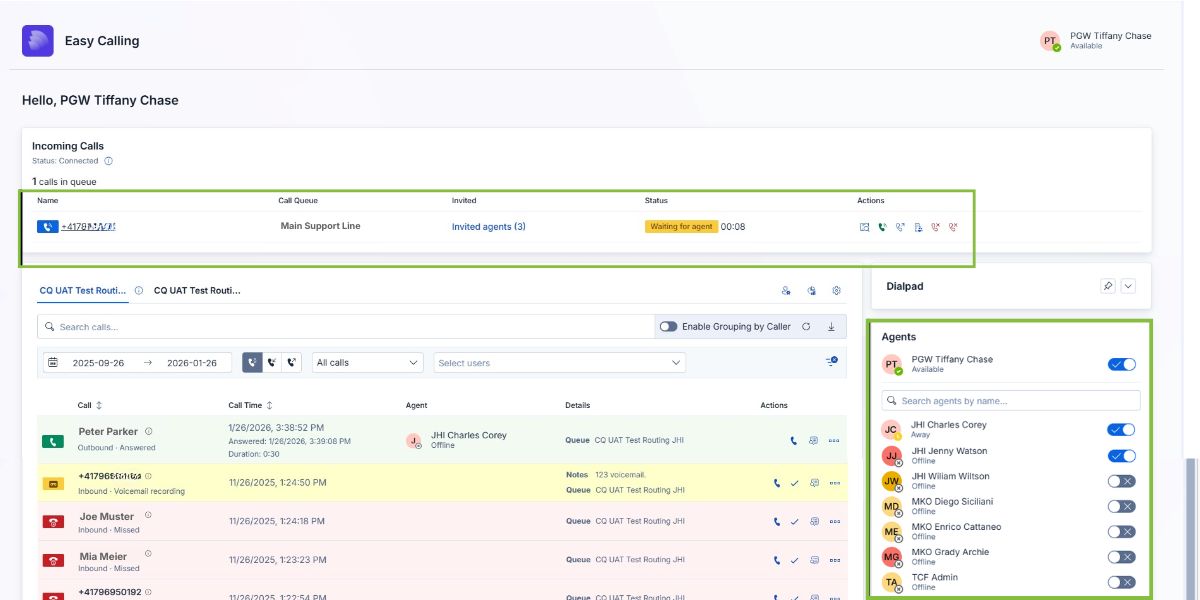
* **Idempotent**: handle potential duplicates using a stable key such as `activeCallId` (and/or `correlationId`).
* **Fast**: respond with `2xx` quickly and enqueue work for asynchronous processing.
* **Tolerant**: ignore unknown fields and handle missing optional fields.

### Success / failure

* A `2xx` response is treated as success.
* A non-`2xx` response is treated as failure.

## Payload

The webhook payload is a JSON representation of the Easy Calling call record.

Notes:

* Field names and presence can vary by call type and configuration.
* Additional fields may be added over time; consumers should ignore unknown fields.
* The payload may contain personally identifiable information (PII). Handle it accordingly.

### CallType

`CallType` is an integer that describes the overall classification of the call. Treat this as an enum value:

Known values:

| Value | Meaning              |
| ----: | -------------------- |
|     0 | GenericCall          |
|     1 | AnsweredCall         |
|     2 | MissedCall           |
|     3 | InitialAnsweredCall  |
|     4 | ActiveCall           |
|     5 | VoiceMail            |
|     6 | CallTransfered       |
|     7 | CallAnsweredManually |
|     8 | OutboundCall         |

Forward-compatibility:

* Do not hard-fail on unknown `CallType` values; new values may be introduced.
* If you build routing/analytics based on `CallType`, prefer a safe default branch for unknown values.

### Example payload (dummy data)

This is a real-world payload structure filled with dummy data. Values like phone numbers, tenant IDs, app IDs, names, and emails are fictitious.

```json
{
  "CallType": 4,
  "CorrelationId": "7c7f9b2a-2e2b-4e7b-8a7f-3f4c6f4c1b2a",
  "TenantId": "11111111-2222-3333-4444-555555555555",
  "Caller": "+41791234567",
  "StartDateTime": "2026-01-19T15:30:08.4806311Z",
  "EndDateTime": "2026-01-19T15:30:38.4806311Z",
  "TimeZone": "W. Europe Standard Time",
  "TransferHistory": [],
  "LookupResult": {
    "IsSuccessfulResult": false,
    "Id": "+41791234567",
    "Name": "+41791234567",
    "Company": "",
    "Phone": "+41791234567",
    "MobilePhone": "",
    "Email": "",
    "Website": "",
    "Address": "",
    "Zip": "",
    "City": "",
    "State": "",
    "Country": ""
  },
  "VoiceApp": {
    "TenantId": "11111111-2222-3333-4444-555555555555",
    "VoiceAppId": "b8c2c7d1-6d0a-4a6c-bb7d-9ad2aa72c6ef",
    "VoiceAppType": 2,
    "VoiceAppName": "Demo Location West",
    "ApplicationId": "5d7b4f8c-1d03-4fd2-a1e8-6b7c9f9c2e10",
    "IsRealTime": true,
    "EnableNotes": true,
    "TeamsRoutingEnabled": false,
    "Description": "Demo Location West",
    "AvailableTags": [
      { "id": "c2c8f0a3-4e6f-4a3c-8b8f-5b0f6f8b7a12", "label": "Appointment" },
      { "id": "9fd2c1a4-7b1d-4d2a-9d10-9e1c2b3a4d5e", "label": "Payment" }
    ],
    "ShowAnsweredCalls": true,
    "ShowNotificationInChannel": false,
    "CallingConfiguration": {
      "MaxConcurrentCalls": 3,
      "IgnoreAgentAvailability": true,
      "ConsiderPresenceStatus": true,
      "WaitingTimeout": 60,
      "VoicemailEnabled": true,
      "AllowCallTransfer": true,
      "ToneConfigurationsEnabled": false,
      "ToneConfigurations": [],
      "RoutingConfiguration": {
        "Method": 0,
        "AgentResponseTimeoutSeconds": 60,
        "MaxAgentsToTryInSerial": 5
      },
      "Managers": [
        {
          "id": "3a8f0f2e-7d2a-4a9a-9c2b-0f1e2d3c4b5a",
          "displayName": "Alex Manager",
          "userPrincipalName": "alex.manager@example.invalid",
          "mail": "alex.manager@example.invalid",
          "jobTitle": "",
          "department": ""
        }
      ],
      "Agents": [
        {
          "id": "8d1d2c3b-4a5e-4c6d-8e7f-9012a3b4c5d6",
          "displayName": "Jamie Agent",
          "userPrincipalName": "jamie.agent@example.invalid",
          "mail": "jamie.agent@example.invalid",
          "jobTitle": "",
          "department": ""
        }
      ],
      "WaitingMusicUrl": "2ad2b3c4-d5e6-4f70-8a9b-1c2d3e4f5a6b",
      "VoicemailGreetingUrl": "6f5e4d3c-2b1a-4098-8f7e-6d5c4b3a2f1e",
      "ForwardBehavior": {
        "BehaviorType": 0,
        "TargetId": "",
        "TargetName": ""
      }
    },
    "TimeZone": "W. Europe Standard Time",
    "Language": "de-de",
    "TabPageId": "configureTab",
    "NotificationConfigurations": [],
    "_etag": "\"etag-demo-voiceapp\"",
    "_ts": 0,
    "id": "b8c2c7d1-6d0a-4a6c-bb7d-9ad2aa72c6ef",
    "type": "VoiceApp"
  },
  "HasBeenNotified": false,
  "Comment": "",
  "HandledByUserIds": [],
  "Tags": [],
  "Transcription": "",
  "State": 2,
  "ActiveCallId": "0d003480-d90e-479a-a4e0-99086a14f9a1",
  "ApplicationInstance": "b8c2c7d1-6d0a-4a6c-bb7d-9ad2aa72c6ef",
  "CallQueue": "",
  "Description": "",
  "ChannelId": "",
  "_etag": "\"etag-demo-easycall\"",
  "id": "7195b91d-8598-4a70-8d6d-c1ee4e732627",
  "type": "EasyCall",

  "_rid": "demoRid==",
  "_self": "dbs/demo==/colls/demo==/docs/demo==/",
  "_attachments": "attachments/",
  "_ts": 1768836611
}
```

Notes:

* Use `ActiveCallId` (and/or `CorrelationId`) for idempotency/deduplication.
* Fields starting with `_` are internal metadata and should be treated as optional.

## Security guidance

* Only accept requests over HTTPS.
* Validate the sender using an agreed mechanism (e.g., shared secret header, request signing, mTLS) based on your deployment.
* Treat payload data as sensitive and apply appropriate retention and access controls.


# Lookup Integration

Integrating a custom lookup resource (Easy Lookup)

Easy Calling enriches calls with caller information (name, company, address, etc.) by running a lookup pipeline during call setup.

This document is intended for *external developers* integrating a custom lookup backend (“Easy Lookup”).

It explains:

* When caller lookup happens
* Which lookup sources are queried (and in which order)
* How to implement a compatible lookup service

### What gets enriched

Easy Calling keeps two concepts separate:

* **Caller**: the raw caller identity (typically the dialable phone number in E.164, or a user identity for internal callers).
* **LookupResult**: display-focused enrichment data (name/company/address/etc.) shown in the UI and notifications.

Lookup enrichment updates **LookupResult** and does not replace the raw caller identity.

### When lookup runs

Lookup is executed when needed, for example when:

* No lookup result exists yet.
* The current lookup result is incomplete.

While lookup is in progress, the UI may show a dedicated “resolving” state.

### Lookup sources and order

Lookup is evaluated in a fixed order (first match wins). Depending on tenant configuration and the caller identity, Easy Calling may query:

1. **Directory lookup for internal callers** (e.g., GUID / email-like identities)
2. **VIP caller mapping** (Voice App configuration)
3. **Custom lookup (Easy Lookup)**
4. **Shared mailbox contacts** (Easy Contact Sync)
5. **Microsoft Entra ID lookup**
6. **Public directory lookup** (e.g., search.ch, if enabled)
7. **Fallback** (no enrichment; the caller number is used as display)

The order can evolve over time; integrations should not rely on being the *only* lookup source.

### Integrating a custom lookup resource (Easy Lookup)

“Easy Lookup” is the built-in mechanism for integrating an external contact system without syncing into a mailbox.

#### Configuration (tenant level)

Custom lookup is driven by the tenant configuration. The adminitrator can configure the Lookup settings in the Easy Platform Configuration Center.<br>

<figure><img src="https://8483818-files.gitbook.io/~/files/v0/b/gitbook-x-prod.appspot.com/o/spaces%2FdKIXVVI8Ve4TBJ4ft1WC%2Fuploads%2Fgit-blob-66e84964928ef13f20977b4f673434d68dad37e4%2Fimage.png?alt=media" alt=""><figcaption></figcaption></figure>

#### How Easy Calling calls your endpoint

Easy Calling performs the custom lookup using the Easy Platform Lookup Service (custom lookup). That implementation makes a **server-to-server HTTP POST** request to the configured `EasyLookupUrl`.

**HTTP request**

* **Method**: `POST`
* **URL**: exactly the value of `EasyLookupUrl` (no additional path is appended)
* **Headers**:
  * `Content-Type: application/json; charset=utf-8`
  * No additional auth / correlation headers are sent by default.
* **Body** (JSON):

Request body is JSON with a single field:

* `phoneNumber`: the caller identifier to look up (E.164 number like `+41...`).

{% hint style="info" %}
Notes:

* The request field name is **`phoneNumber` (camelCase)**. This is intentionally different from the usual PascalCase used in many Easy Calling payloads.
* The value is whatever Easy Calling currently considers the “caller” (often an E.164 number like `+41...`, but it can also be other caller identifiers depending on call type).
  {% endhint %}

**HTTP response**

On a match, respond with:

* **Status**: `200 OK`
* **Body**: a JSON object that contains the response fields listed below.

Response fields:

* `Id`
* `Name`
* `Company`
* `Address`
* `Zip`
* `City`
* `State`
* `Country`
* `Phone`
* `MobilePhone`
* `Email`
* `Website`
* `IsSuccessfulResult`

Full JSON response (all fields):

```json
{
  "Id": "customer-12345",
  "Name": "Taylor Example",
  "Company": "Example Corp",
  "Address": "Example Street 1",
  "Zip": "8000",
  "City": "Zurich",
  "State": "ZH",
  "Country": "CH",
  "Phone": "+41441234567",
  "MobilePhone": "+41791234567",
  "Email": "taylor.example@example.invalid",
  "Website": "https://example.invalid",
  "IsSuccessfulResult": true
}
```

Important behavior notes (first match wins):

* If your endpoint returns **any 2xx response**, Easy Calling will treat it as a **successful custom lookup** and will **not query later sources** (shared mailbox contacts / Entra ID / public directory / fallback).
* For that reason, if you have **no match**, do **not** return `200 OK` with an “empty” object.

**“No match” behavior (important)**

To allow Easy Calling to fall back to the next lookup source, return a **non-2xx** status code when you have no match.

* **Recommended**: `404 Not Found`
* Also acceptable: any other non-2xx that you consider semantically correct (e.g., `204 No Content` is discouraged because it can create noisy error logs).

Avoid:

* `200 OK` with `IsSuccessfulResult = false` or an empty `Name` — Easy Calling will still treat this as a match and stop the pipeline.
* `200 OK` with an empty/null response body — it will be treated as an error and logged.

**Retry and timeout behavior**

The EasyPlatform.Core lookup client uses a small retry policy:

* Retries up to **3 times** on `429 Too Many Requests` and on **5xx** responses.
* Backoff is exponential: approximately **2s, 4s, 8s** between retries.
* Other status codes (e.g., `401`, `403`, `404`) are **not retried**.
* Network exceptions are not guaranteed to be retried (the retry policy primarily handles HTTP status codes).

The underlying `HttpClient` uses the default .NET timeout behavior. Keep your endpoint fast (low seconds) to avoid delaying call setup.

**Authentication and securing the endpoint**

The custom lookup client does **not** send an Authorization header or any custom shared-secret header by default. If you need to secure the endpoint, typical options are:

* Put the endpoint behind an API gateway / reverse proxy and restrict access by **IP allow-list** / private networking.
* Use **mTLS** at the gateway edge.

If you require header-based authentication (API key, HMAC signing, OAuth, …), Easy Calling must be explicitly extended to send those headers.

#### What your lookup service must return

Your service should return a JSON object with the fields below.

Property naming:

* Use **PascalCase** property names (as shown) for the response.
* Do not rely on case-insensitive JSON mapping.

The UI and adaptive cards use the following fields (based on how `CallNotificationService` maps them):

* `Id`
* `Name`
* `Company`
* `Address`
* `Zip`
* `City`
* `State`
* `Country`
* `Phone`
* `MobilePhone`
* `Email`
* `Website`
* `IsSuccessfulResult`

A typical successful response should set `IsSuccessfulResult = true` and populate as many fields as possible.

If no match exists, return a **non-2xx** status (recommended: `404 Not Found`) so Easy Calling can fall back to other lookup sources.

#### Input normalization recommendations

To maximize match rates, normalize numbers in your lookup service:

* Prefer E.164 (`+41...`, `+49...`, etc.).
* Consider trimming spaces, hyphens, parentheses.
* If your backend stores national format, normalize both sides consistently.

#### Security considerations

Your lookup endpoint is called server-to-server by Easy Calling.

* Ensure the endpoint is not publicly open without authentication.
* If you want to enforce query-based auth (API key recommended)

### Troubleshooting

If lookup doesn’t enrich as expected:

* Confirm `EnableEasyLookup` is enabled and `EasyLookupUrl` is set for the tenant.
* Confirm your lookup endpoint is reachable from the bot runtime environment.
* Confirm the response is valid JSON and sets `IsSuccessfulResult = true` for a match.
* If you intentionally have no match, return a non-2xx (recommended: `404 Not Found`).